As a Sales/Production Order can be created for multiple garment colours it is important that the correct components are associated by colour to be ordered, allocated and display on the docket.
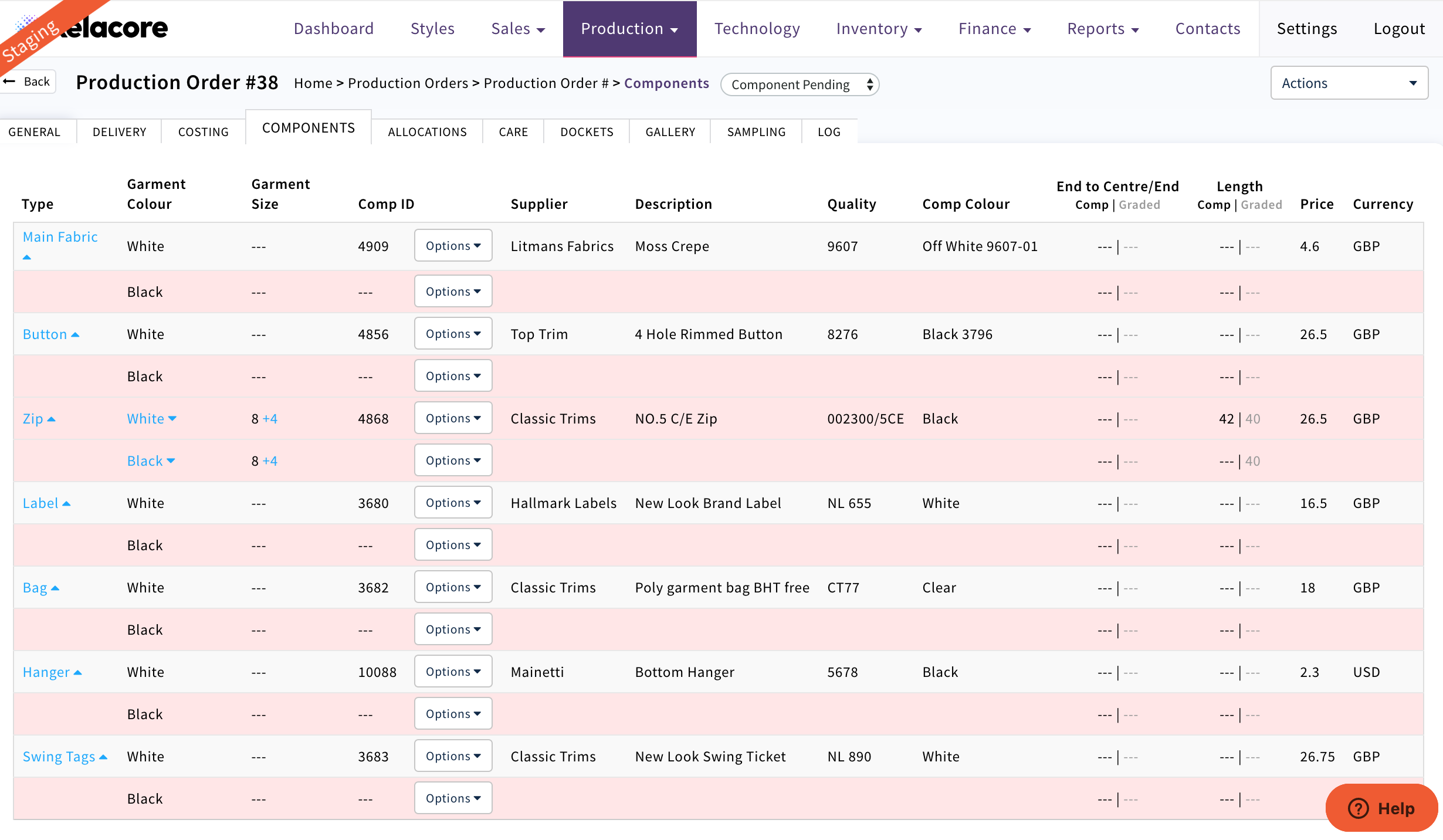
Select the components tab. All the components will first display Red until they are selected at which point they will display White
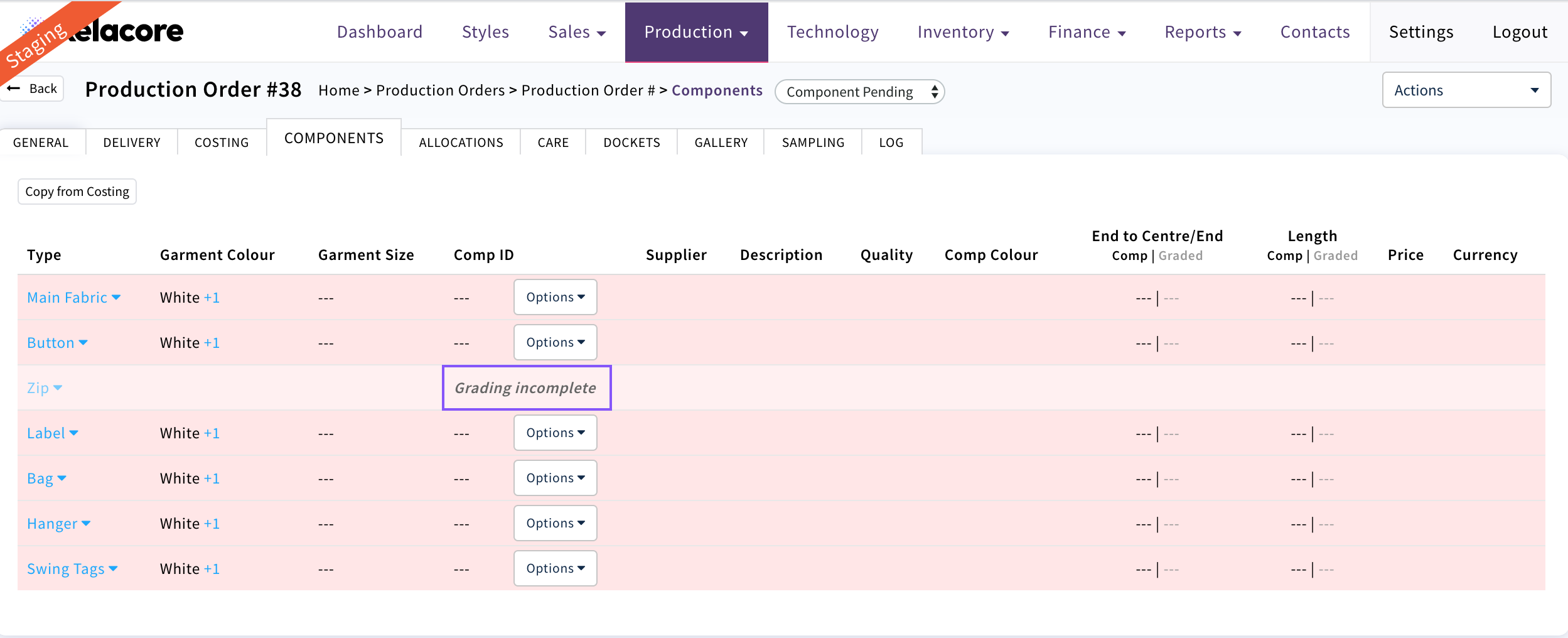
Any Graded components i.e. belts, zips, graded trims will display as 'Grading Incomplete' until completed by the Garment Technologist in Technology /Grading against that Production Order
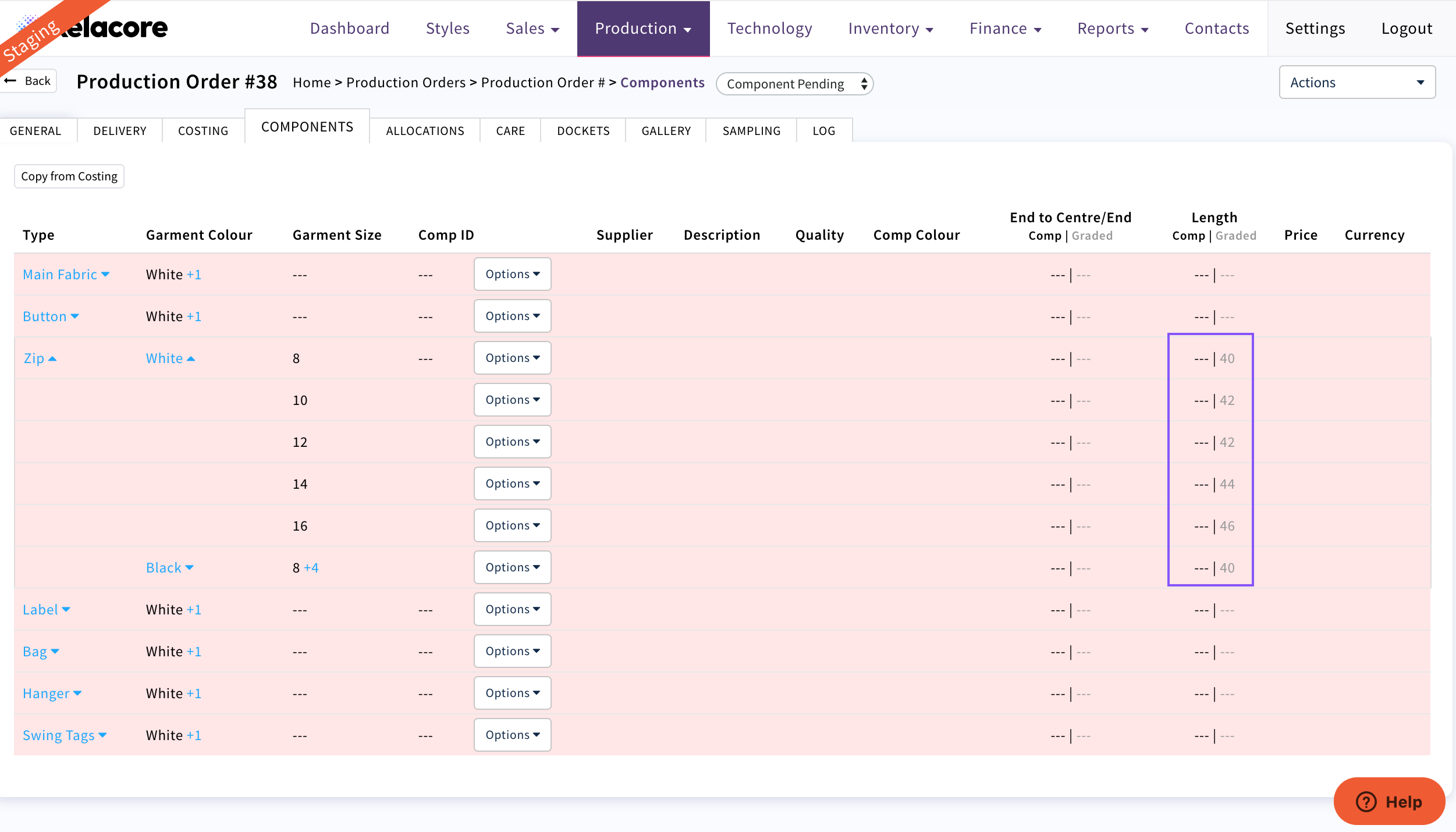
Once completed the Graded component will display which size component is required as this may vary
E.G. different zip belts may be required for different size garments
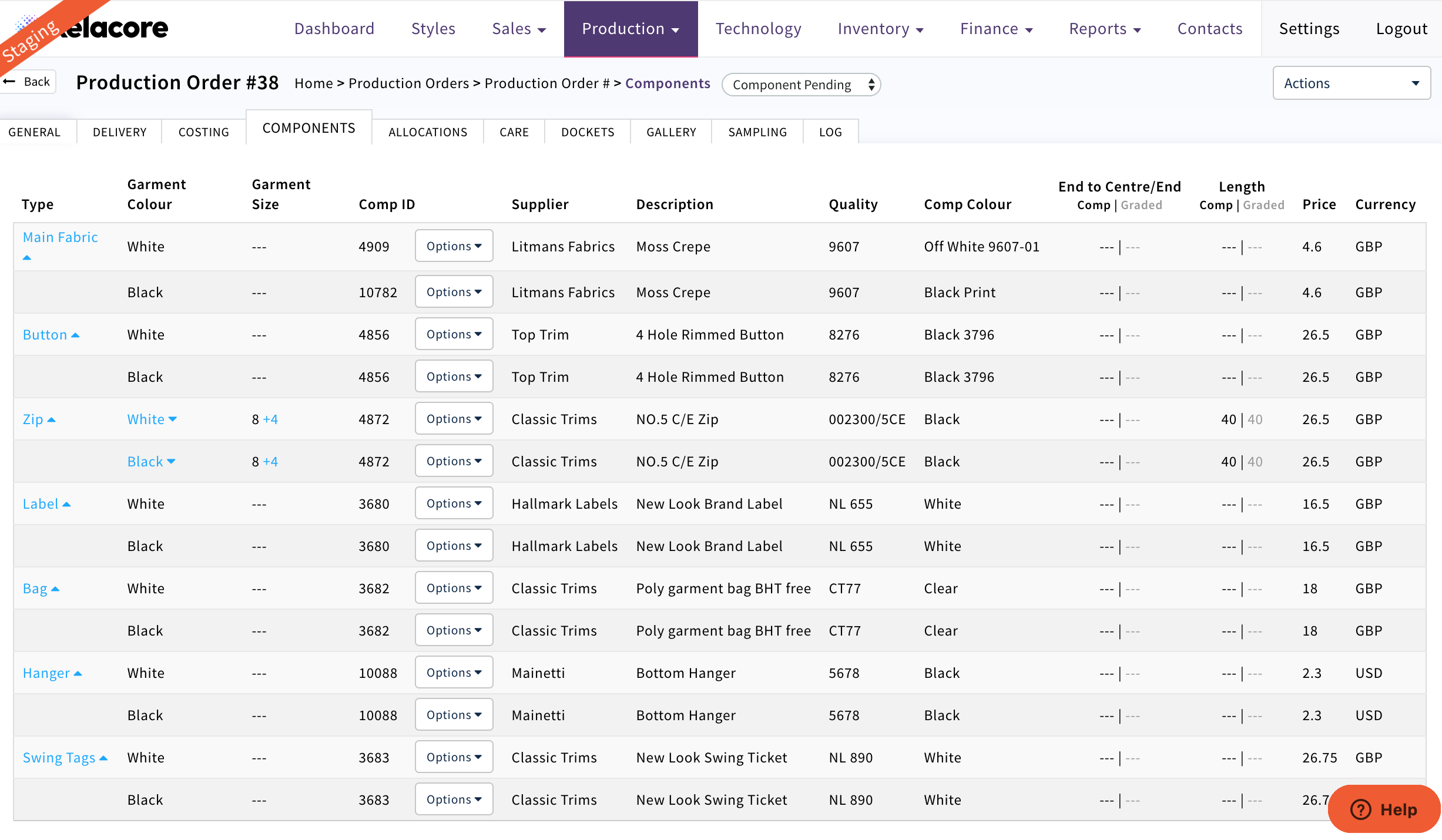
Once Technology/Grading is complete components will then display as below
As long as the first colour in the Sales Order delivery page was the colour on the costing page the 'Copy from Costing' button can be used to pull all of the components through from the costing page against the first colour.
If the Order only has one colour once 'Copy from Costing' is applied only any graded components may need to be completed by size
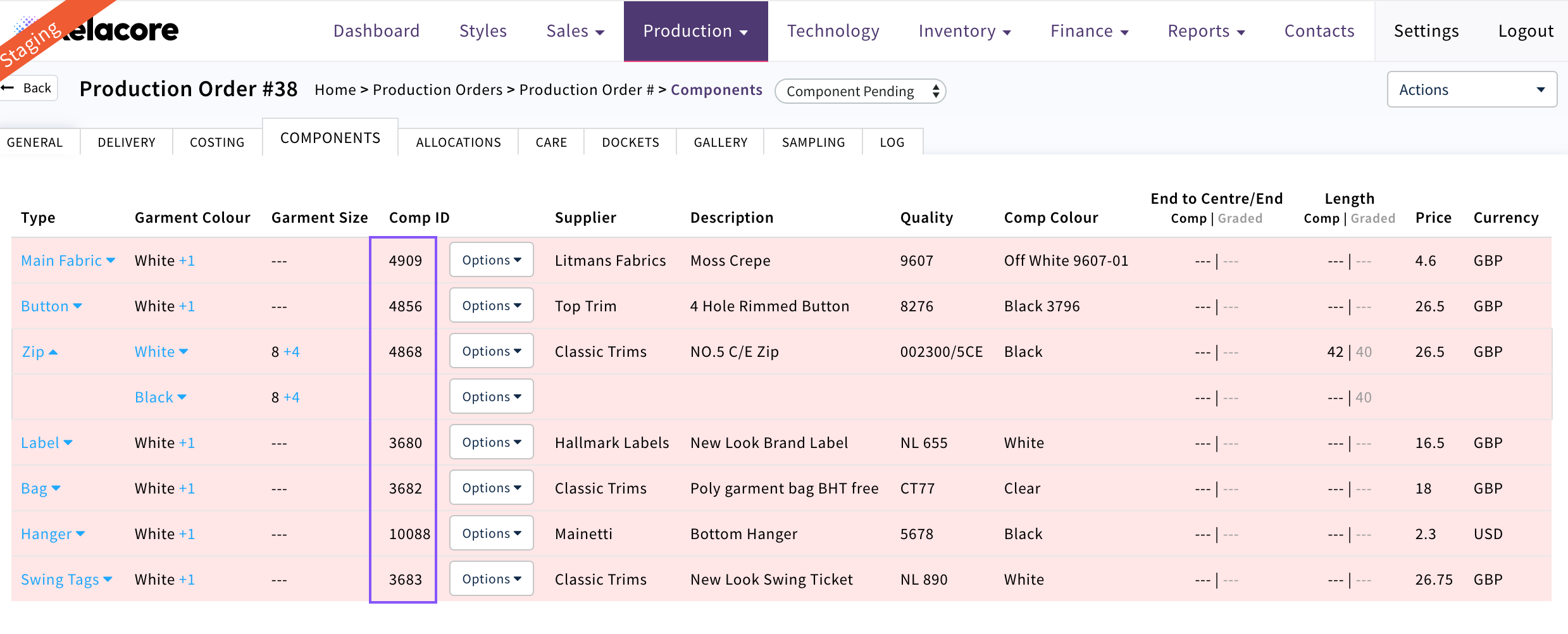
Components will still display Red if it is a multi Colour Order as the additional colour components need to be selected to do this click on icon to open by component type/colour

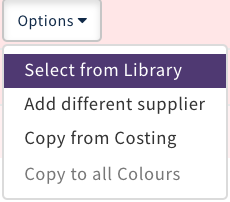
Use 'Options' 'Select from Library' for additional colours
Only variants of the component will display but any component can be searched and selected by unselecting the 'Show by variants' button. Be aware that if a component from a different Supplier is selected this may vary from the costing so may impact the profit margin
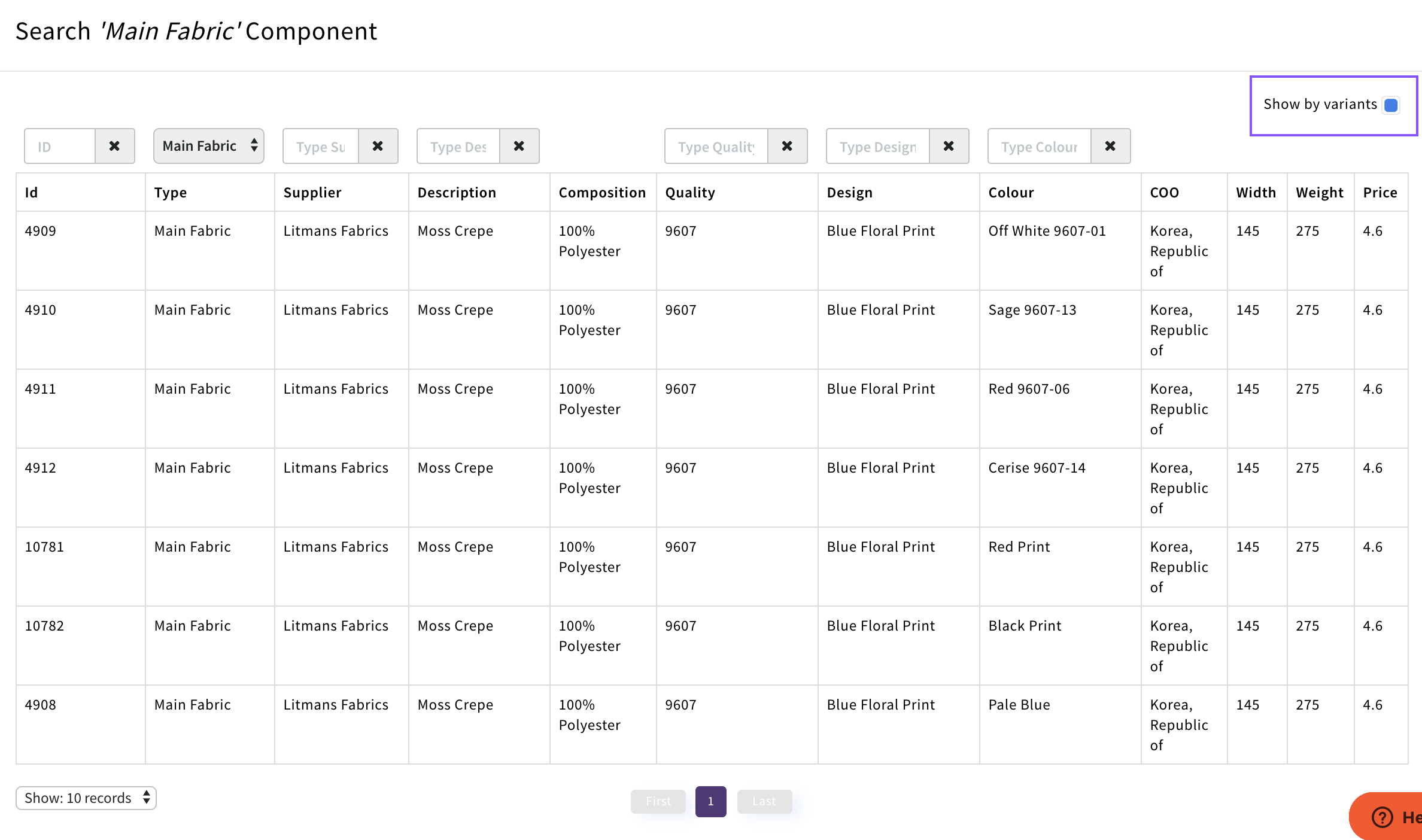
Select the component required it will then display white

Continue for all non graded components.
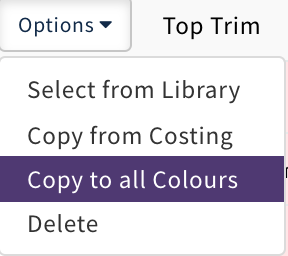
If the same component is required for all Colours select 'Copy to all Colours'
For graded Components this association has to be done by size. You can check that the size selected matches the Technology/ Grading suggestion.

If the Graded component is the same for all sizes use 'Copy to all Sizes'

If the Graded component is the same for all of the sizes/colours you can use the 'Copy to all Sizes on all Colours'
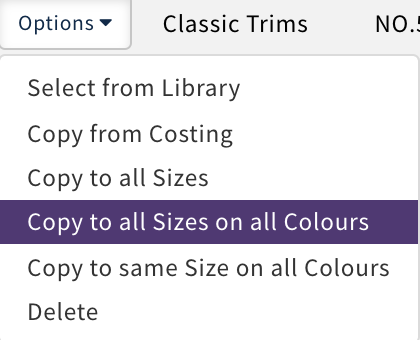
If the same colour component can be used on all Colours use the 'Copy to same Size on all Colours'
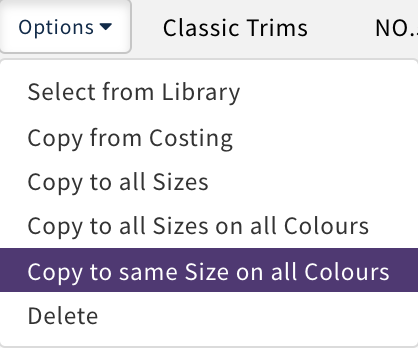
If a component needs to be changed use the 'Delete' option then re-select the new component
Once all Components have been associated it will all display White
If a graded component has been selected and is a different size to what is recommended by the Garment Technologist in Grading then it will display Red as below.
Component to be fulfilled from more than one Supplier
If you wish to use two or more suppliers to fulfil the quantity required on a component you can use the 'Add different Supplier' option in the drop down e.g. you may have some stock fabric that is the same quality that cannot fulfil the total quantity for the production order and then want to purchase the additional quantity from another supplier
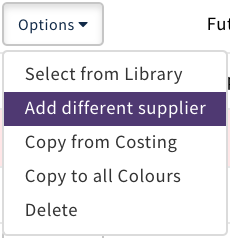
Select and the library will open filtered on the component type. Search by Supplier or quality to find the additional component ID required.
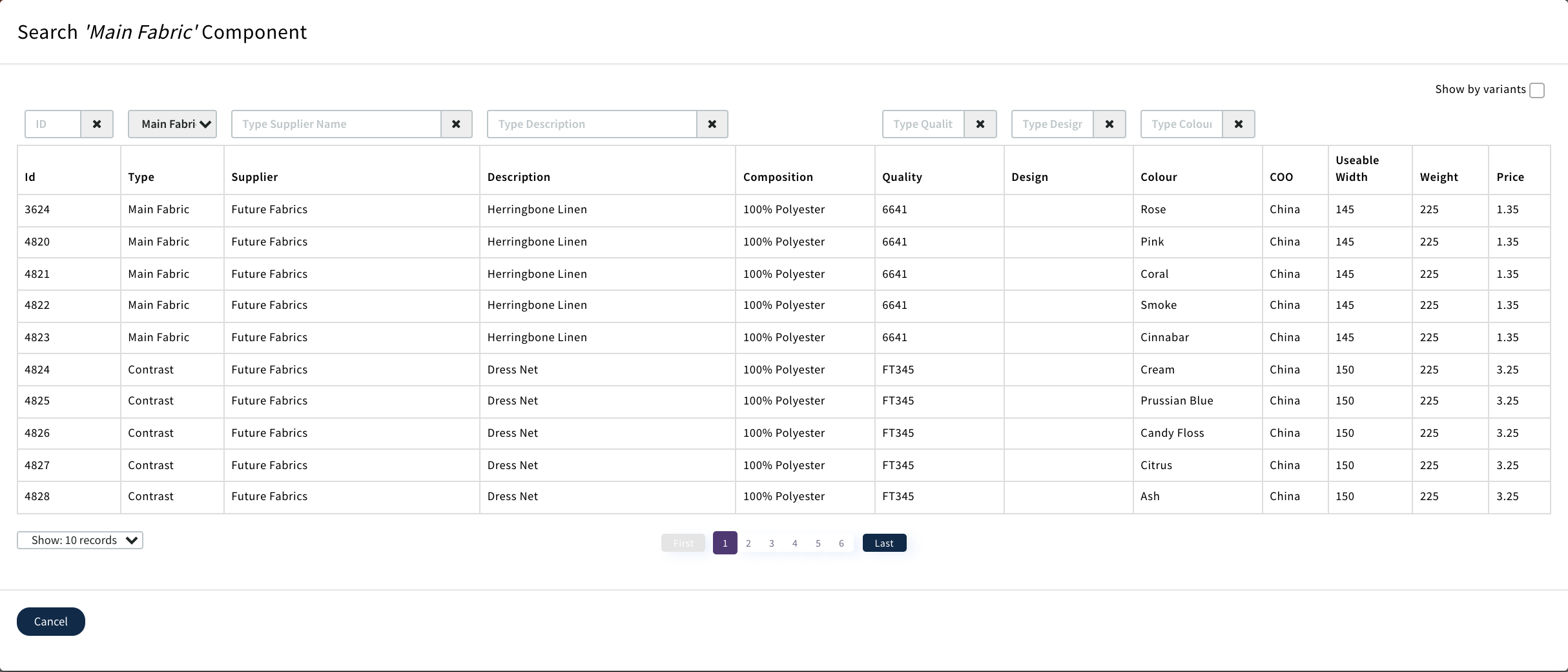
Now when you open the allocations page you can fulfil the quantity required for this component/ colour across the multiple components selected
You can now move to 'Allocations' tab
0 Comments