
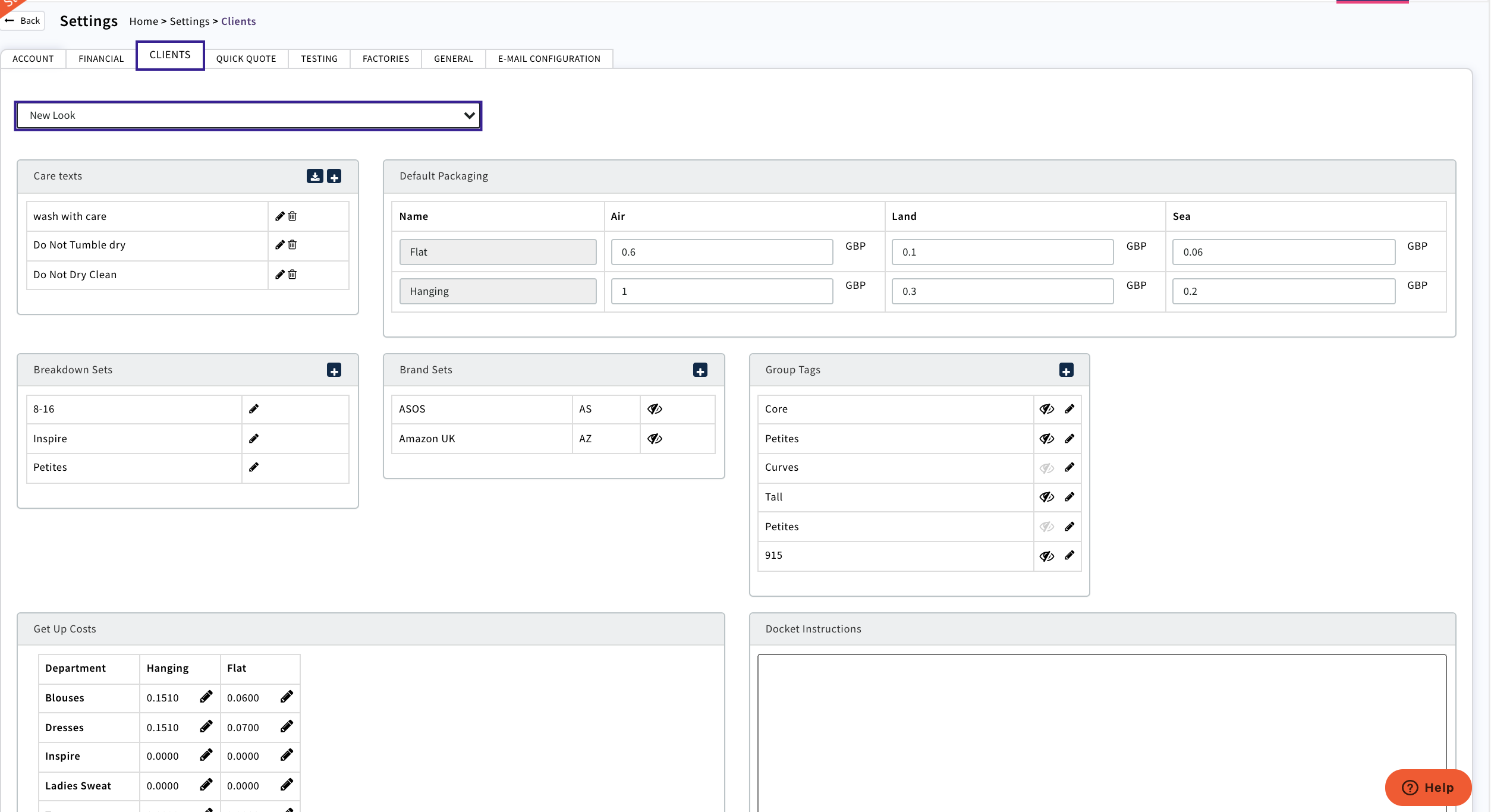
The Clients tab holds additional information that will be used when creating Sales/Production Orders
- Care Text
- Breakdown Sets
- Default Packaging
- Brand Sets
- Group Tags
- Get Up Costs
- Docket Instructions
Select Your Client that you need to add or edit details
Care Text
These details are additional instructions that need to be printed on the woven care label that is going to be attached to finished goods
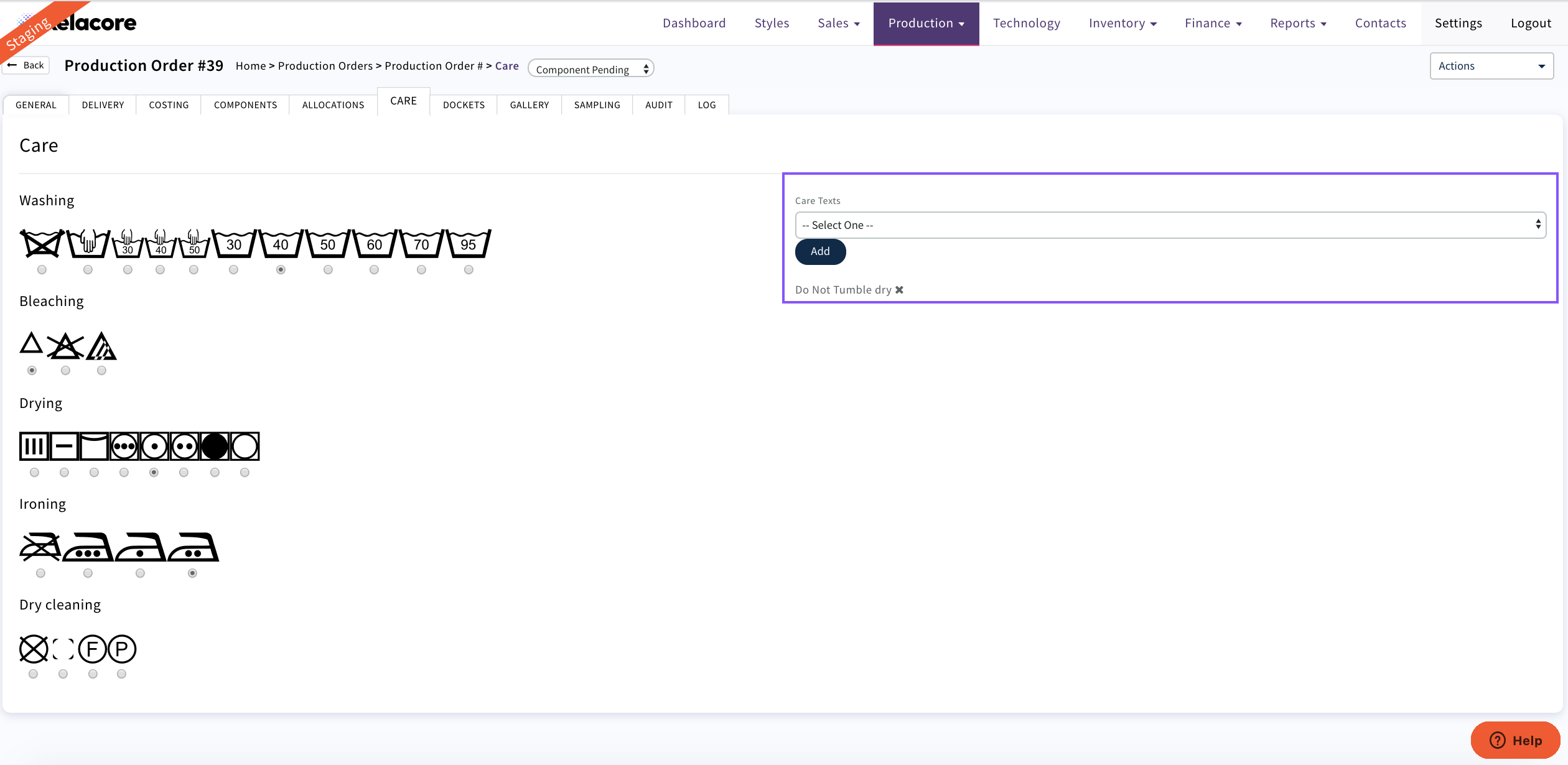
Any Instructions set up here are then available for selection on Production Orders Care tab
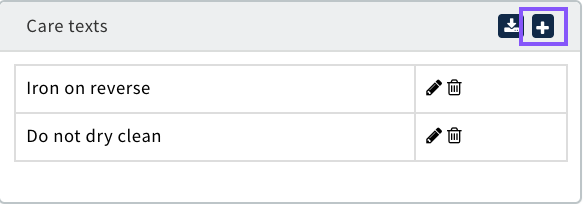
To add new care text select + icon
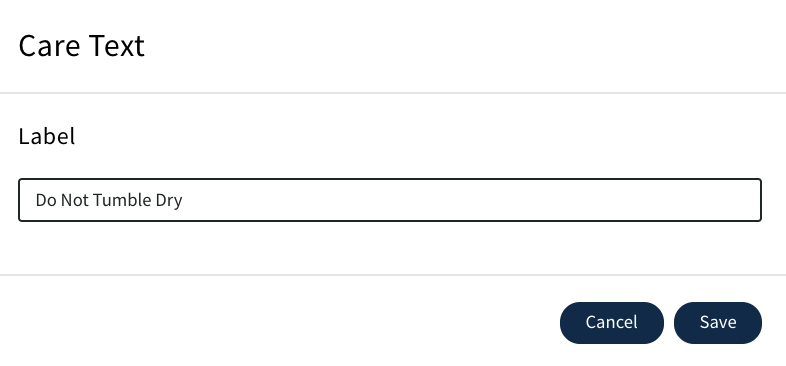
Complete new text and 'Save'
New Text will now display and be available for selection
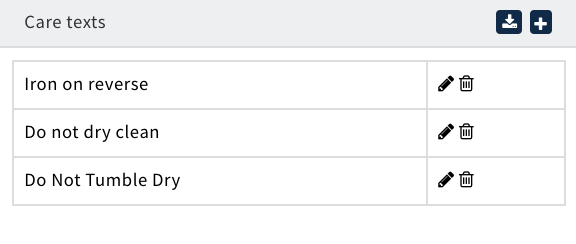
These can be edited or deleted at any time using

Breakdown Sets
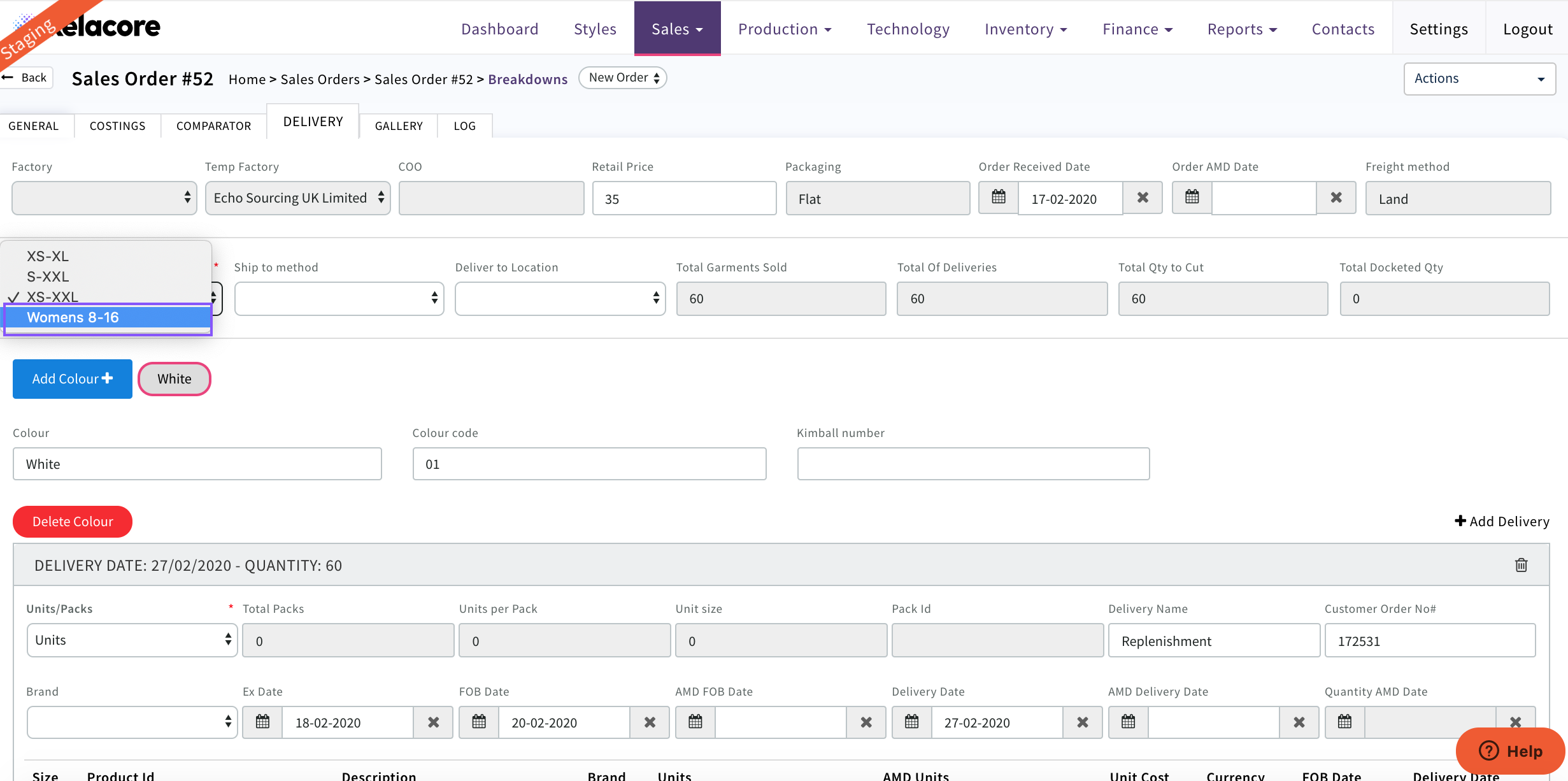
These are the size groups that your Clients raise orders for. Once the breakdown set is created it will be available to be selected on a Sales Order so that the product ID's provided by your Client can be associated by size and an order raised by size. A Breakdown set CANNOT be deleted once created only an additional size added
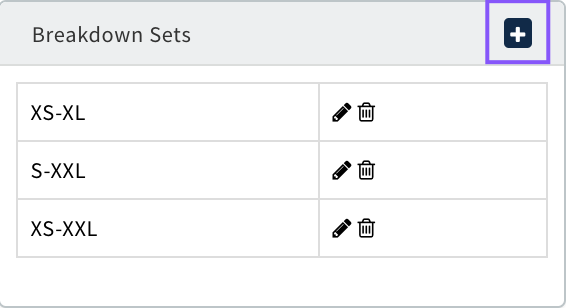
To set up a new breakdown set use +
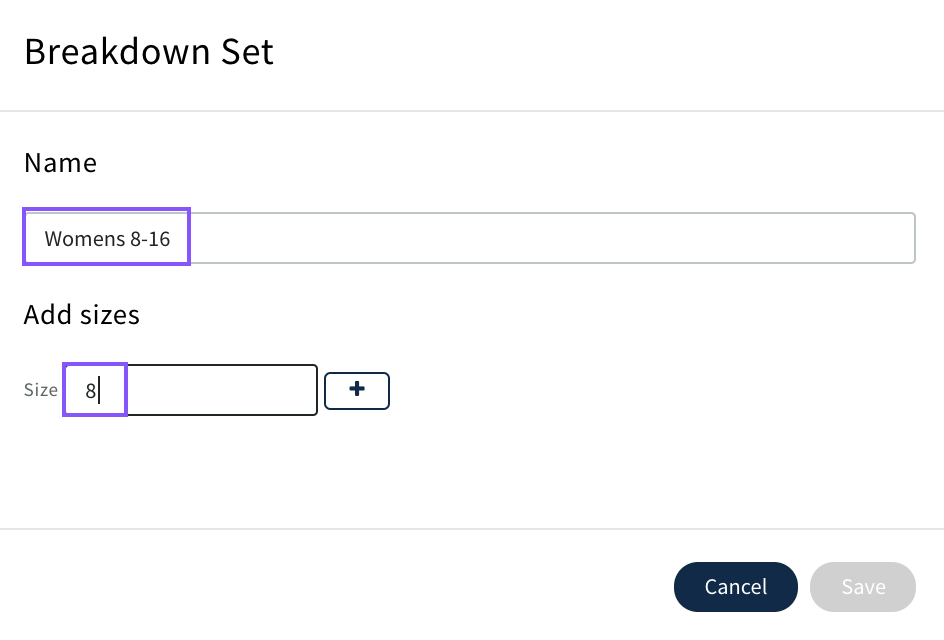
Create a new name for the breakdown set
Add each size in the order that you want them to appear. CLICK 'Save'
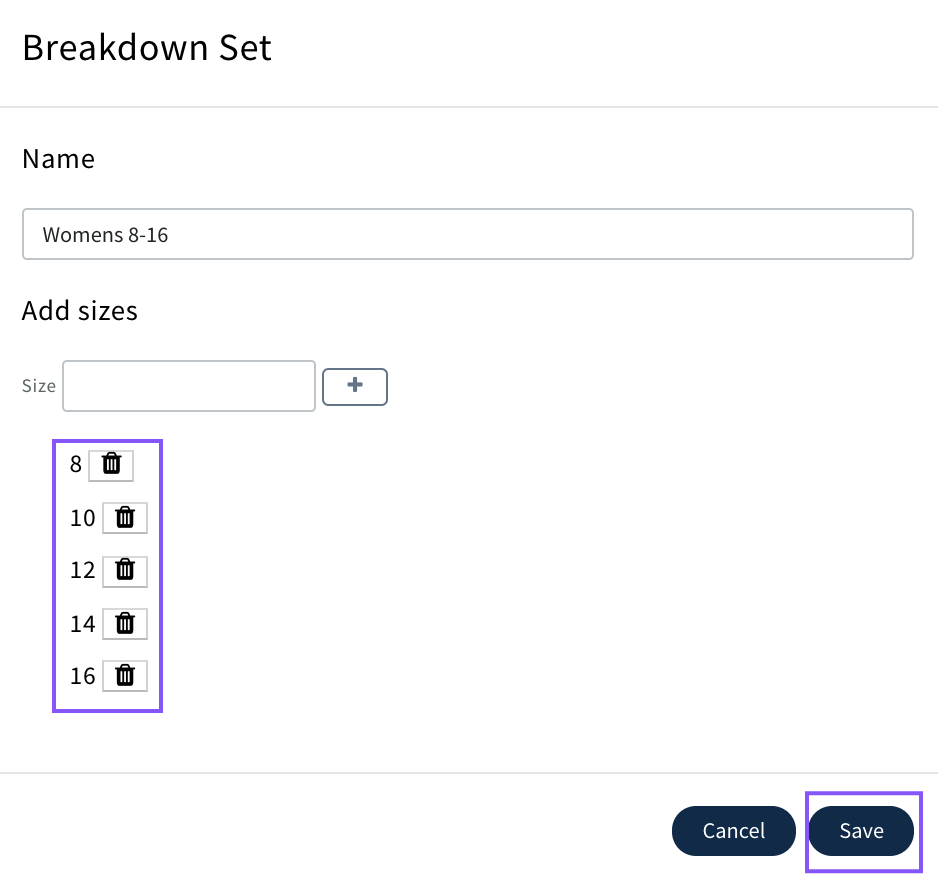
These can be edited by adding additional sizes only at any time using

Please Note; A breakdown set cannot be deleted. If it no longer contains the correct sizes required then you need to set up a new breakdown set.
Default Packaging
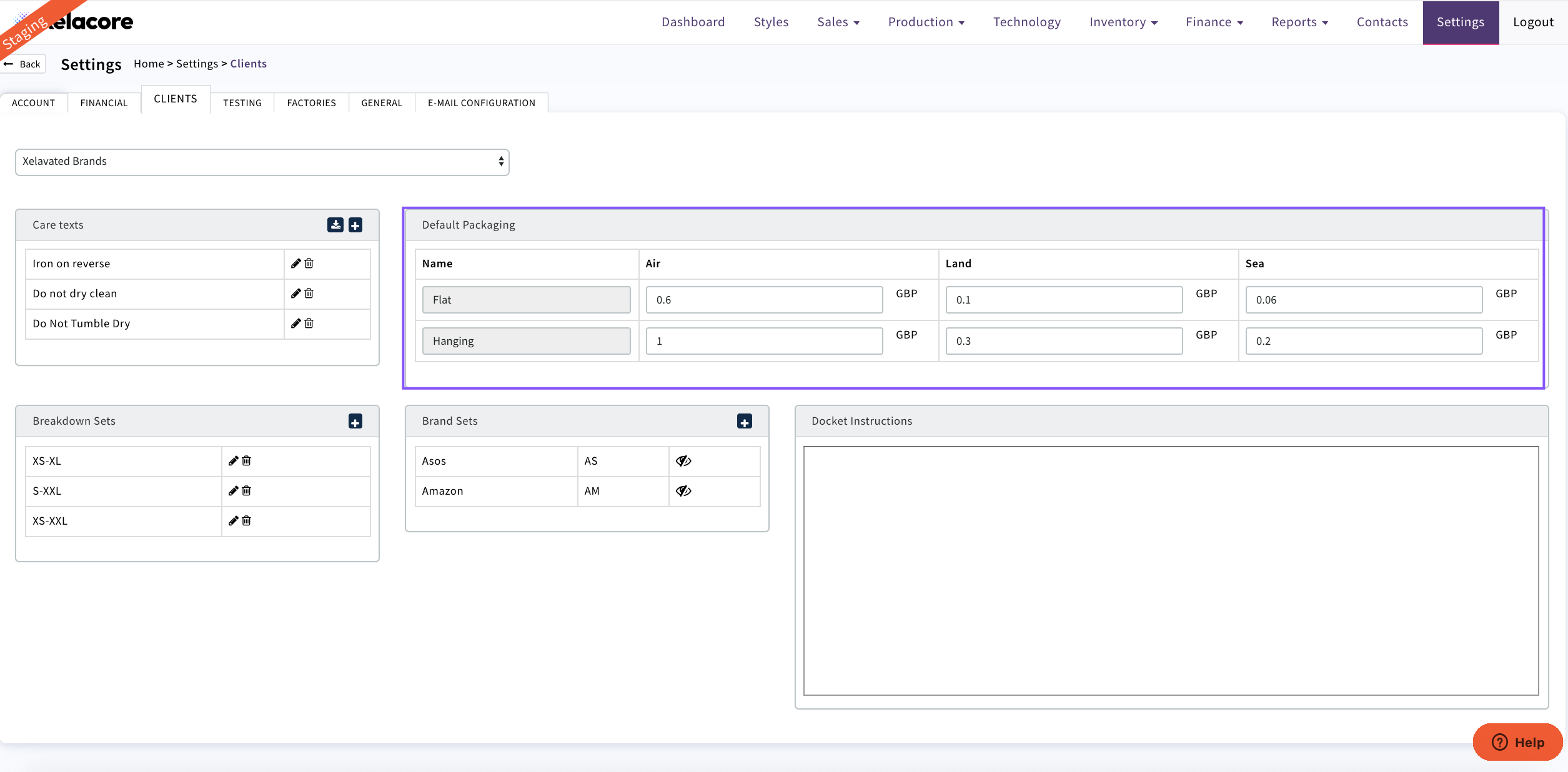
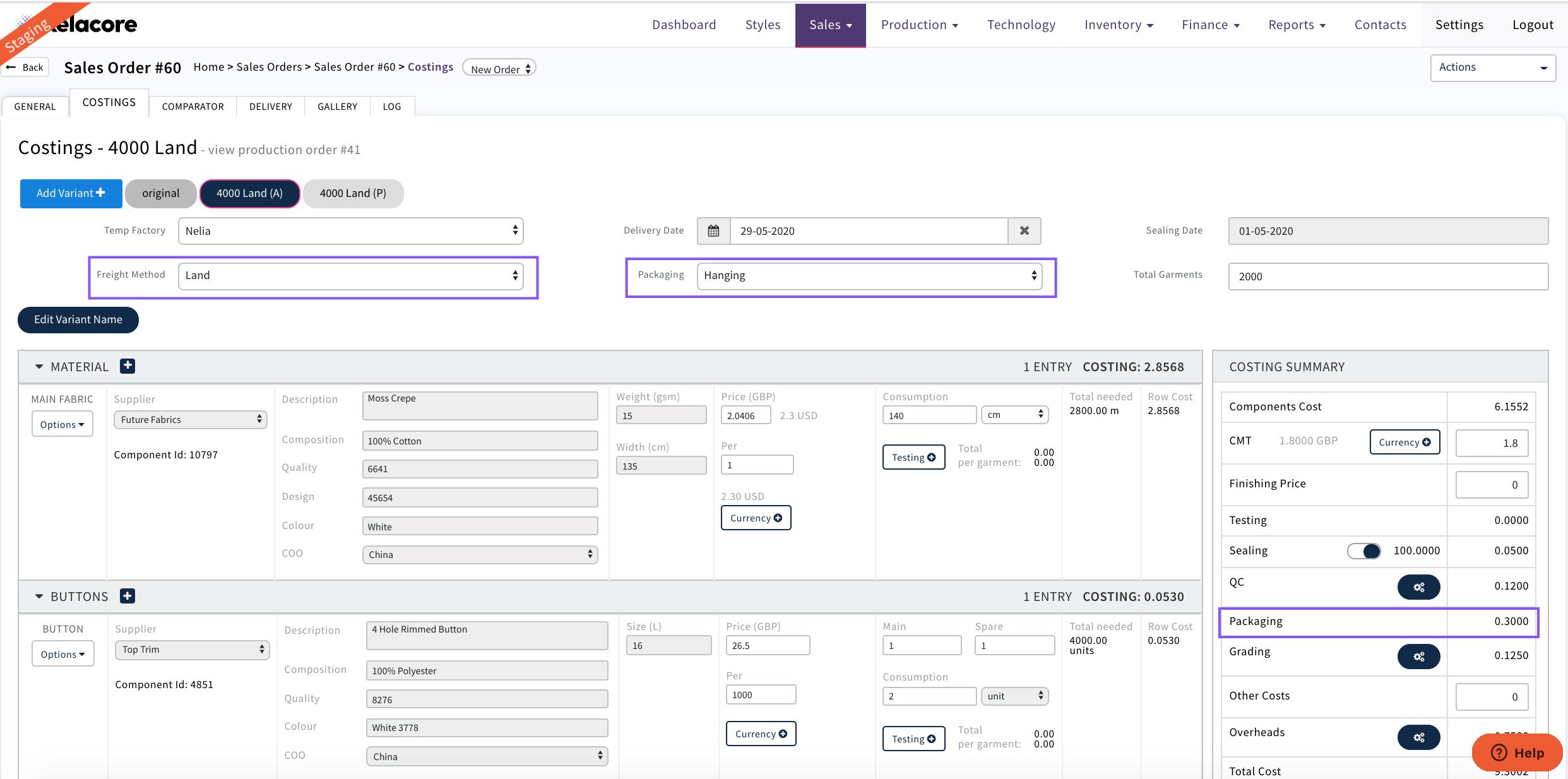
Once completed this cost will be applied to a costing so that you can account for additional costs to move finished goods and report the correct profit margin
The amounts completed need to be the cost of one unit. This can be updated at any time but will only be applied to new Styles costings completed from then.
As Below once the Freight Method and packaging is selected on the costing page xelacore adds this cost to the cost of a Style
Brand Sets
This can be used if there are goods being made for a third party with the same Client labels e.g. ASOS, Amazon. It will display on the docket for the factory as it may have different packing requirements
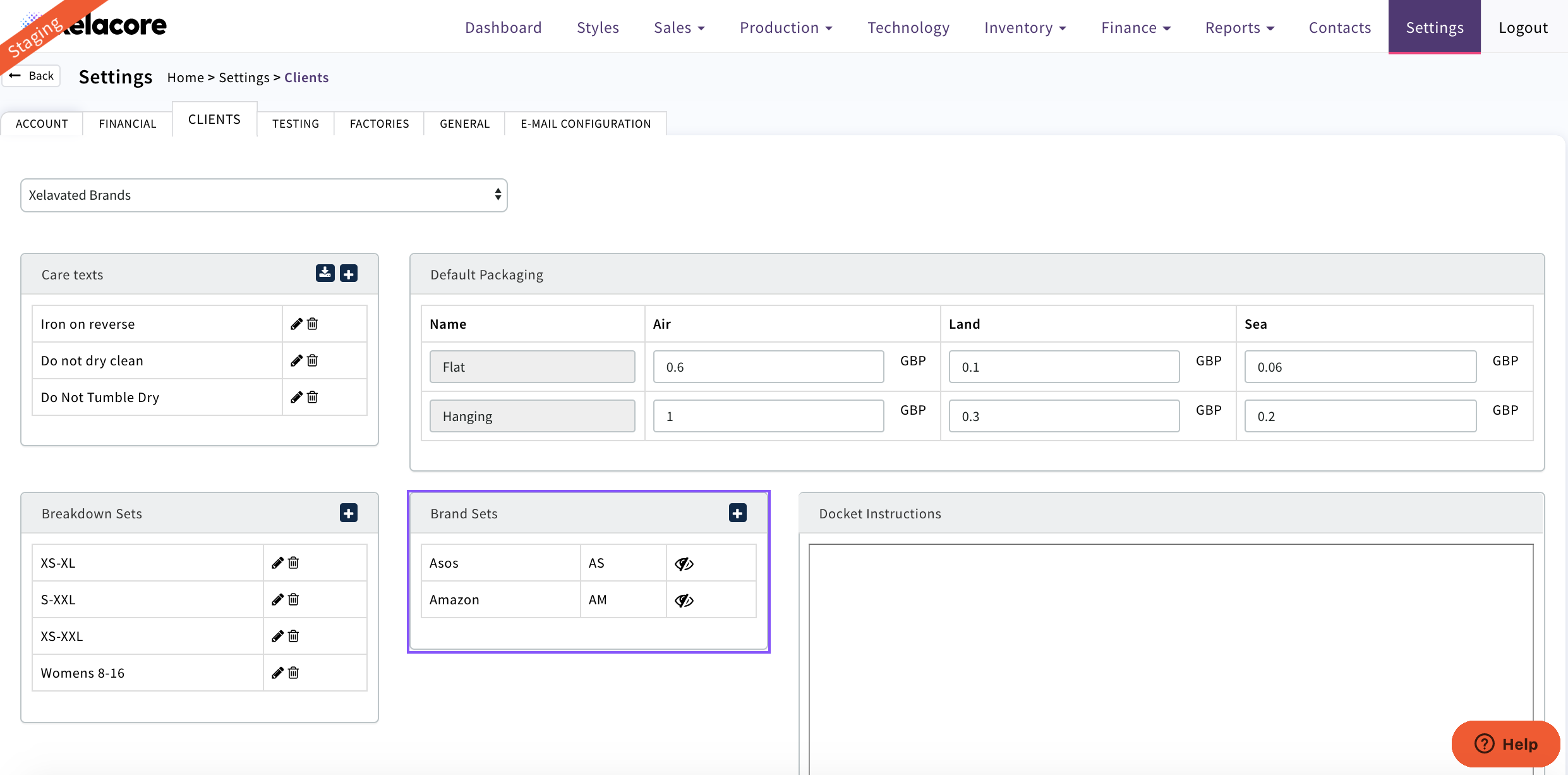
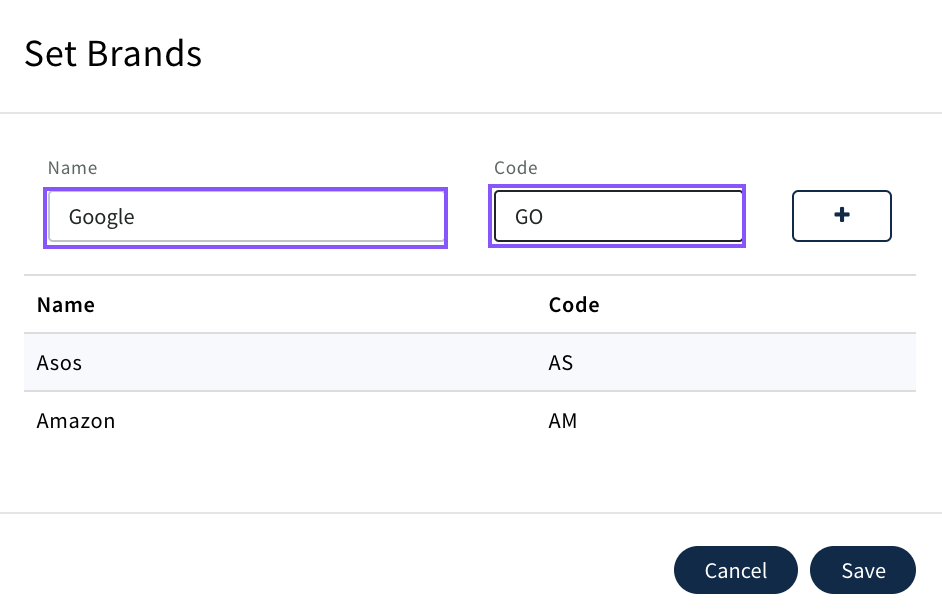
To create a new brand select

Complete the name and a code. CLICK + and 'Save'
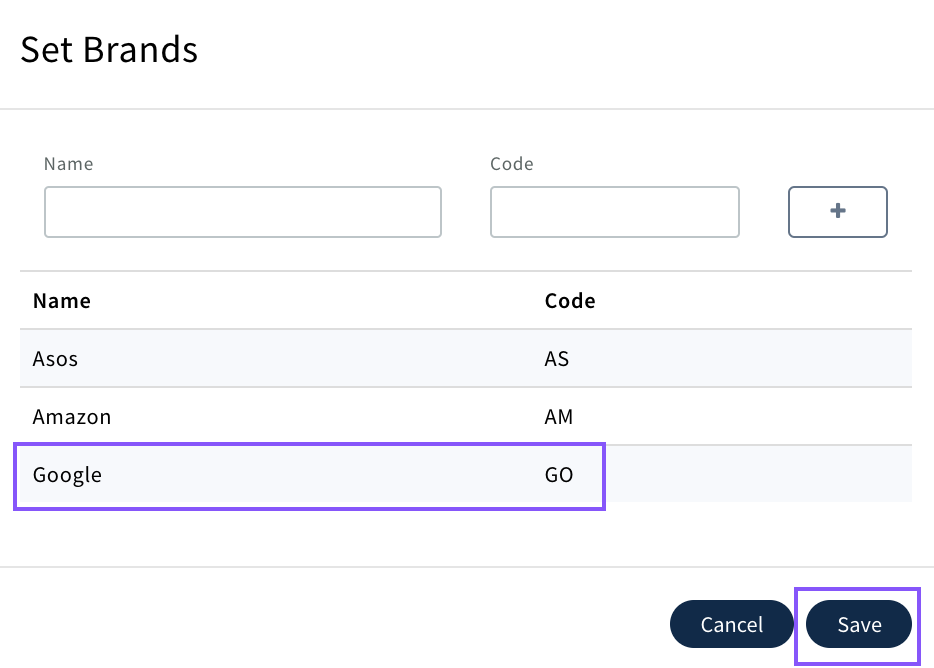
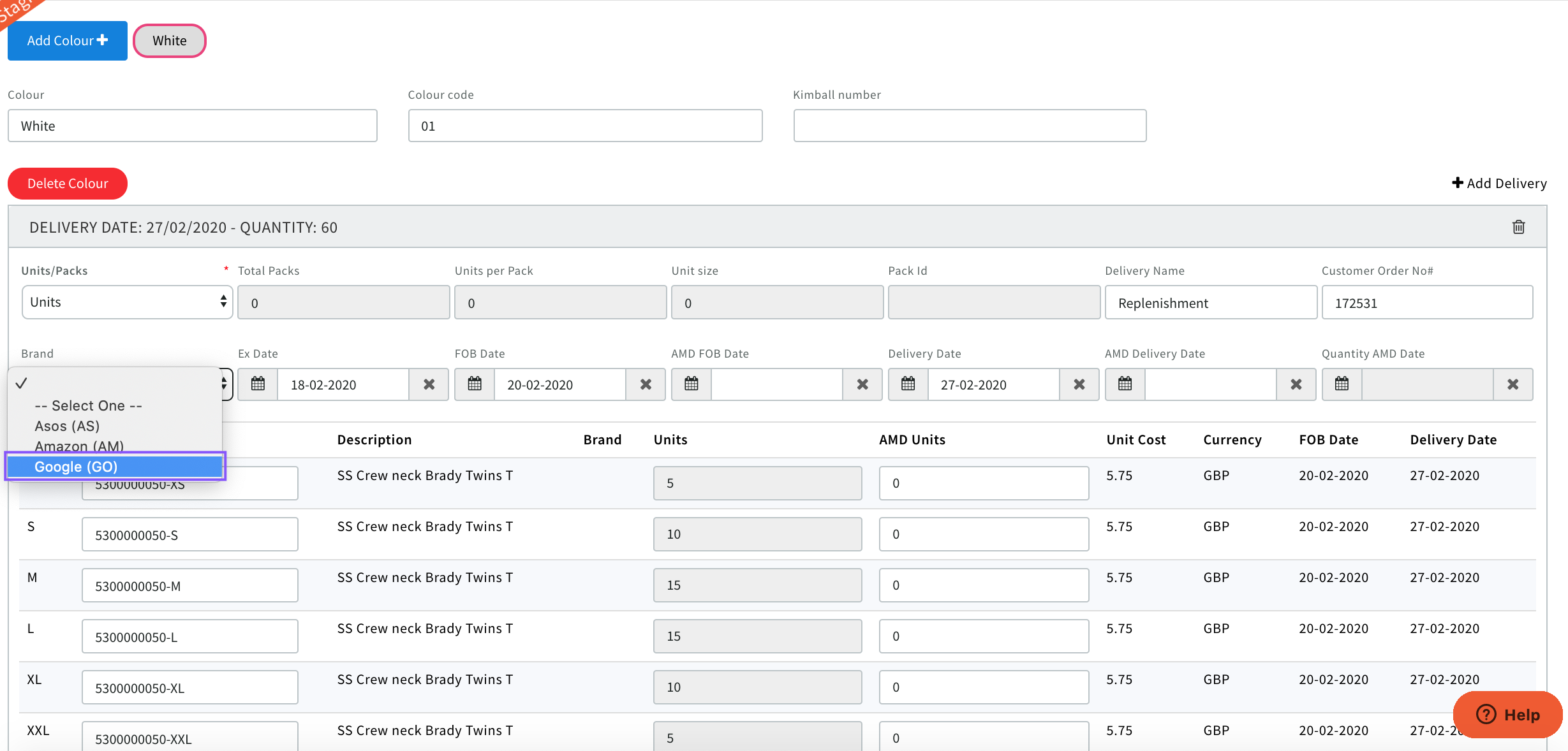
The new Brand set will now be available for selection on a Sales Order Deliveries that are created for that Client
Group Tags
Create any group tags that can then be associated against a sales quote/order and then used in Filtering on List Views and Reporting
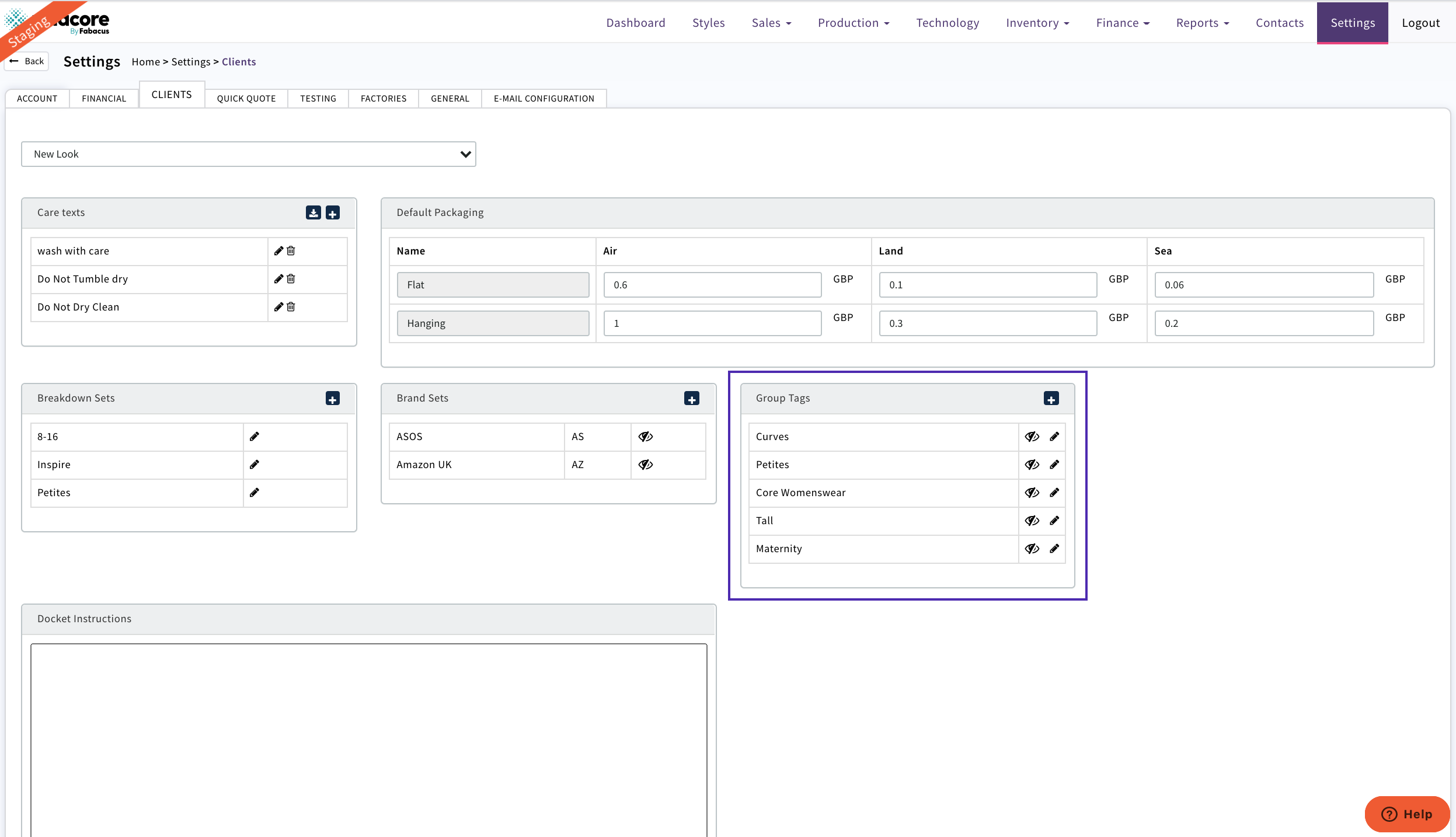
Create new group tag then 'Save'
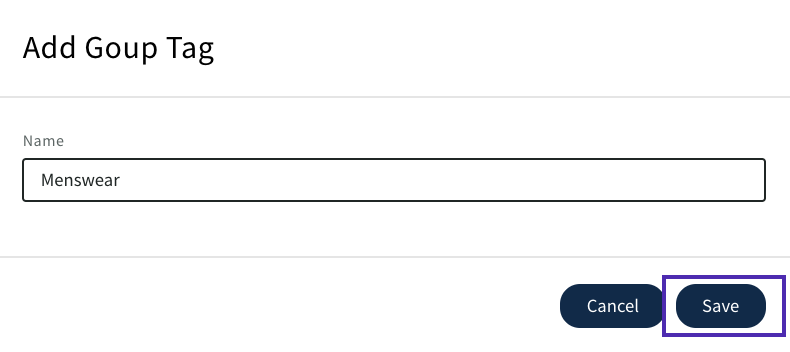
Group tag can be edited if required

Group tag can be hidden from drop down if you no longer want it available for selection

Get Up Costs
Each Customer has different label and packaging requirements and costs which should be added into the costing so that the profit margin is correct.
These can vary by garment type so departments set up in Contacts/Clients will display so variants can be captured
Select packing method (flat or hanging)
Select pencil icon to create or edit

Enter the cost for each element
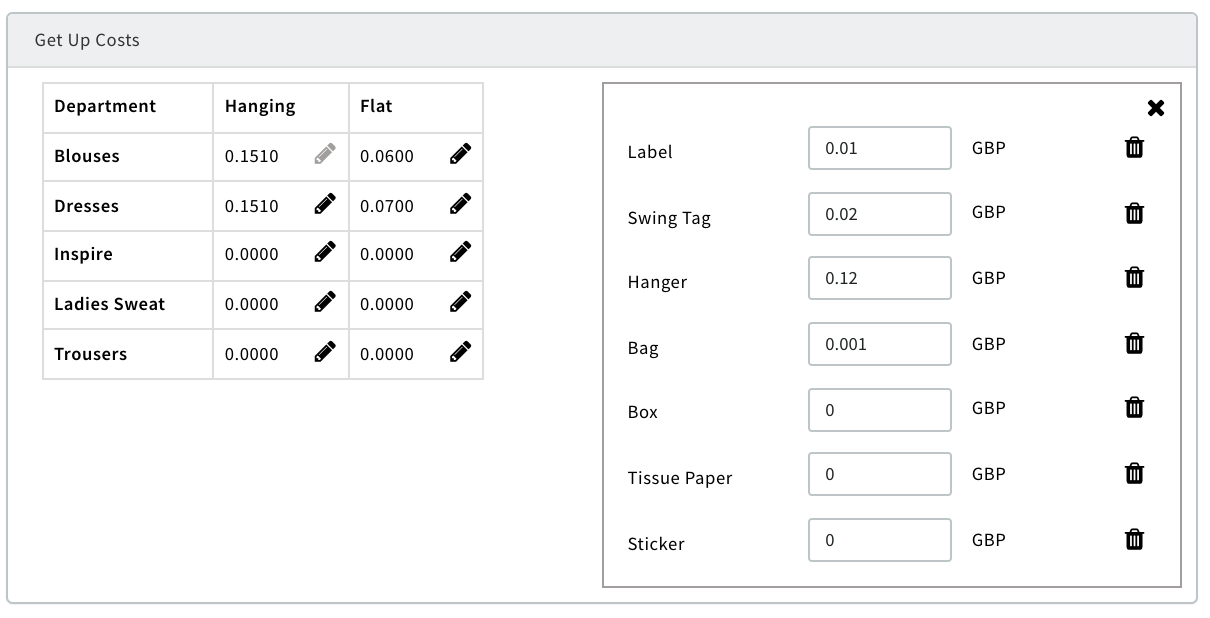
The total cost will display in the table and then will be automatically added to a costing summary to any new sales quote created as long as the department and packing method has been selected
The get up cost applied can be edited if required
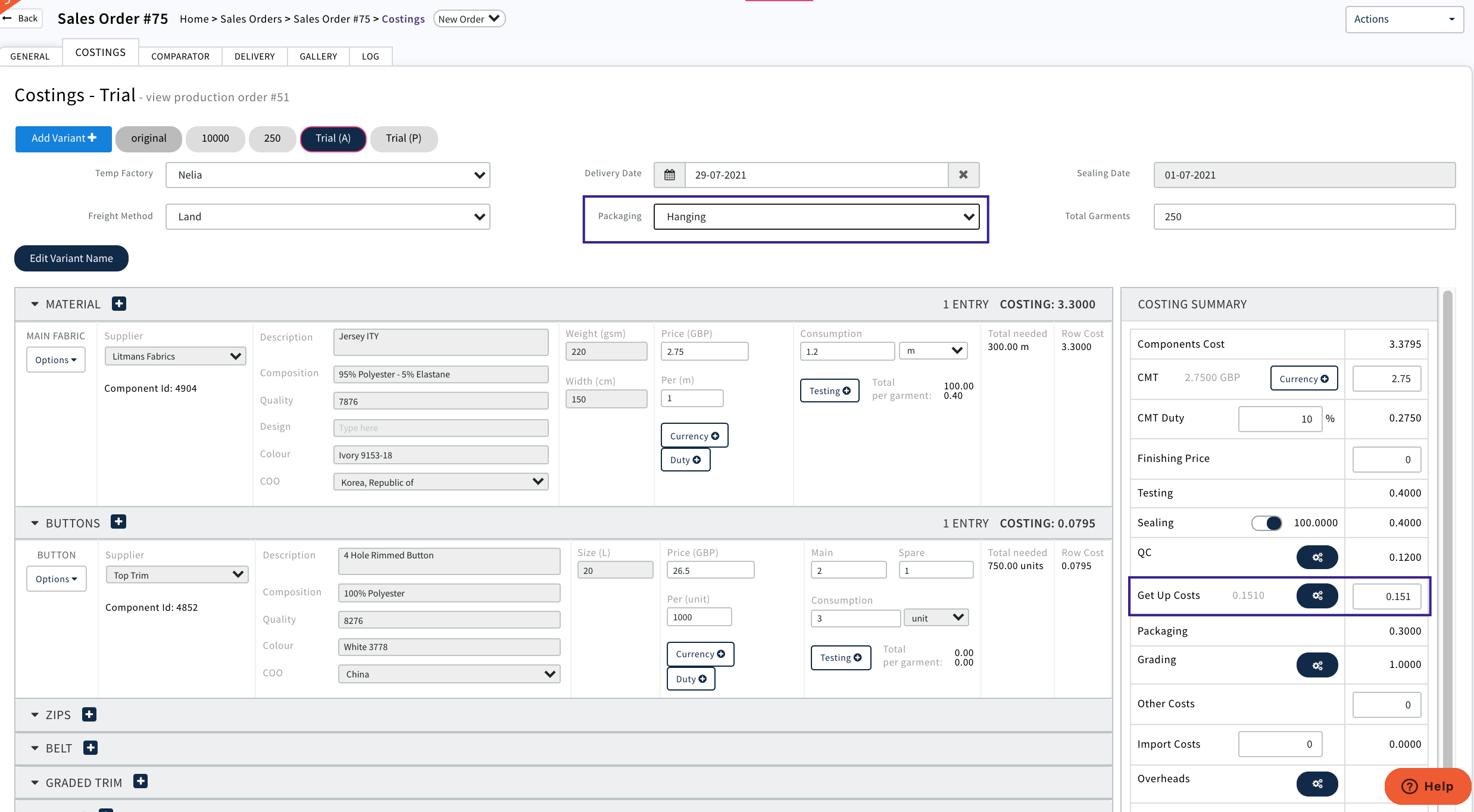
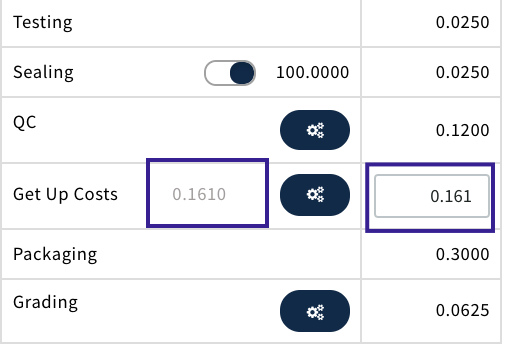
The get up costs can be edited at any time if costs to label and packaging change. The new cost will be added to any new sales quotes going forward. Any previous quotes and sales orders will retain old costs but display new costs as below
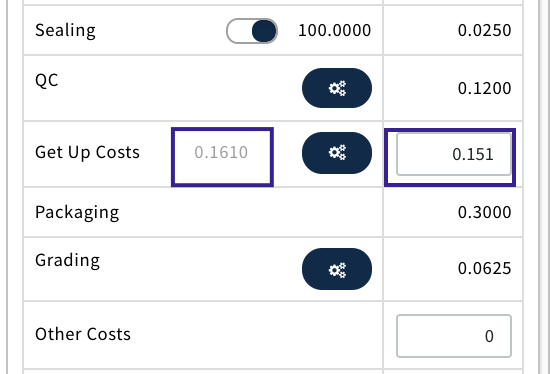
If you want to apply the new cost to any existing sales quotes/sales orders then use the apply icon

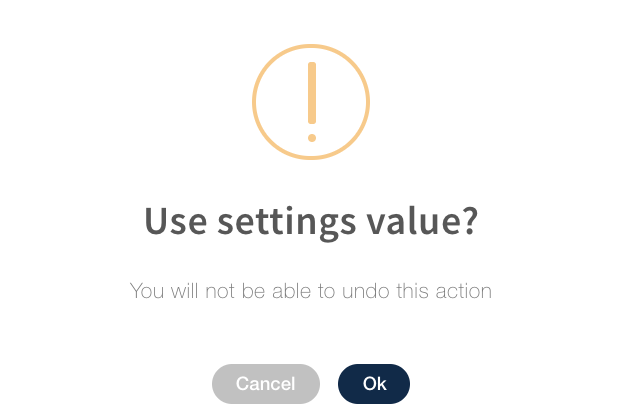
Below will display select 'ok'
Edited get up cost will display
Docket Instructions
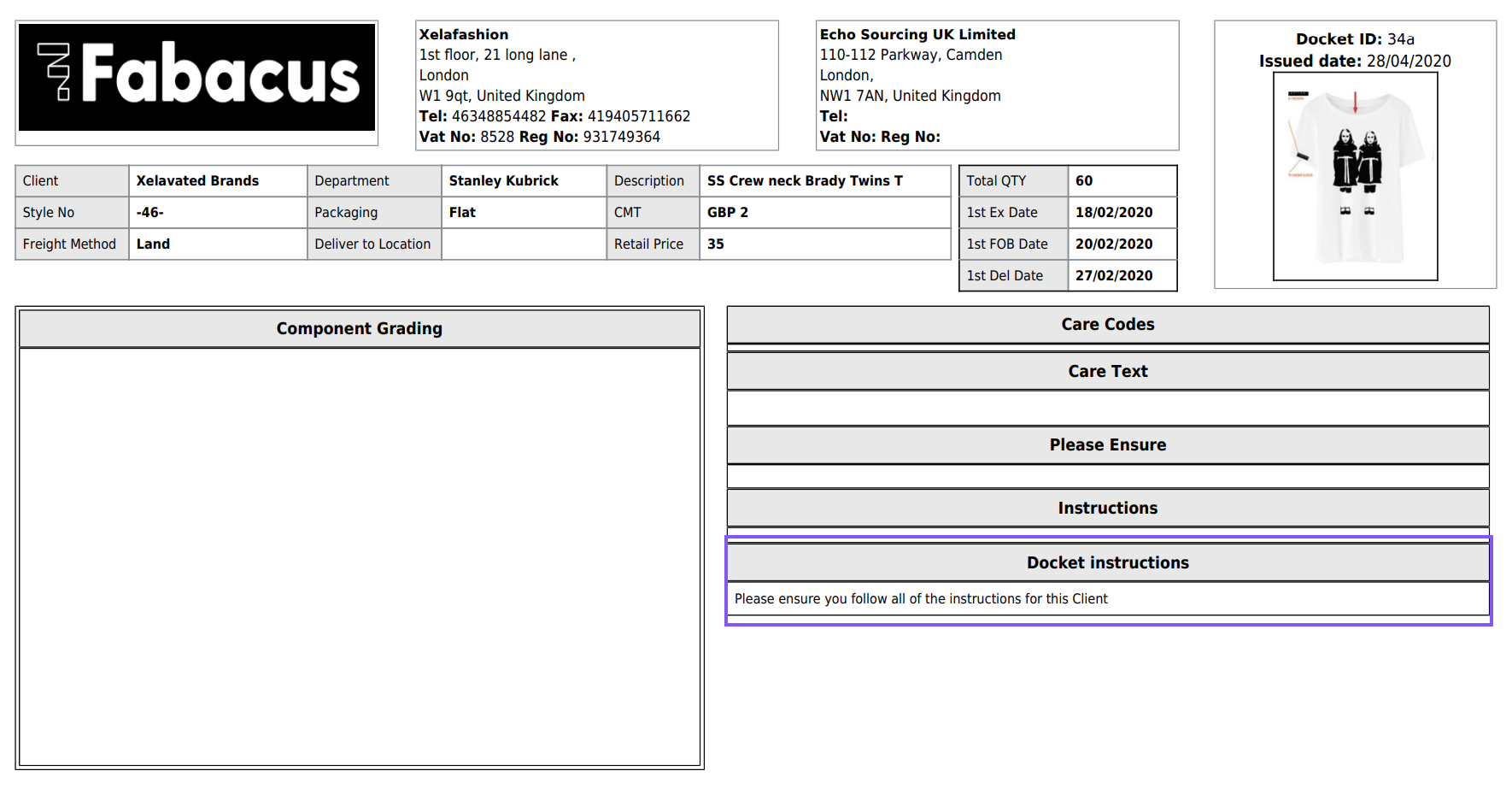
These can be tailored by Client to print on all dockets that are created.
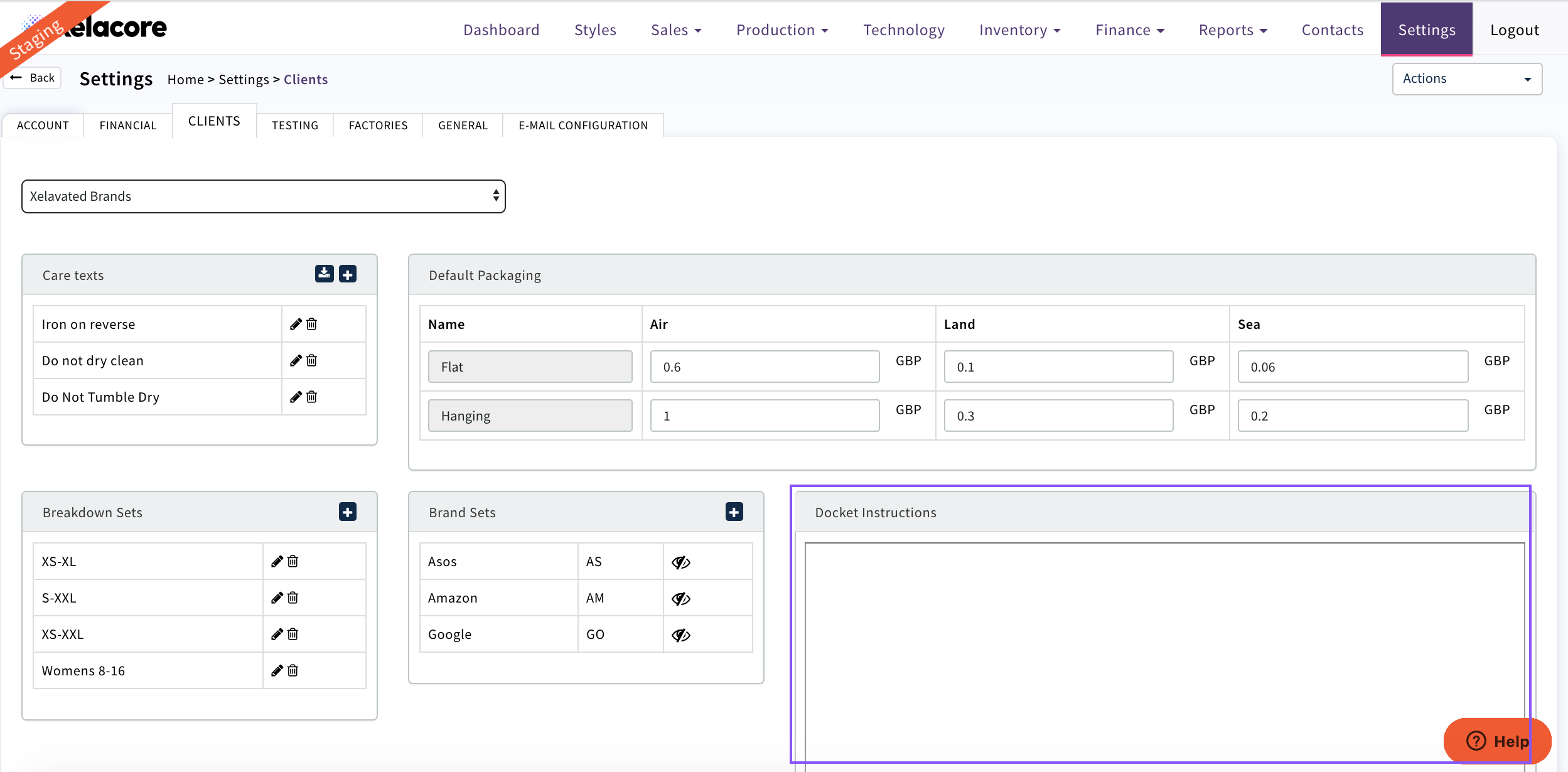 Complete as required then instructions will then be printed on all dockets
0 Comments