Once you receive confirmation from your customer that they wish to place an order for goods with you for a style then you can create a Sales Order. This may be an email confirmation or an official purchase Order.
To do this first access your Sales Quote you created in Xelacore
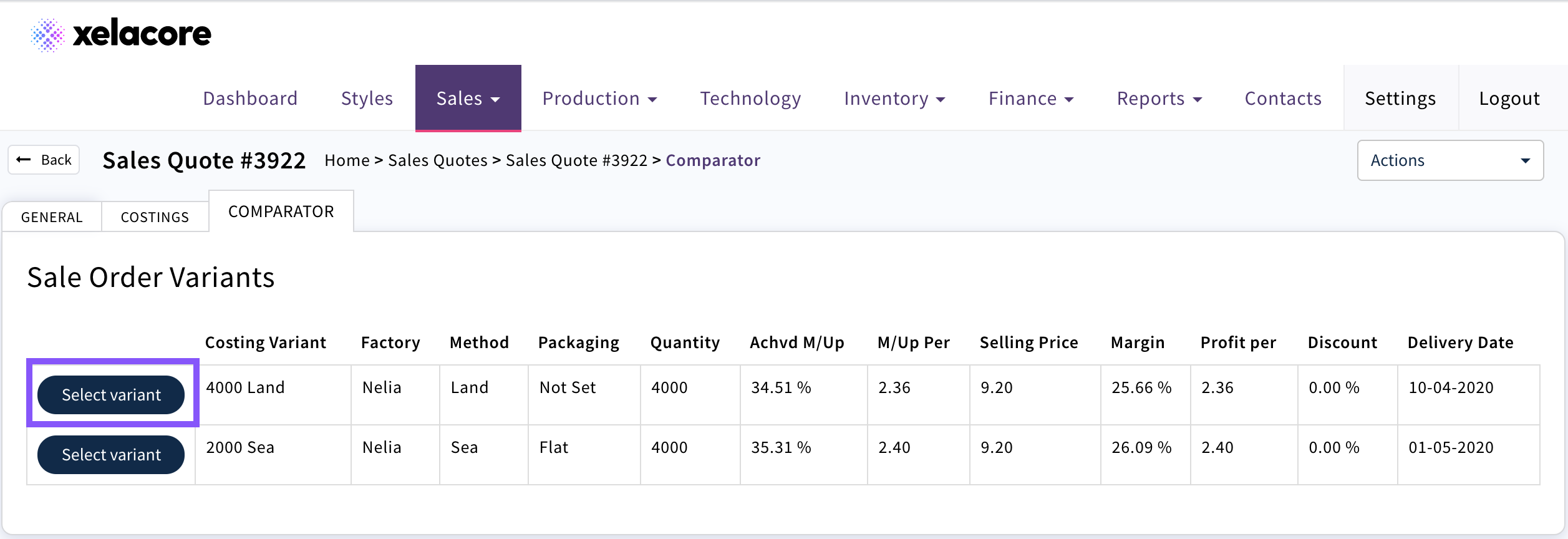
Select the variant that matches your customers order requirements
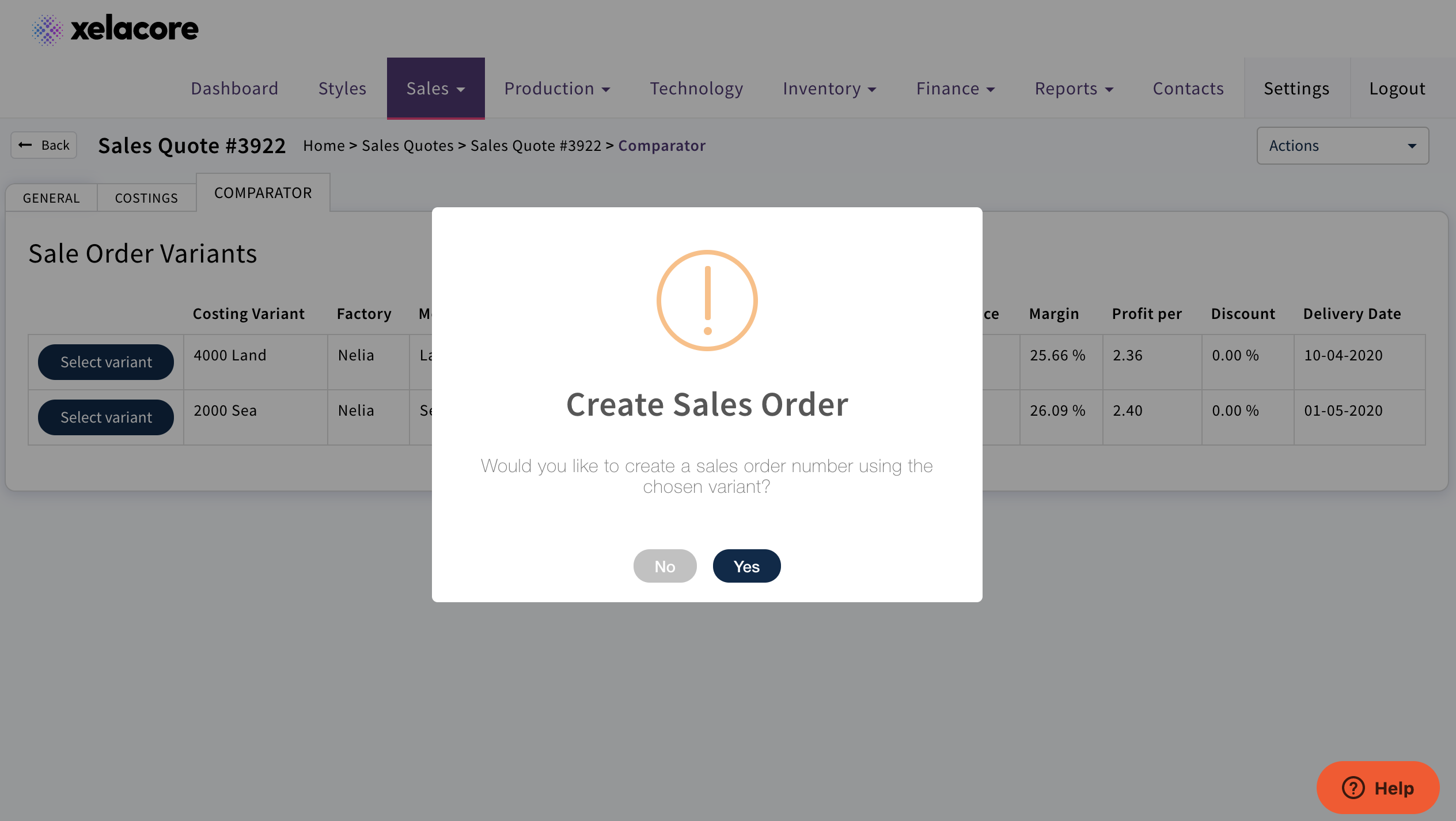
Confirm with 'Yes'
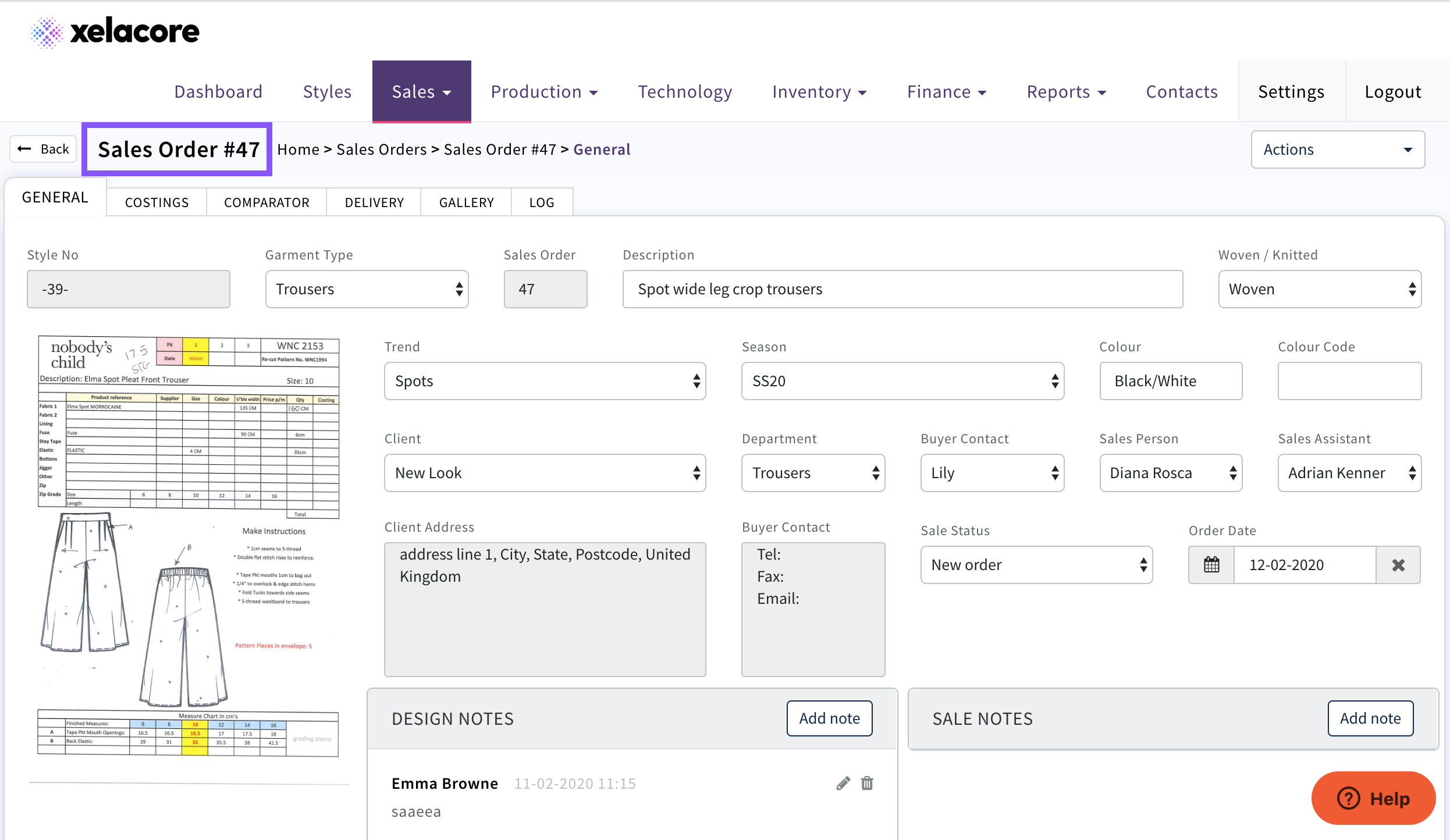
Sales Order is created with Sales Order Number.
Confirm details in General Page, Client, Department, Buyer, Sales Person, Sales Assistant
Check the costing is correct and all components and consumptions are included
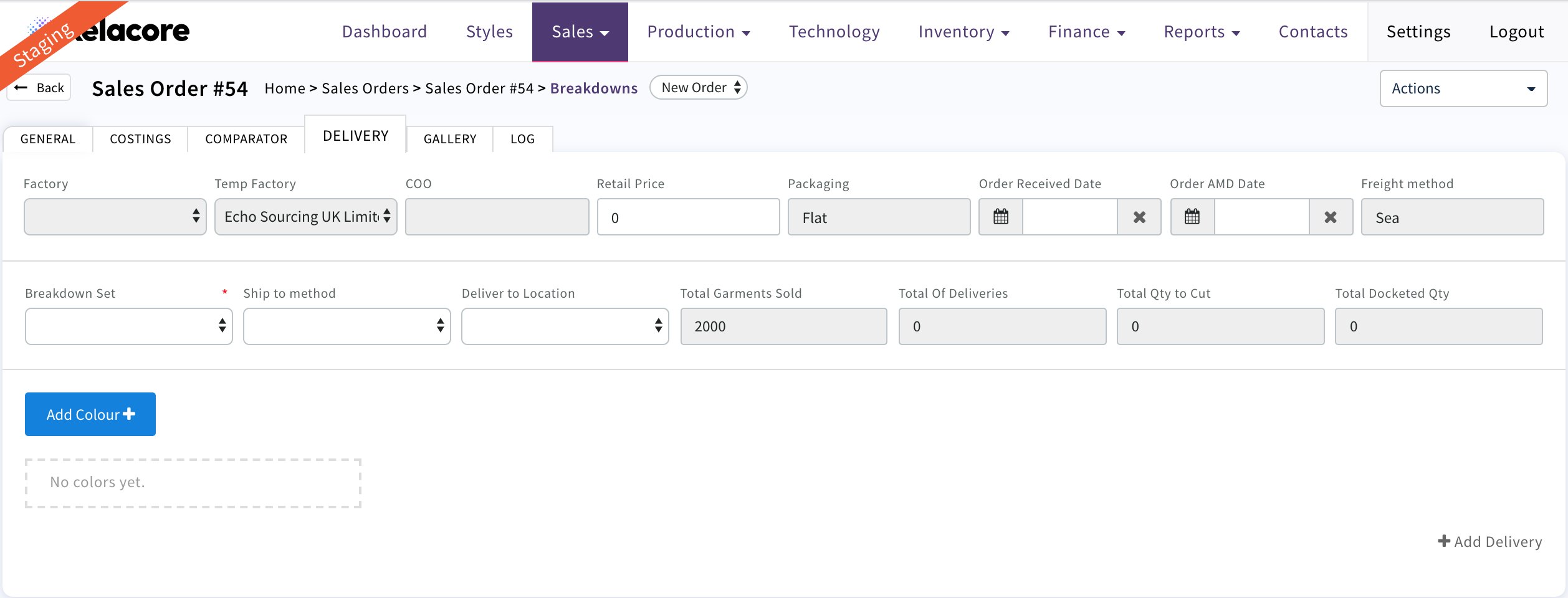
Complete 'Delivery' tab when you have received official Purchase Order from your customer.
Even though your Sales Quote would have been based on one colour a Sales Order can be created with multiple colours and deliveries as long as the components and consumptions are the same.
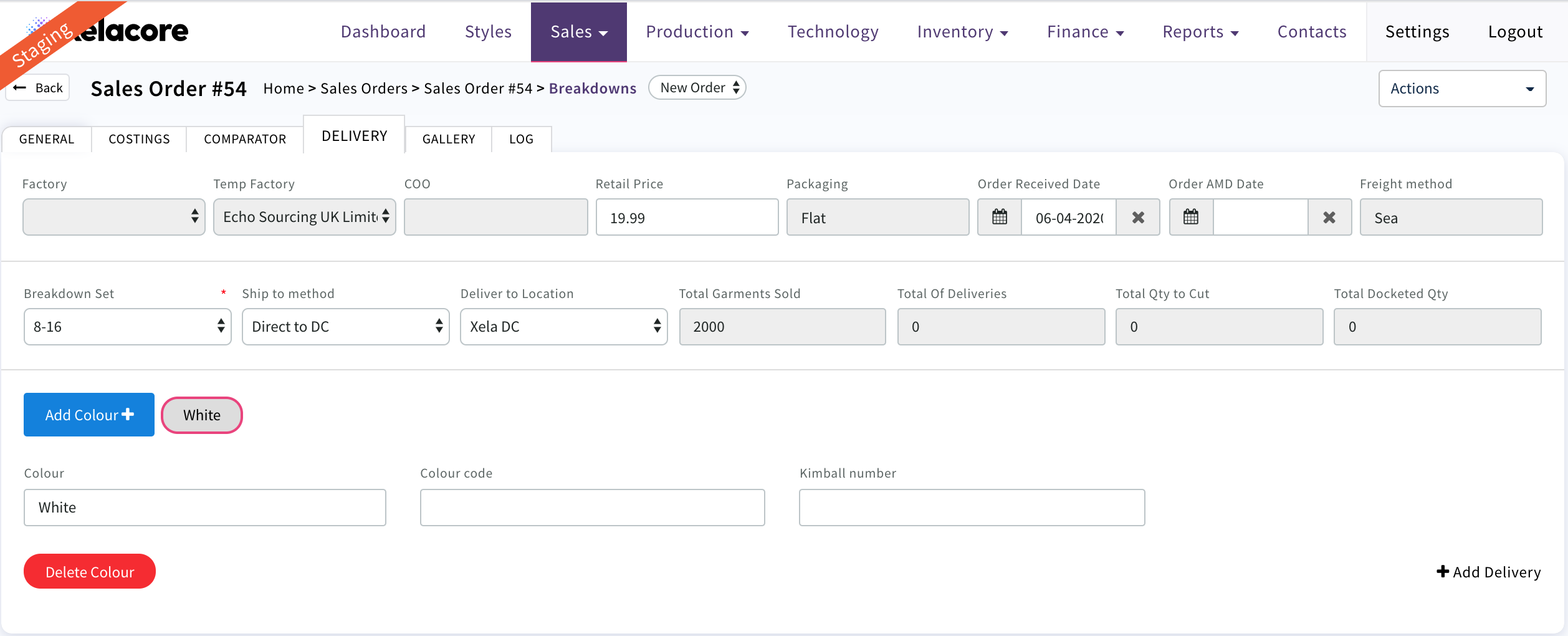
Add Retail Price, Order received date, Select 'Breakdown Set' 'Ship to method' 'Deliver to Location'
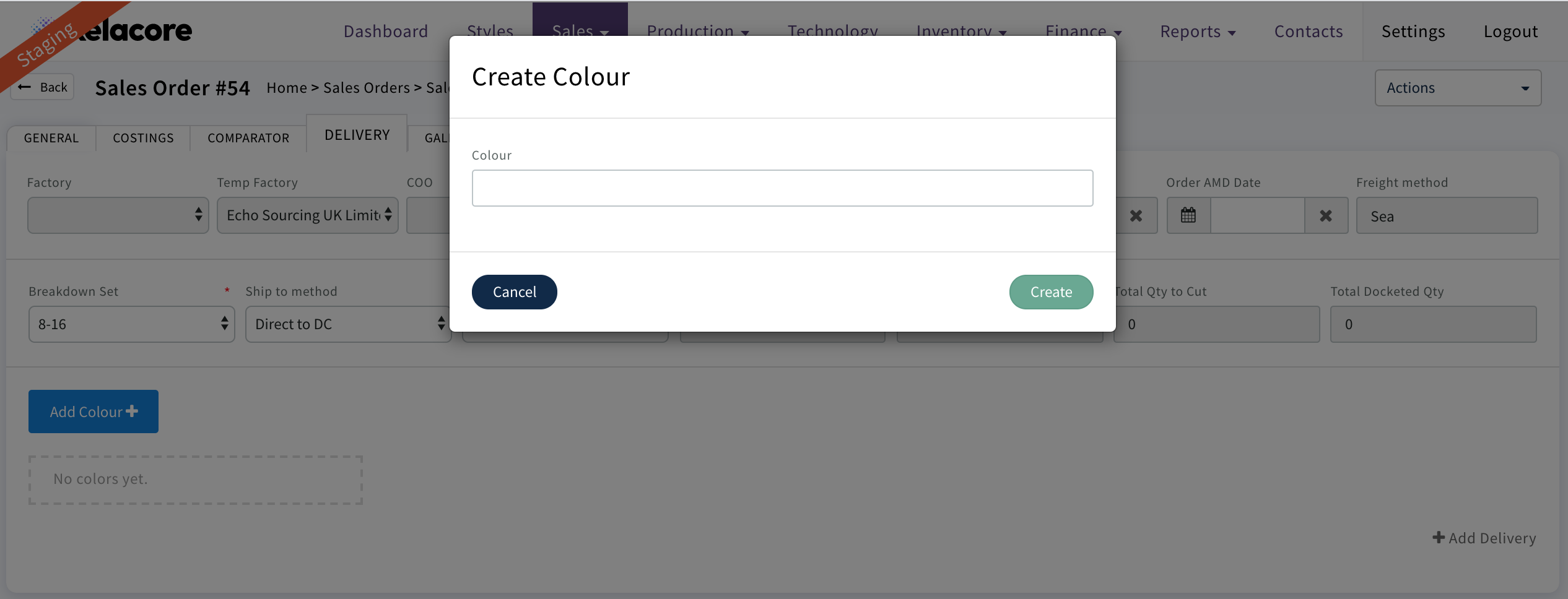
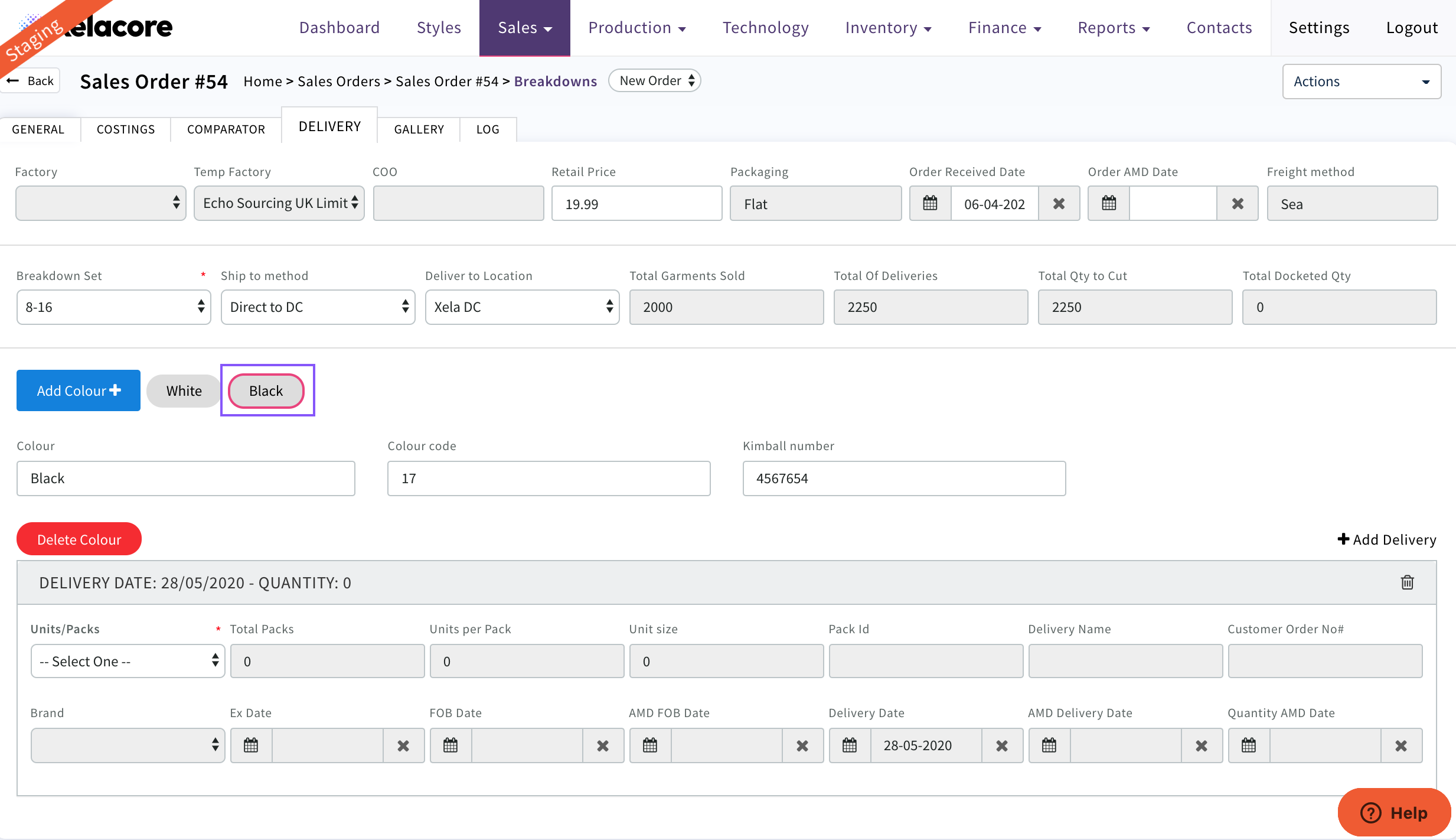
Select 'Add Colour +'
The first colour created should be the colour from the sales order costing
Fill in Garment Colour name e.g. White
Select 'Create'
Fill in Colour Code and kimball number from your client Purchase Order
Select Add Delivery
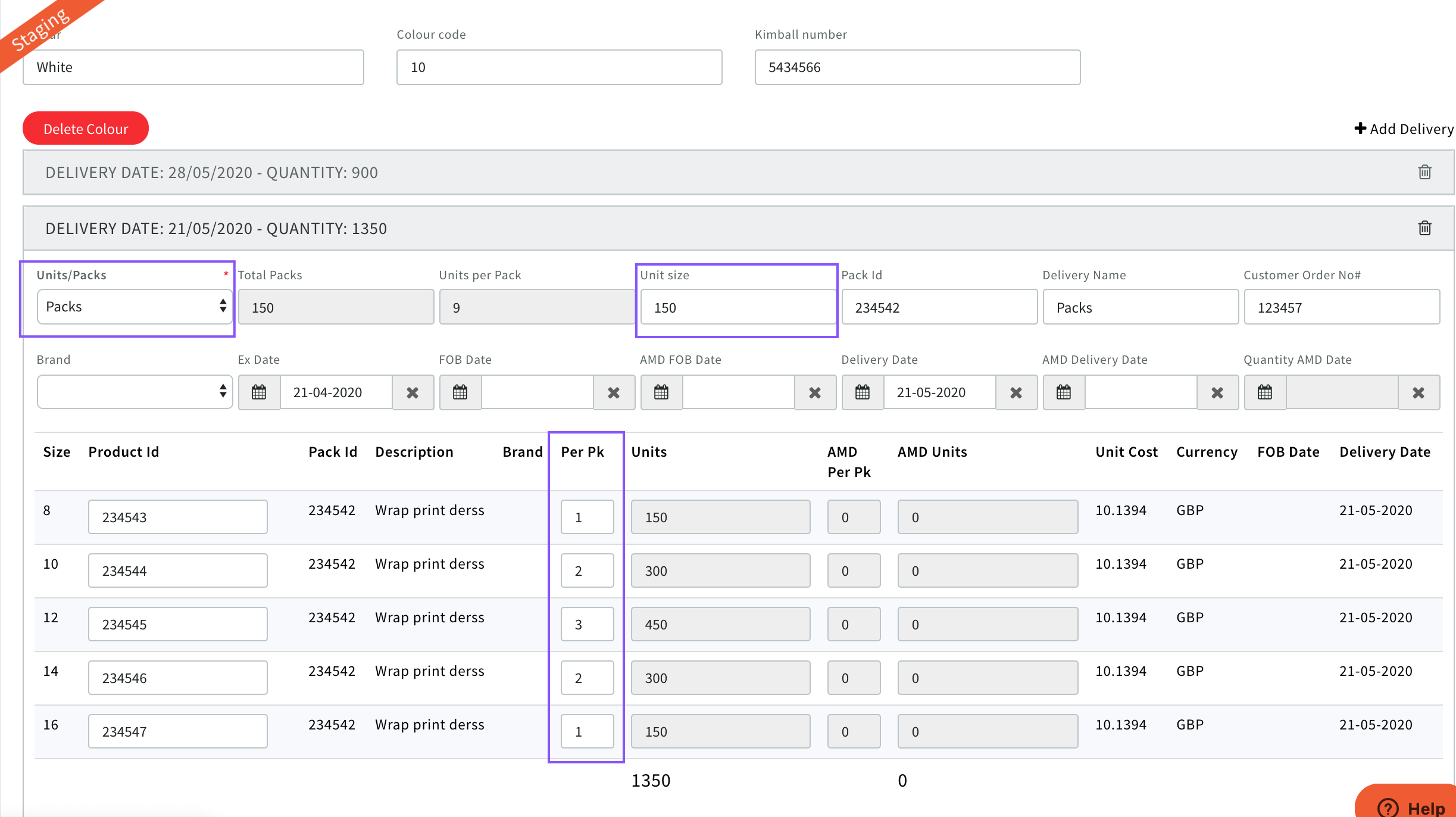
Select 'Units' or 'Packs'
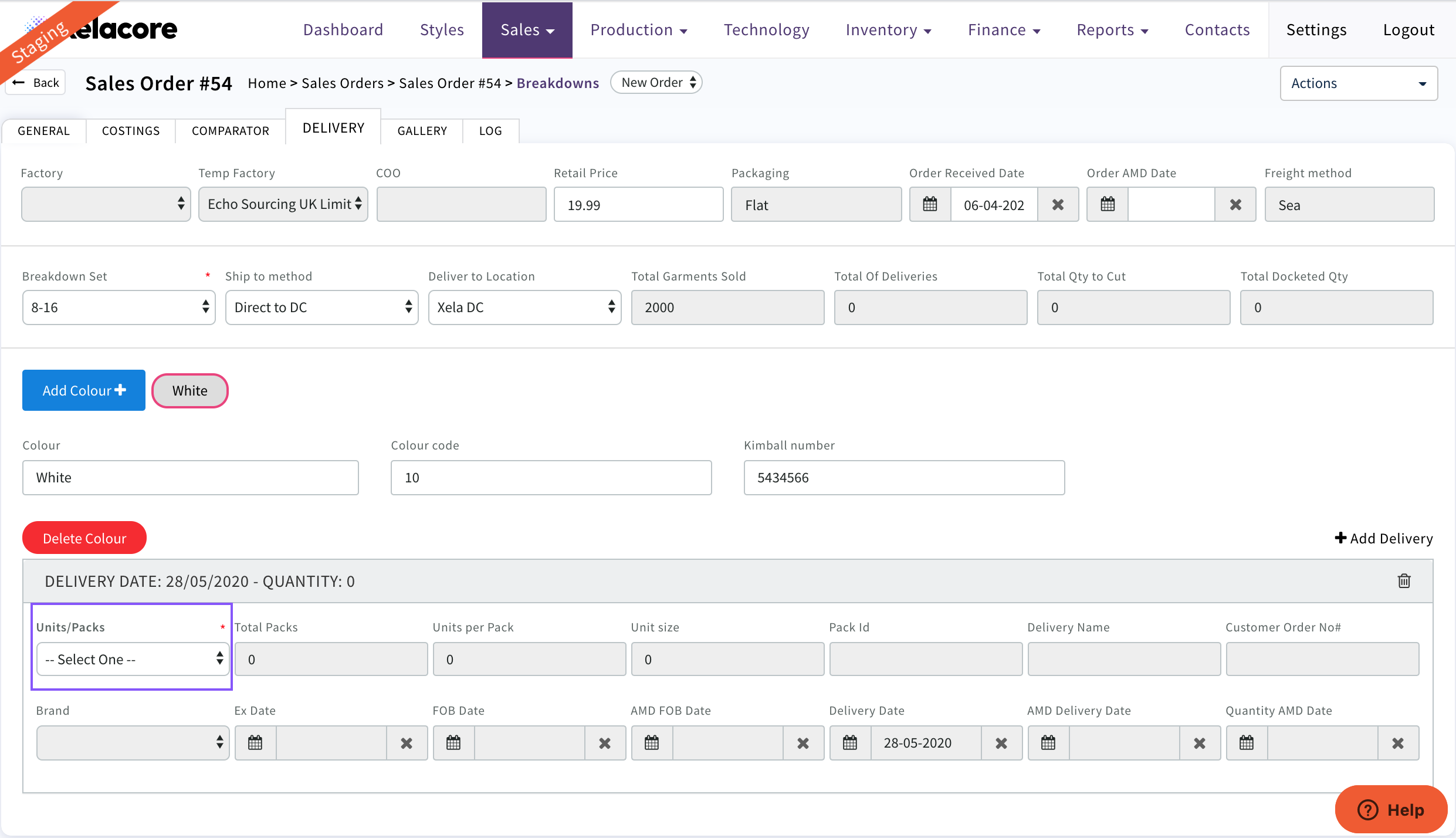
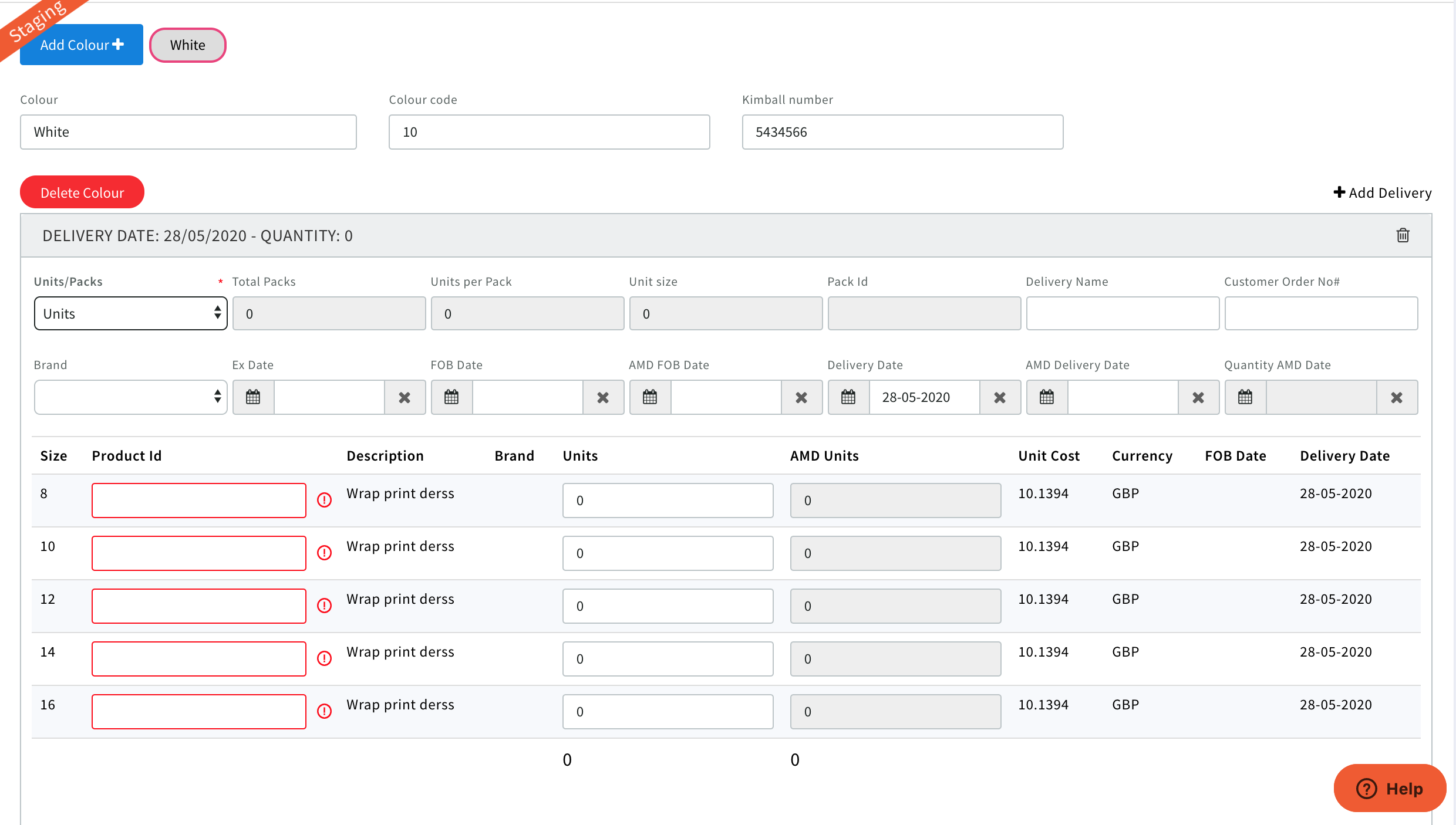
Fill in Delivery details and Product ID's by size provided by your client. These are the SKU/UPC or EAN numbers allocated by your client by every size/colour.
These fields will display Red until populated or remain Red if duplicated as these need to be unique by size.
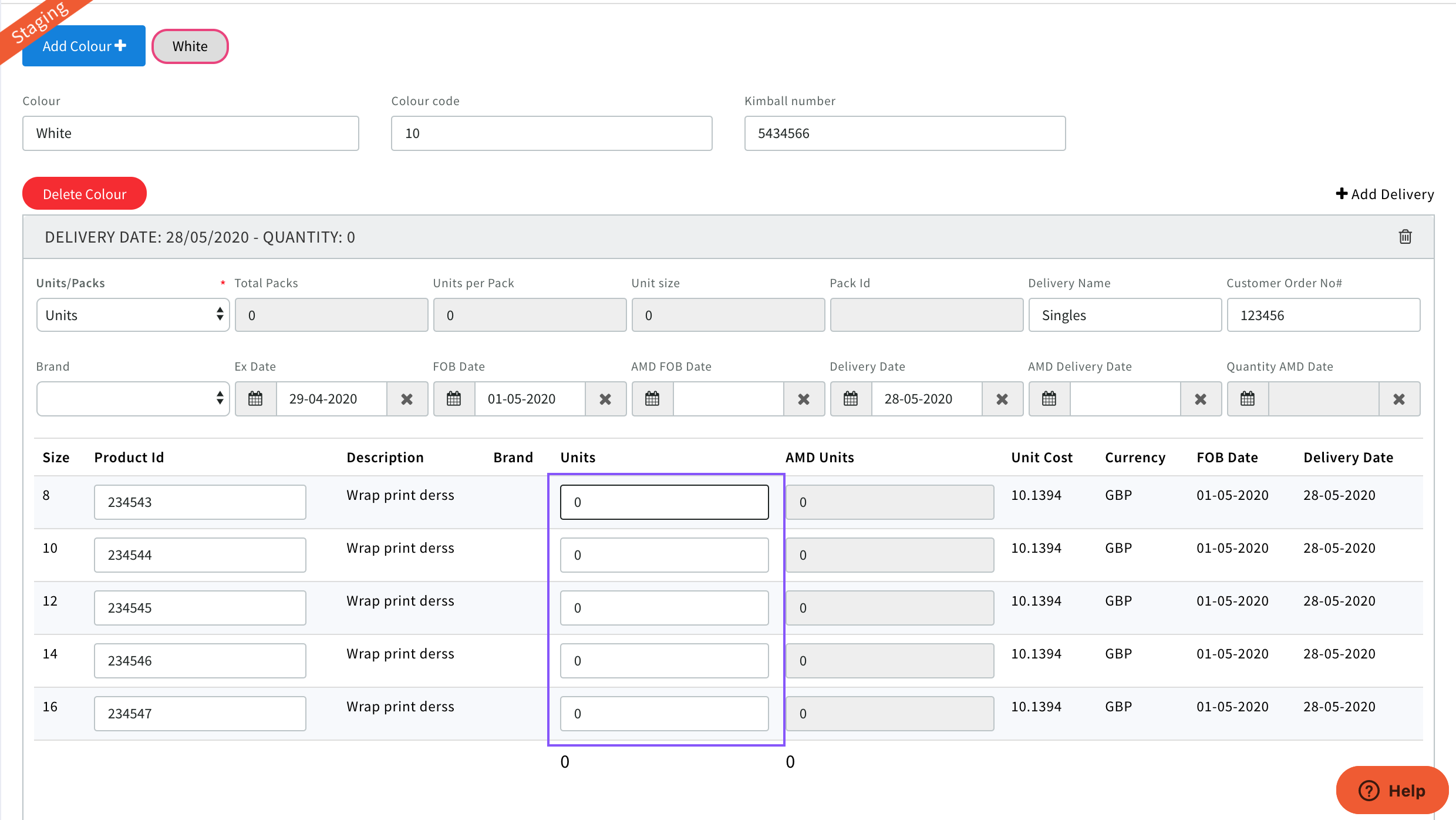
Add units by size
Add further drops/deliveries of the same colour by using
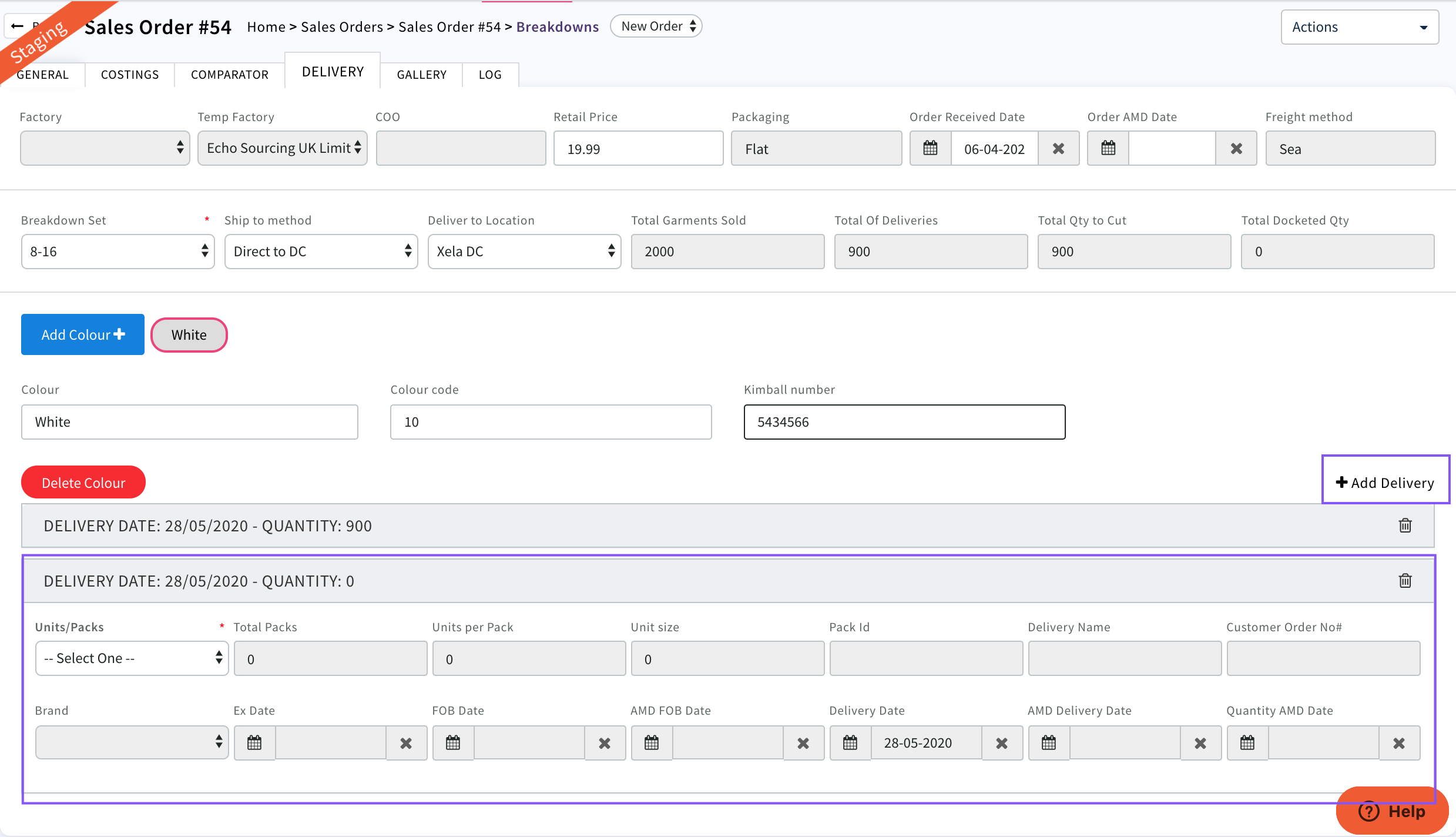
A new delivery box will be created and can be completed once units/packs have been selected
Product ID's will copy down
For Packs add 'units per pack' and 'unit size' (the number of packs required)
Total units for this delivery will then calculate.
To add an additional colour to this sales order select

A Colour can be deleted as long as there are no allocations or dockets created

Then follow previous steps to add all delivery details
Once all Colours and deliveries have been created you can now create the production Order
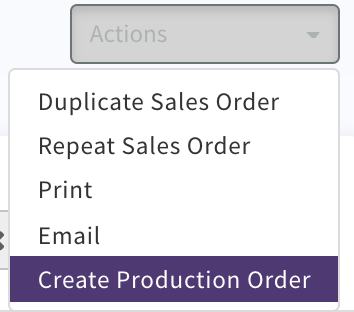
Select 'Action' 'Create production Order'
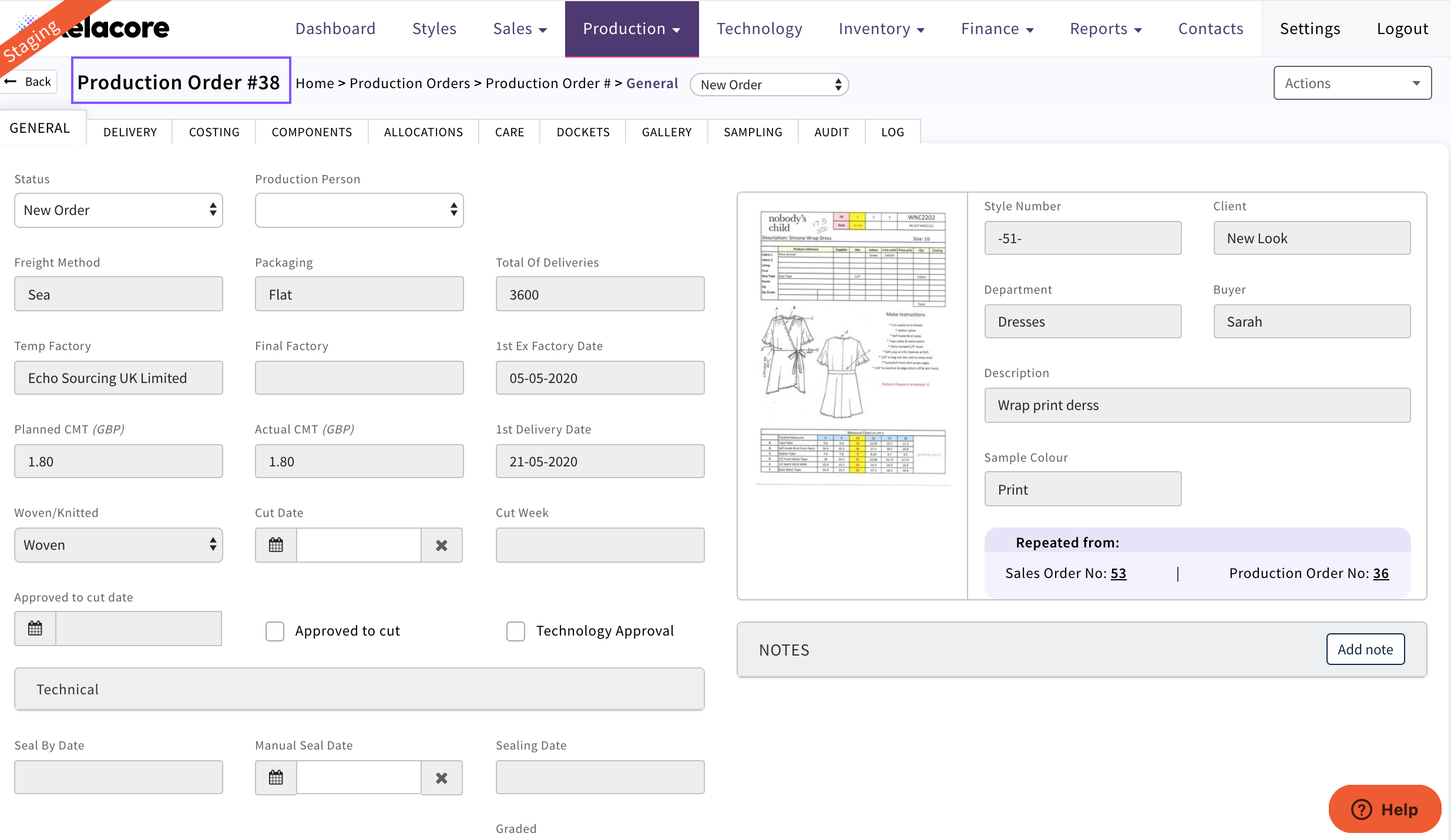
Your Production Order will be created and assigned a Production Order number
0 Comments