Search for the 'New Orders' in the Technology List View
The 'Days Left' will display how long you have to fit and approve the style ready for the factory to begin production to meet the Clients delivery date
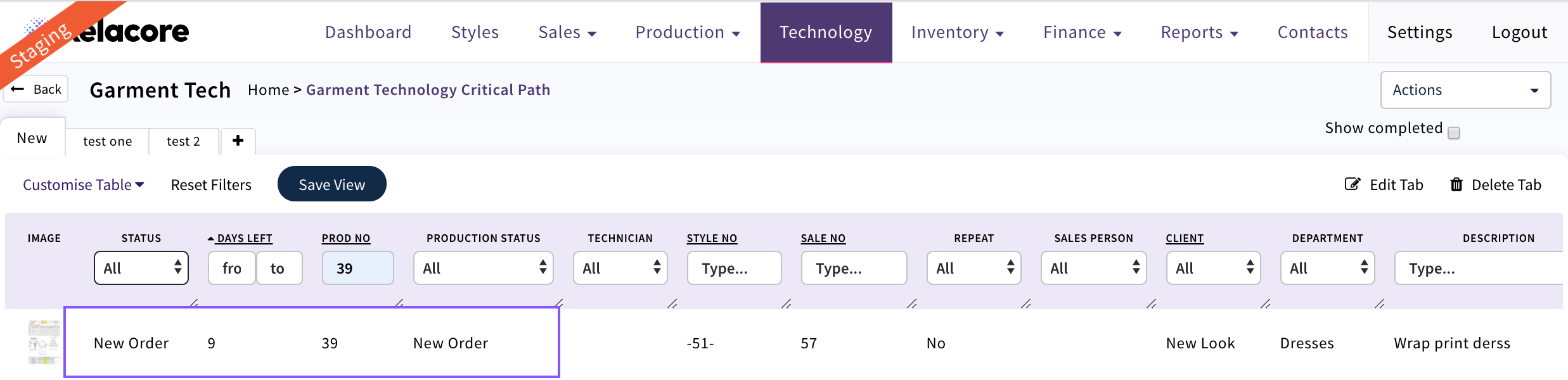
Select the Production Order from the List View. Open the 'Components' tab
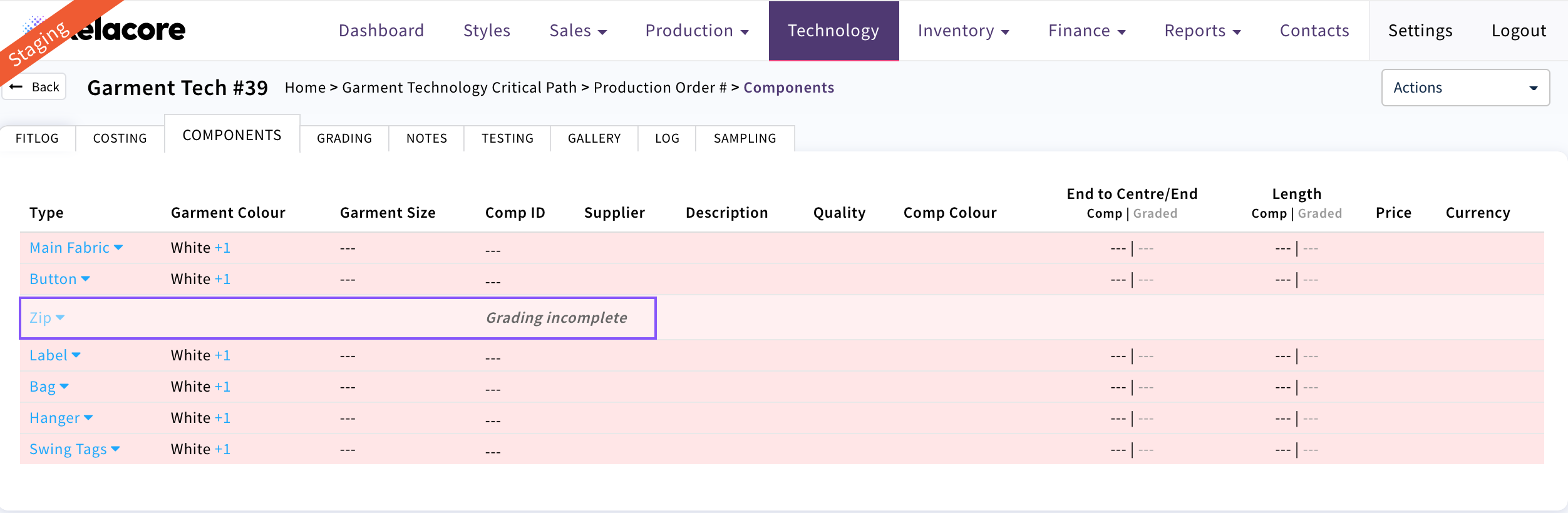
This will display all of the components associated to this production Order once completed by the Production team. If they have not been associated they will display RED
Any that show 'Grading Incomplete' require action from the Technologist see 'Technology Grading tab'
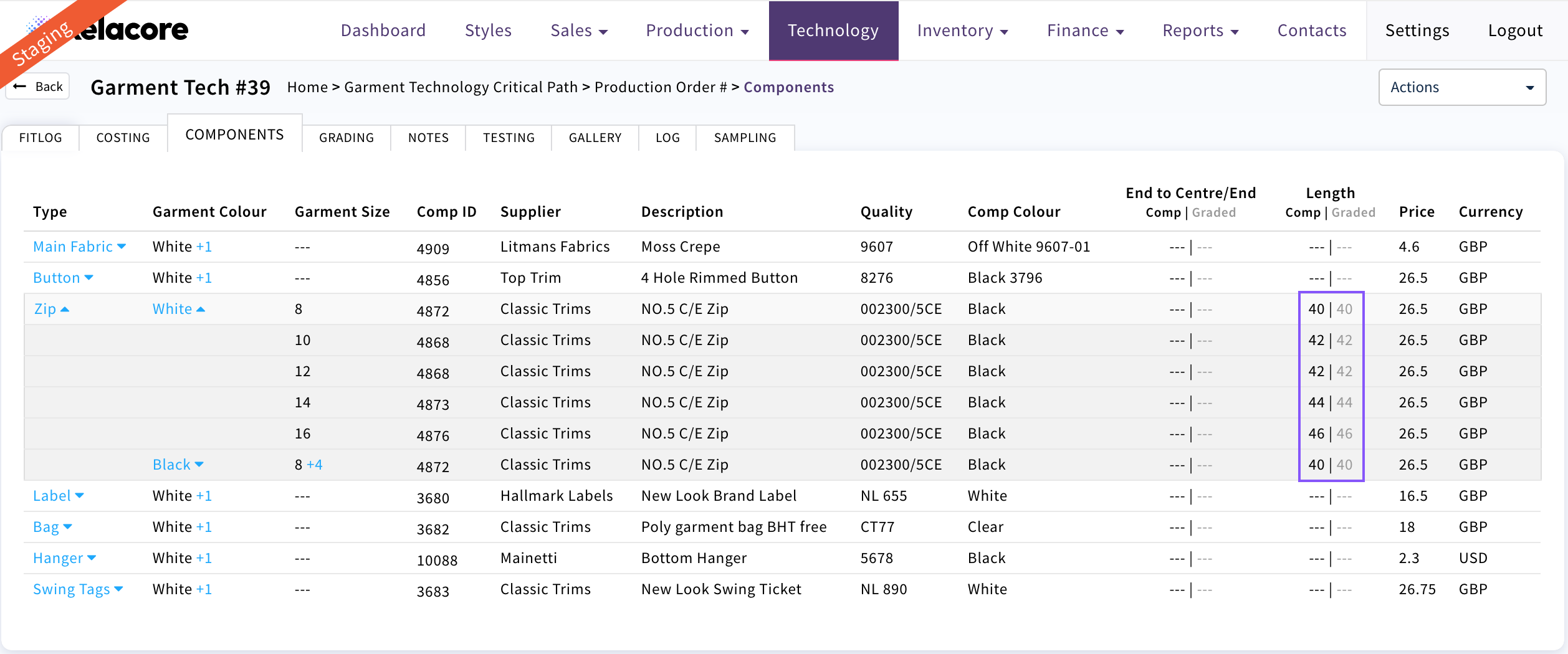
Once the Graded components have been completed in 'Grading' you can view your selection by colour/size by selecting the +

The graded component length will display against each size/colour

Once the Production Team have associated all of the components on the Production Order they will all display White
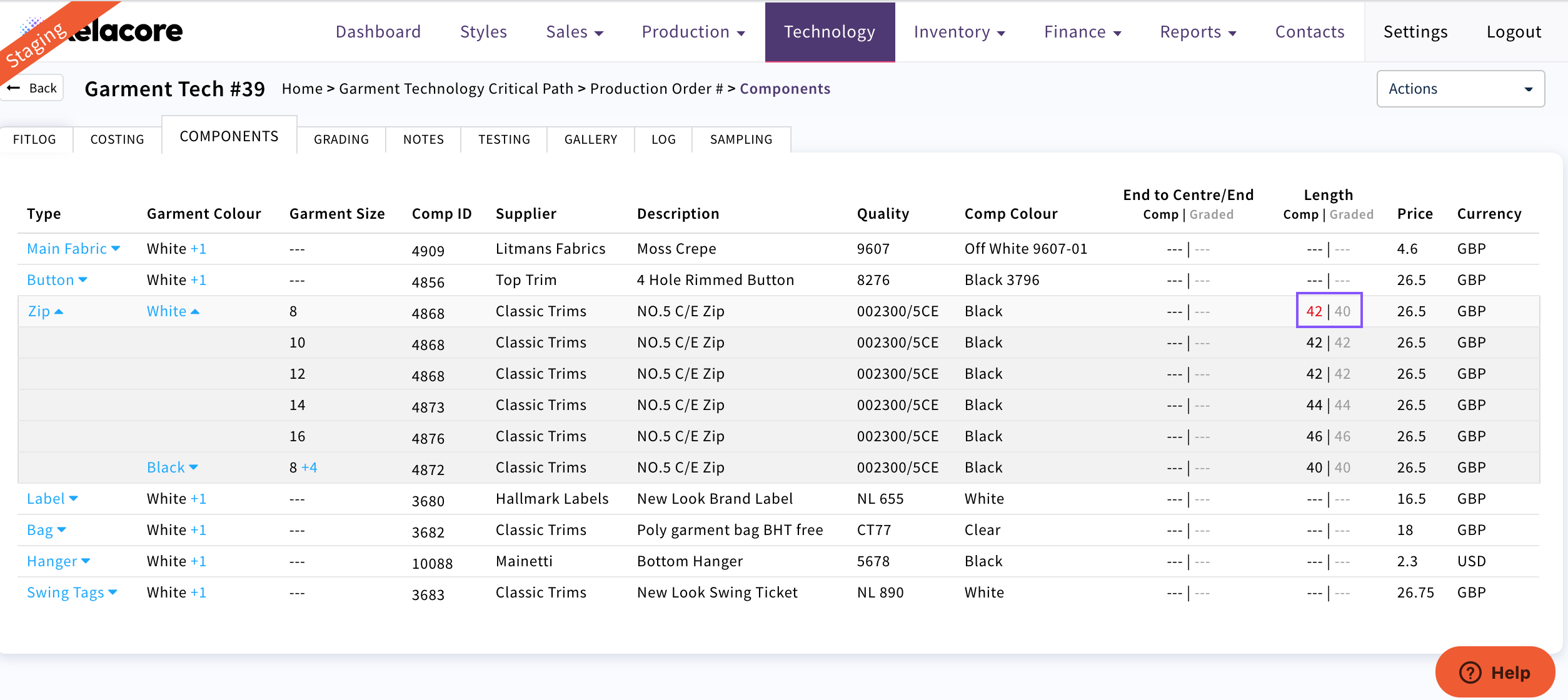
If the wrong size graded component has been selected by the Production team the component size will display RED. If you spot this you should discuss with the Production team as it may lead to incorrect components being ordered/allocated
0 Comments