The Component Library is one of the key databases used throughout Xelacore.
- Access to the component library is RESTRICTED to Administrator level only.
- Components must be added to the library with utmost attention to detail and ACCURACY.
- Components in the library CANNOT be deleted once created.
- Components MUST be stored in the library in order to create a purchase order.
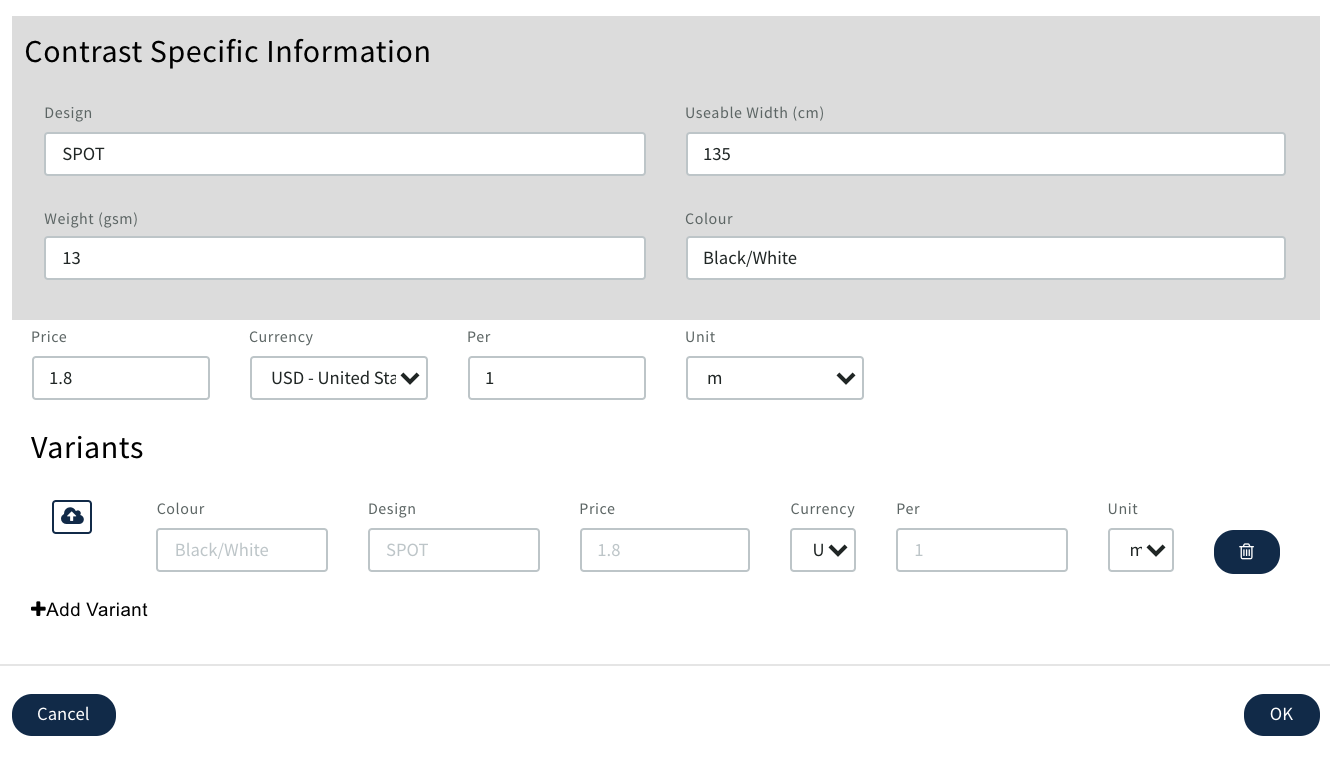
- Any variants e.g. Colours are added to the parent component for associating/ordering for Multi Colour Production Orders
- Changes can be reflected to components e.g. price once created but any changes will only be applied to new Costings using that component
Failure to follow these key instructions may affect your inventory balances by location and your profit margins achieved
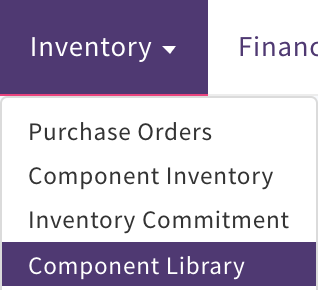
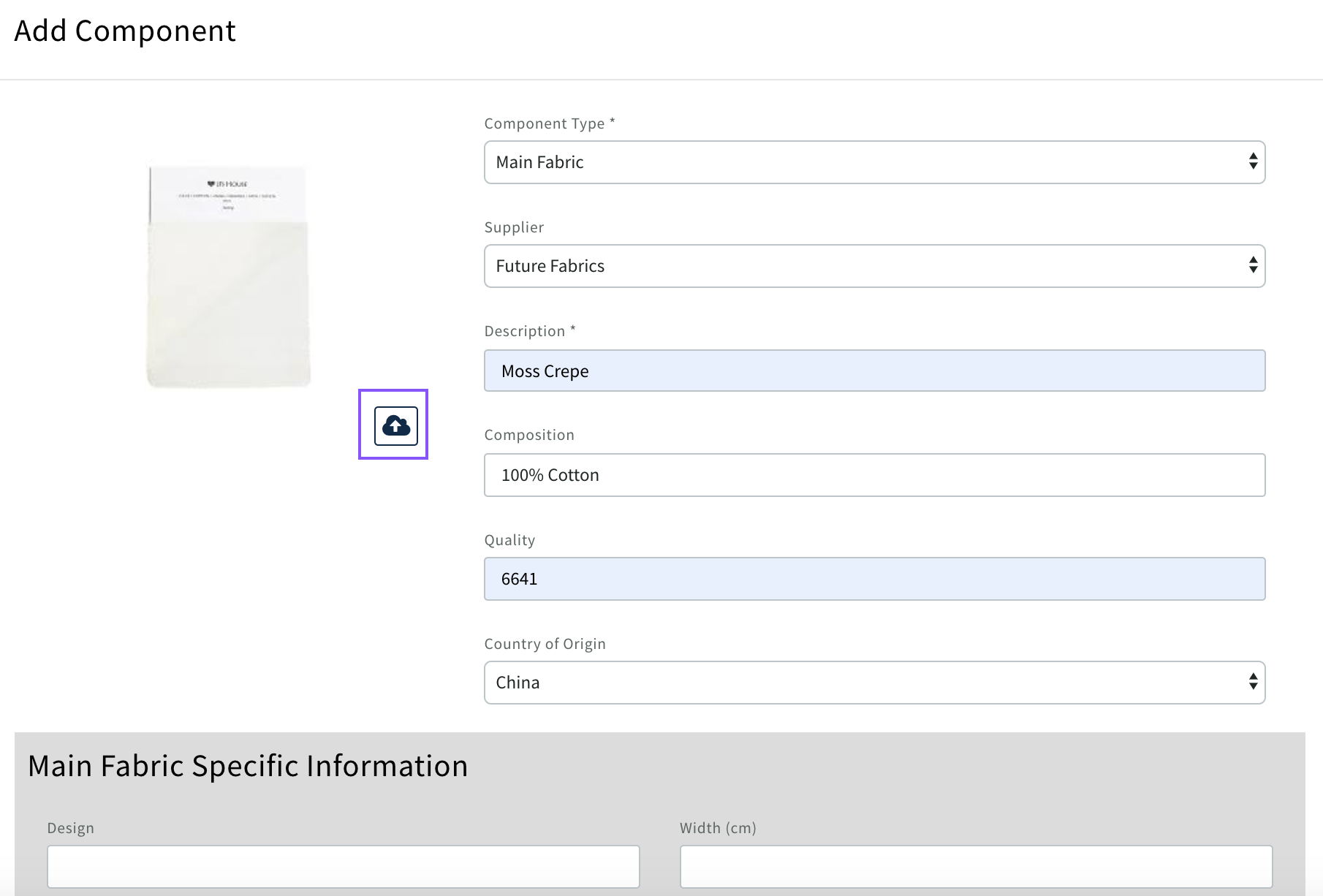
To create a new component Select 'Inventory, Component Library'
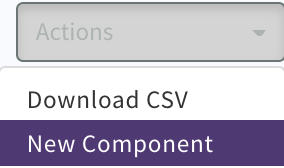
Then 'Action, New Component'
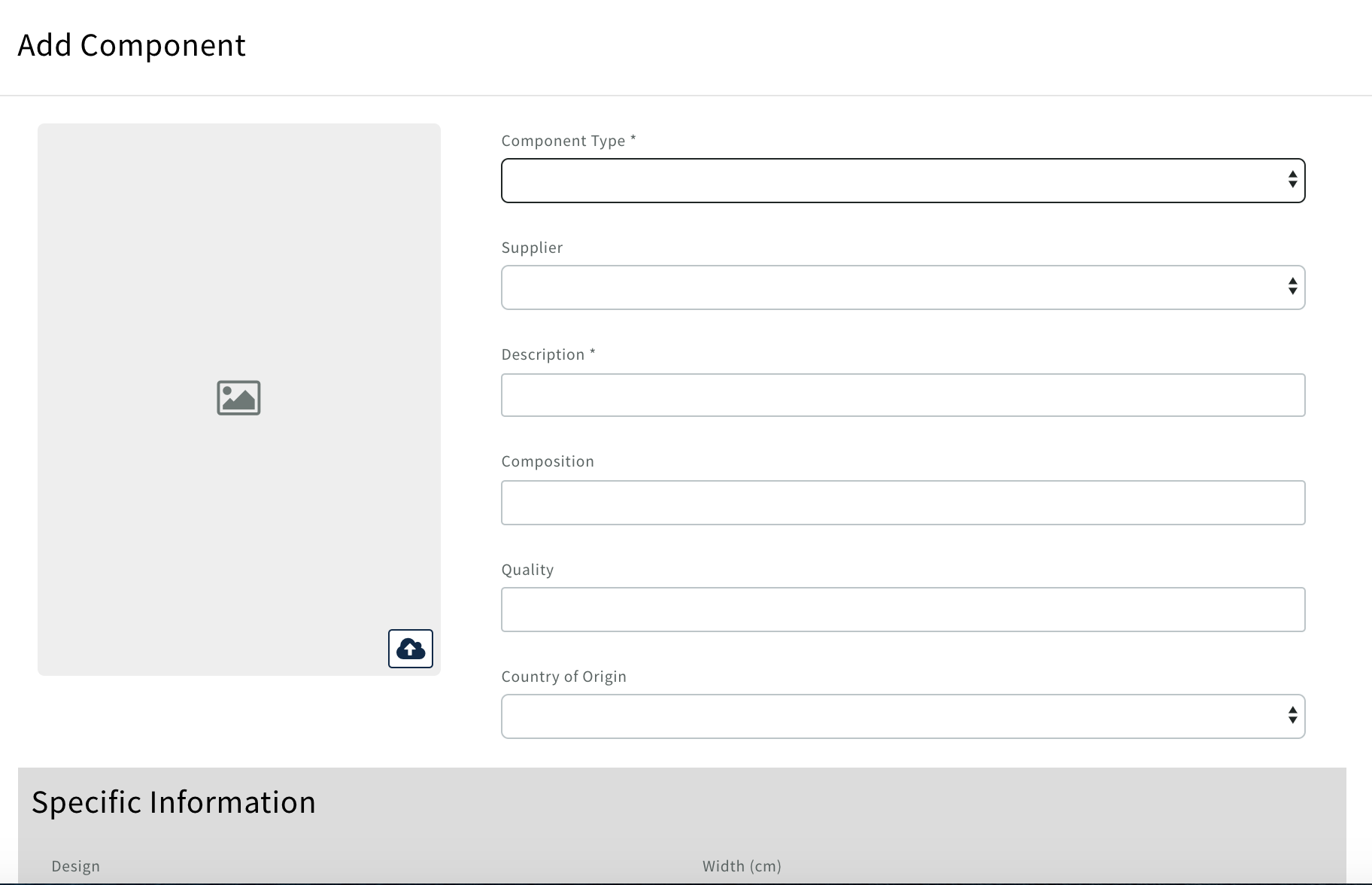
Pop up will display
- Component type - Select the component type.
- Supplier - Choose the supplier from the drop-down list.
- Description - Add a brief component description.
- Composition - Add composition (see below)
- Country Of Origin - Include the country of origin, as required by your compliance team.
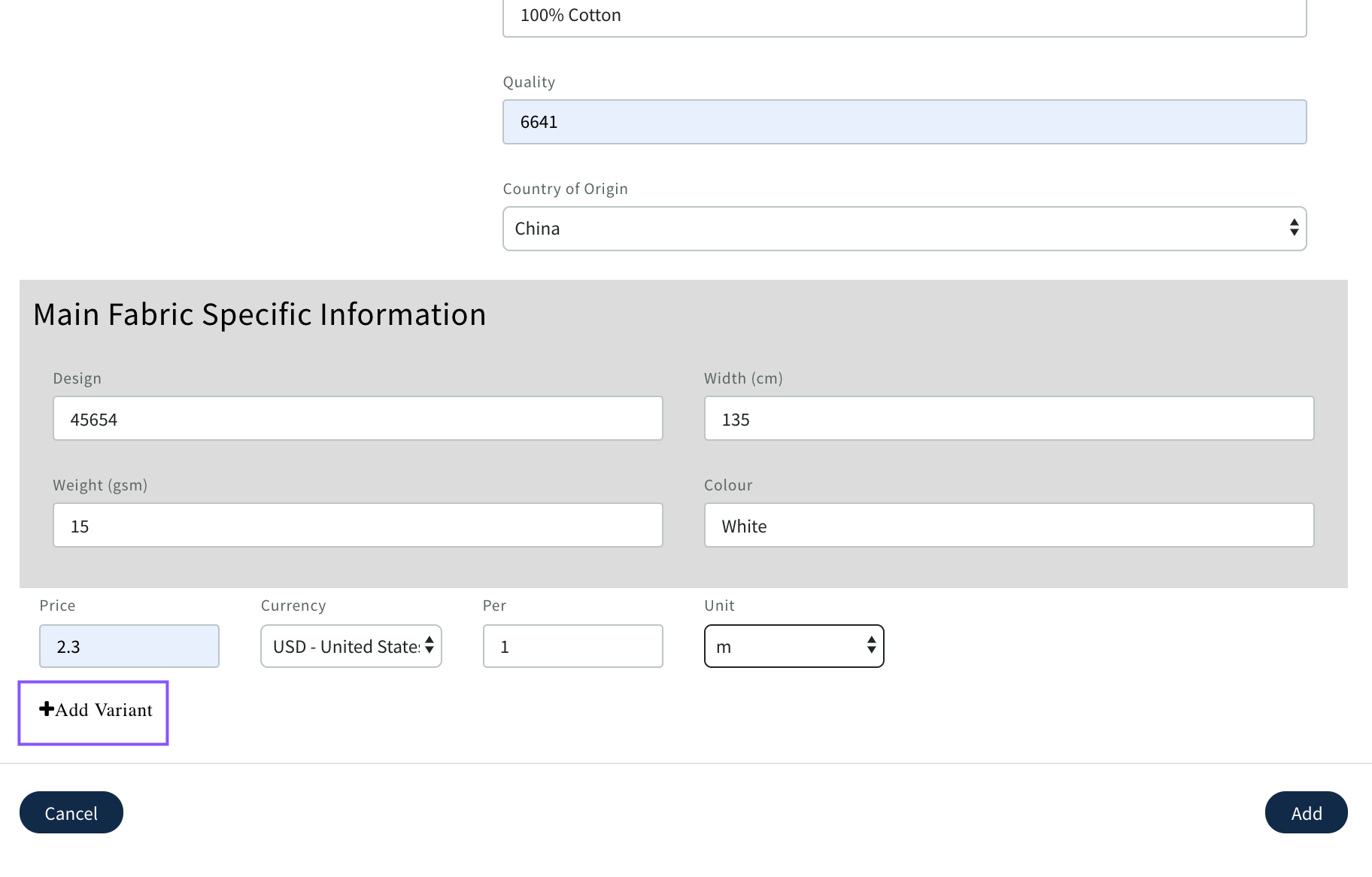
- Specific Information - These are required for later steps.
- Price - Add the component Price.
- Currency - Indicate the currency.
- Per - Include the "Per" quantity (e.g. 1, 100, 1000)
- Unit - Define the unit of measure (m, cm, unit)
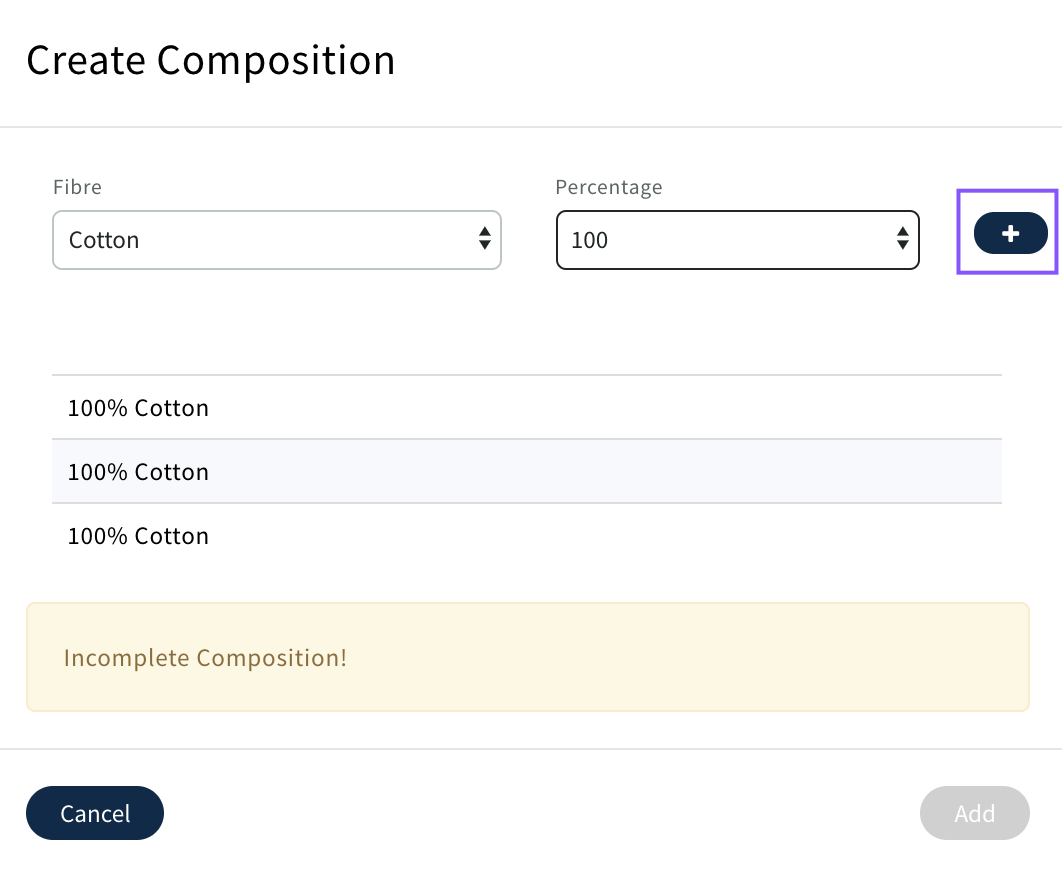
To Create composition
Download Image
+Add Variant e.g. Colour, different size etc.
The Image will copy from the parent Component but can be changed by variant if required by deleting and downloading new image
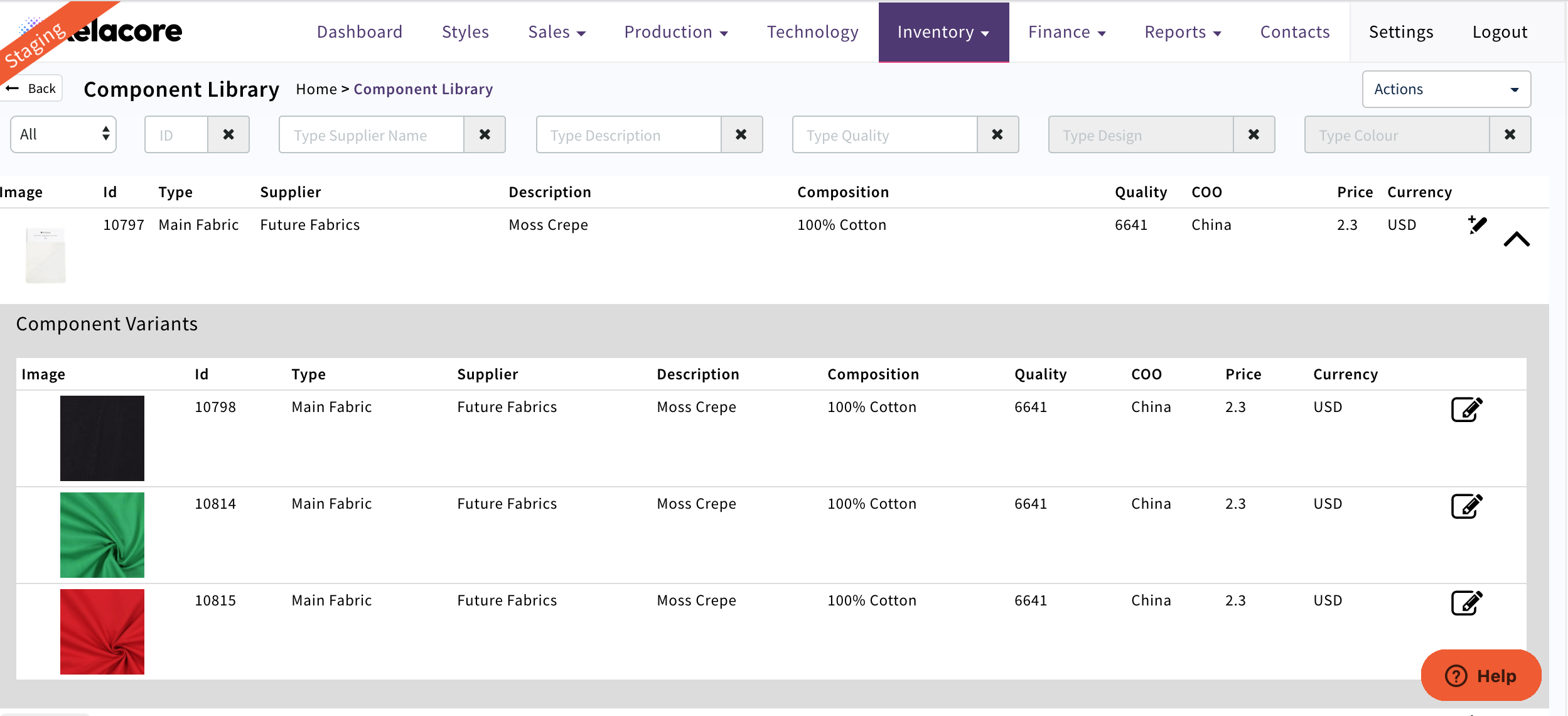
The New Component will display in the Component Library with it's ID number
To edit the component or add new variants use

To view variants use

0 Comments