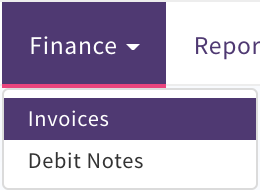
Once Invoices have been created for finished goods that have been delivered to your customers you can issue them using Finance, Invoices
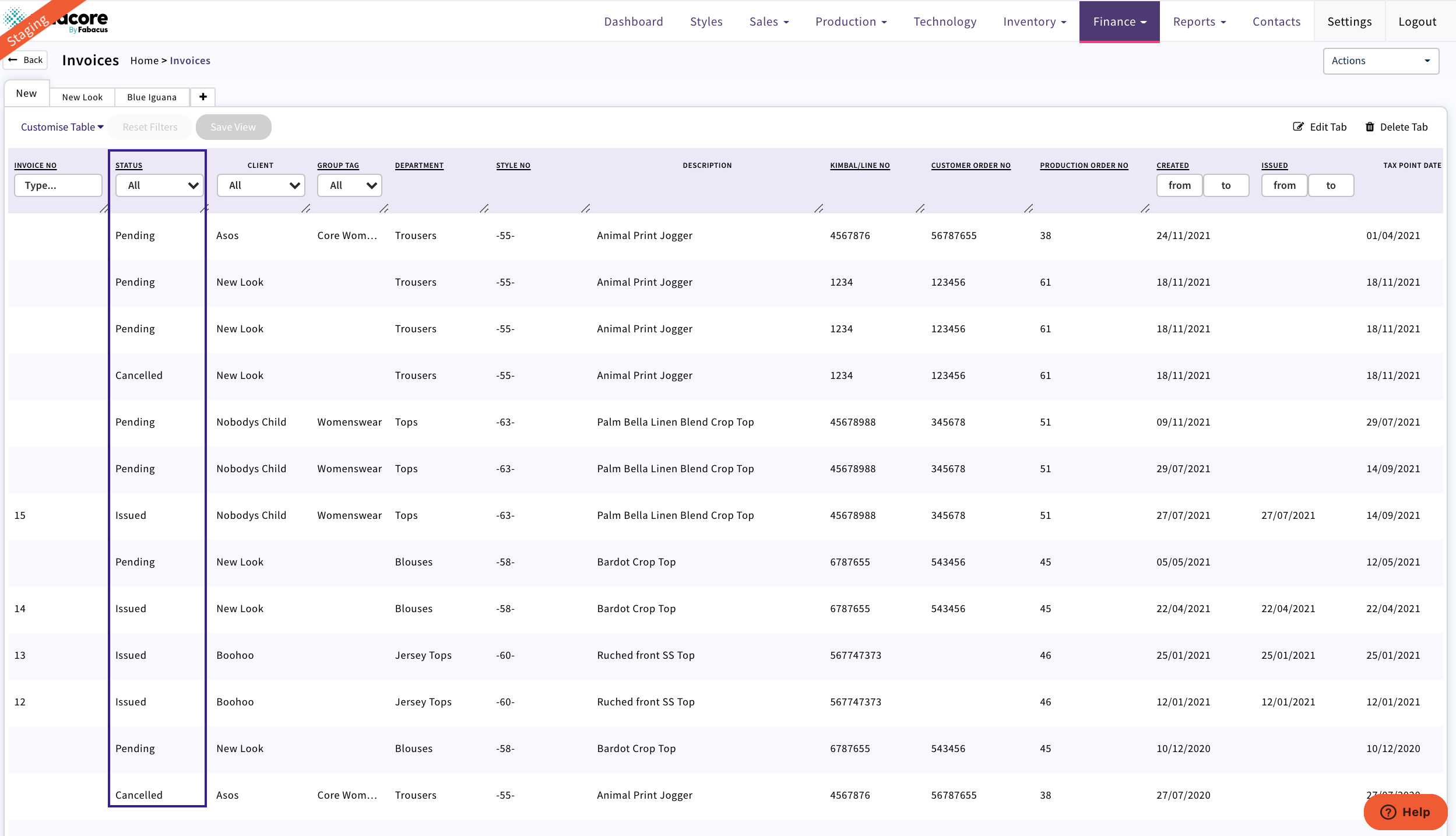
The List View will display with all invoices in 'Pending' 'Issued' or 'Cancelled' Status. You can use tabs to set up by Clients, status etc.
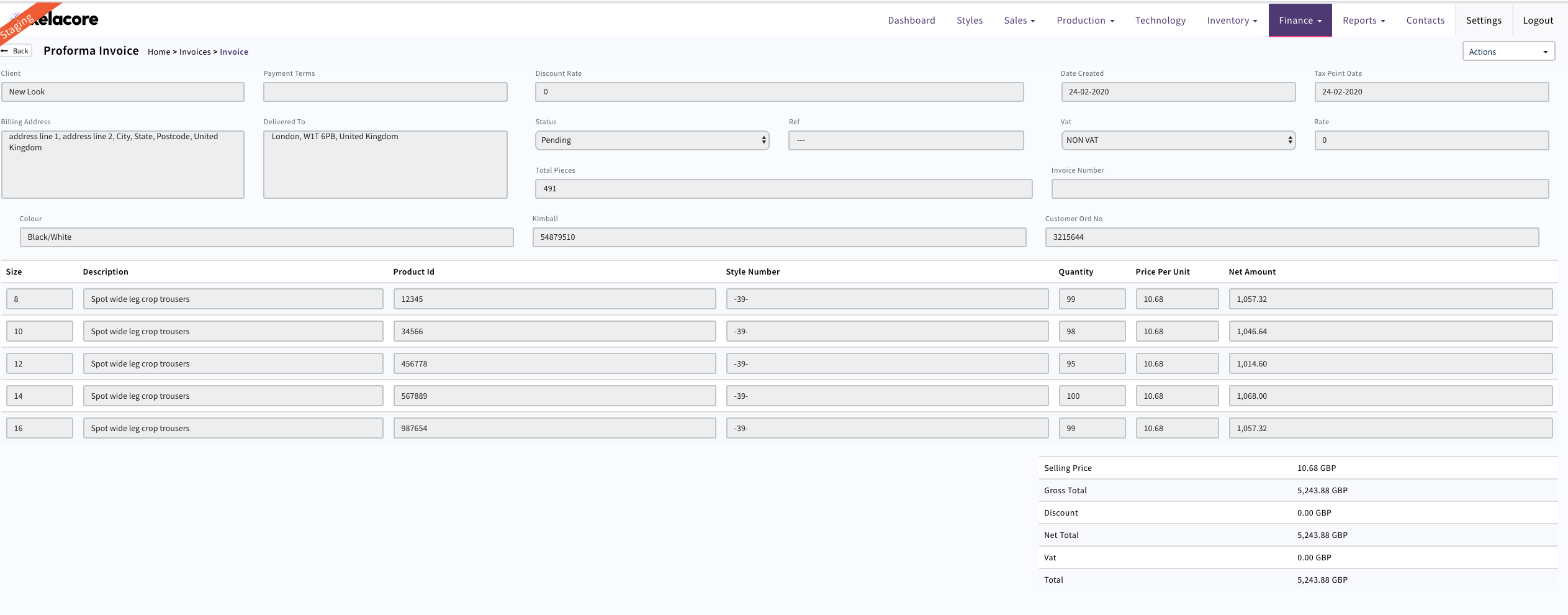
Select the Invoice Required. Details will display
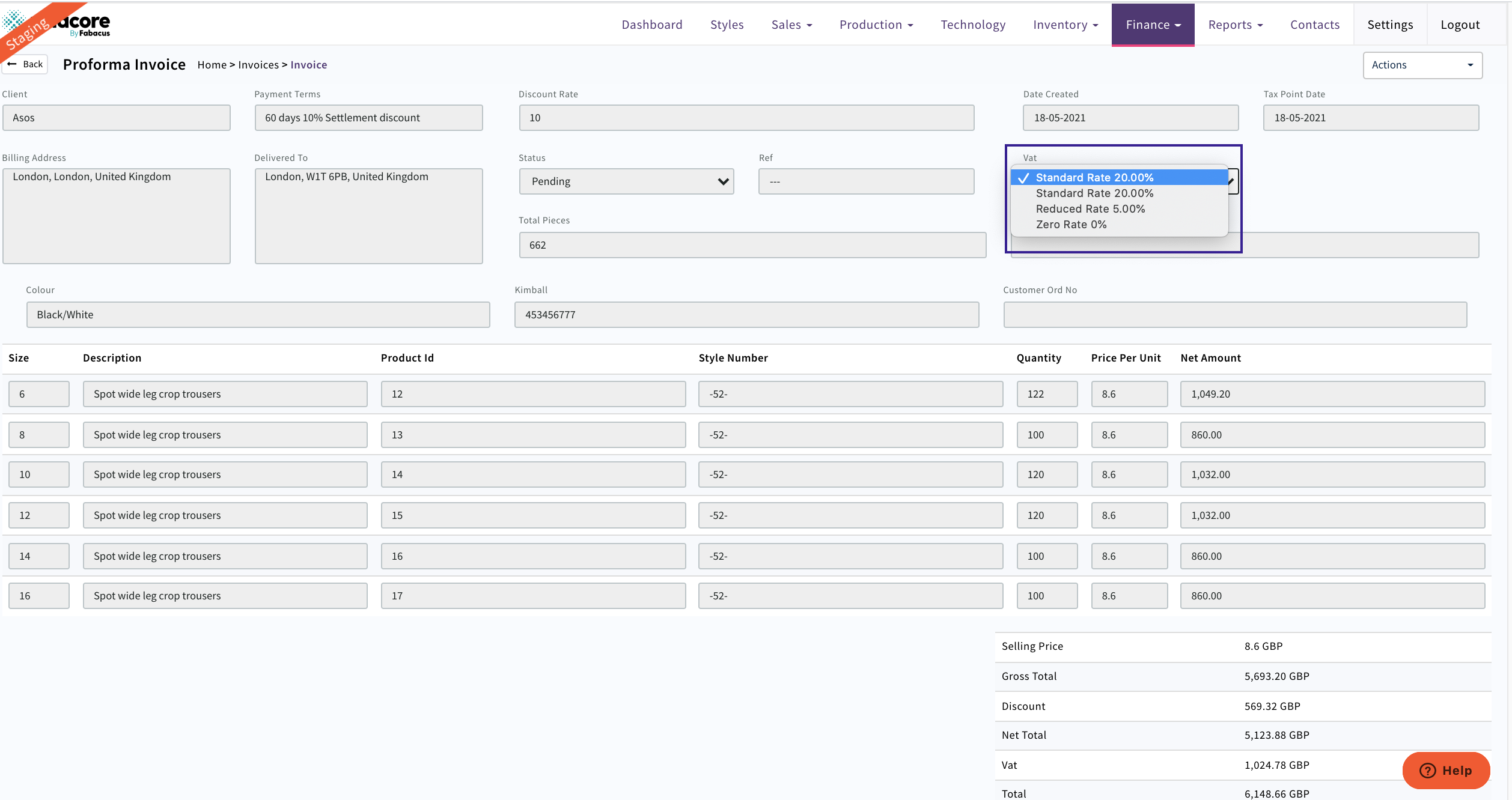
The current Standard 20% VAT rate will be applied to all invoices that have been created.If you need to edit the VAT rate use the drop down as below.
Note; Once the Invoice has been 'Issued' you cannot make any further changes in Xelacore
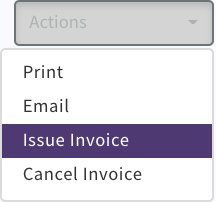
To Issue
Select 'Action' 'Issue Invoice'
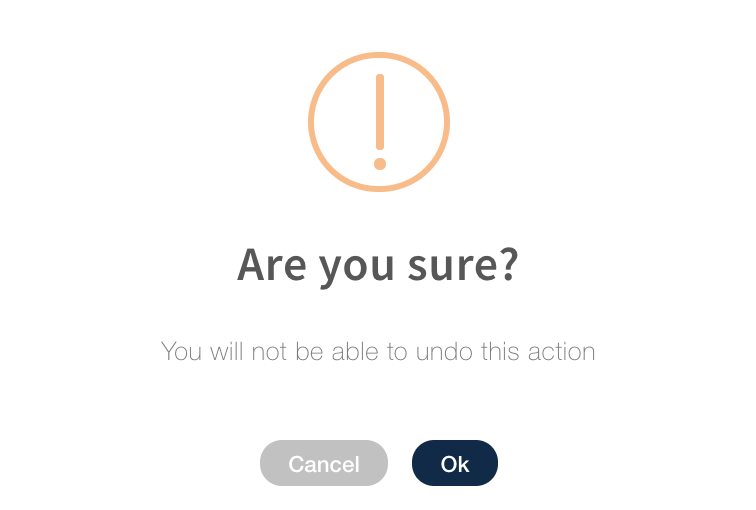
Confirm with 'OK'
Once 'Issued' an Invoice CANNOT be put back to 'Pending' or 'Cancelled'
The Invoice can then be printed or mailed as required using 'Action' 'Print' or 'Email'
To Cancel
Select 'Cancel Invoice' from Actions drop down
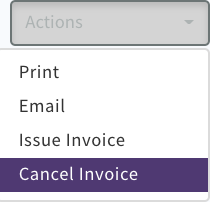
Once an Invoice is cancelled it CANNOT be issued. If you need to a new invoice can be created.
Export csv
If you use Sage, Xero or P2D Finance systems you can export a csv of data of individual Invoices to upload your invoices. The Invoice has to be in an issued status to be included in the file.
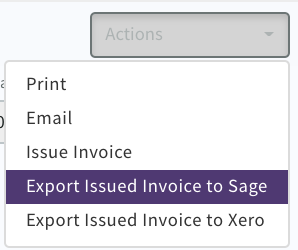
Save CSV then upload to Finance system as required.
All of the Issued Invoices can be downloaded to a csv file from the Finance / Invoice screen to be uploaded to Sage, Xero or P2D
Sage, Xero and P2D will only upload any new invoices that have not been previously uploaded
0 Comments