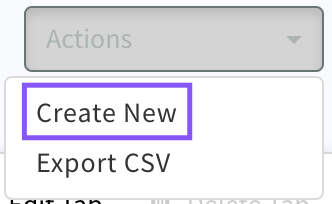
To Create a Sales Quote for a client select Actions 'Create New'
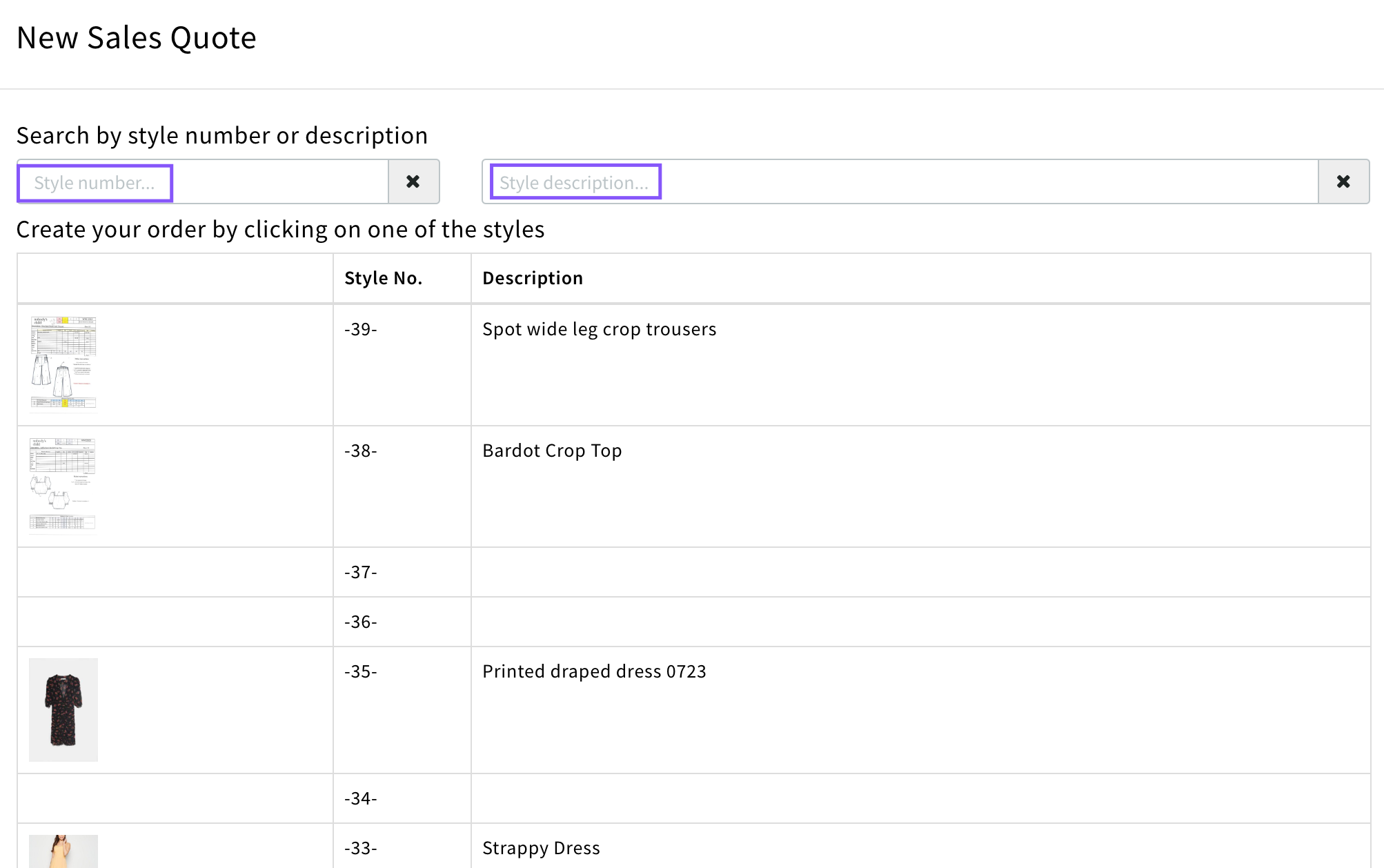
Select from latest styles listed or search for the style by number or description
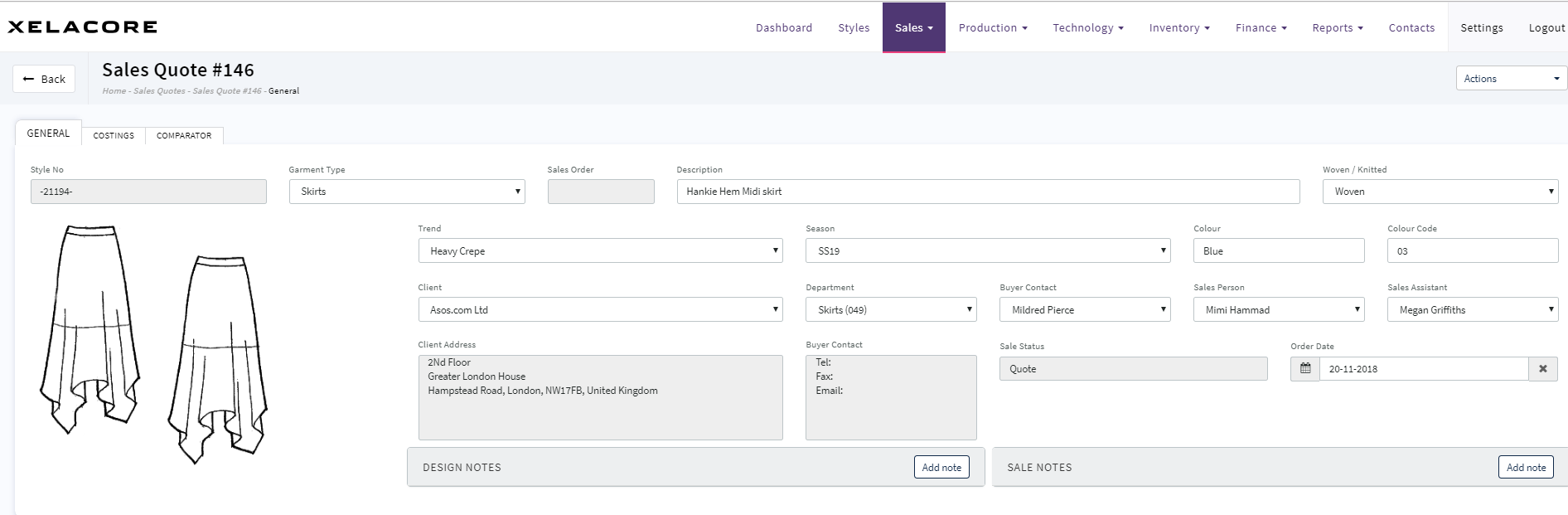
A sales quote is created you are taken to the 'General' tab where you update the client details and other key information.
Your administrator will define certain cost overheads that will be automatically included in the costing summary for each variant. These settings help to ensure that your business remains profitable and meets its financial targets.
In order for the correct data to be added to the costing summary, the following fields must be completed before you proceed to the costing tab:
- Garment type.
- Client.
- Client Department.
- Woven Knitted.
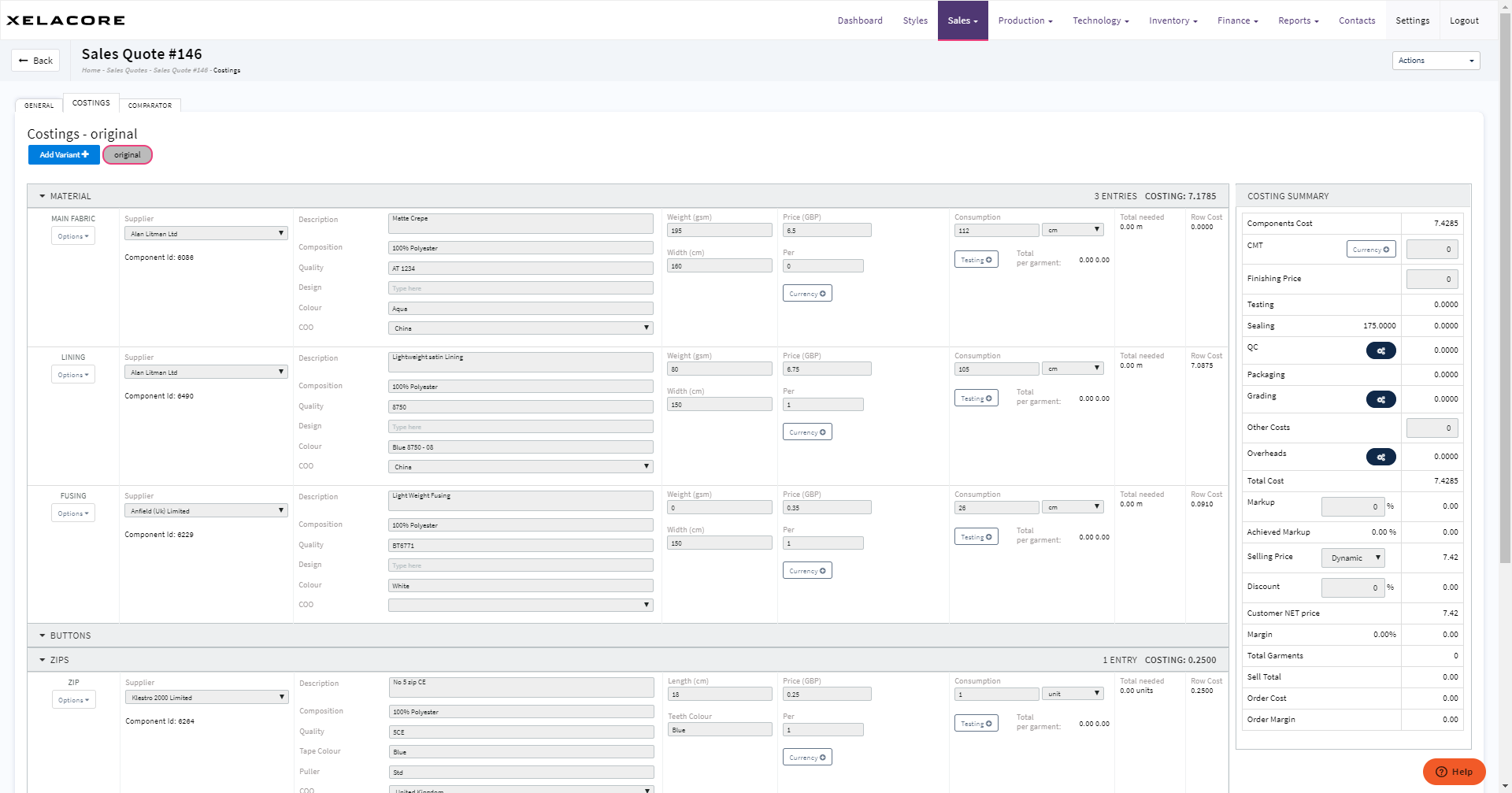
 Select the 'Costing' tab to create
Xelacore imports the original costing sheet from the style module and "Locks" the component entries to prevent editing. This ensures that you can always see the original cost and compare it against any subsequent cost variant that you create.
The original costing sheet is NOT modified in the Styles module, changes to the component or consumption throughout the costing variant process affect the indicated sales quote only.
Selecting the "Add Variant" button opens a new pop up window. Variants can be created from the original costing, or from an existing variant.
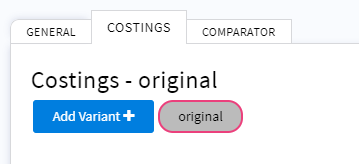
Selecting the "Add Variant" button opens a new pop up window. Variants can be created from the original costing, or from an existing variant.
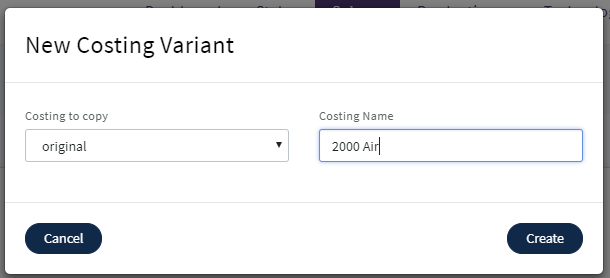
Choose the "Costing to copy" from the drop-down selector, and enter a 'Costing name' for the new variant.
Additional overheads are automatically included in the costing summary upon adding a new variant to the costings tab. For each costing variant, ensure that the following fields are completed:
- Temp factory: Add which factory you think will produce the Order
- Delivery date: The delivery date specified by the client.
- Sealing date: Calculates the date based on the factory sealing rule in settings
- Freight method: Select the available freight method for the quote
- Packaging: Select the packaging method mandated by the client.
- Total garments: The clients proposed order quantity.

Each costing variant can be uniquely amended without affecting the original costing. Changes can be made to model different freight methods, source components from different suppliers, adjust consumption, add or remove items, to achieve the selling price to the customer and profit margins achievable.
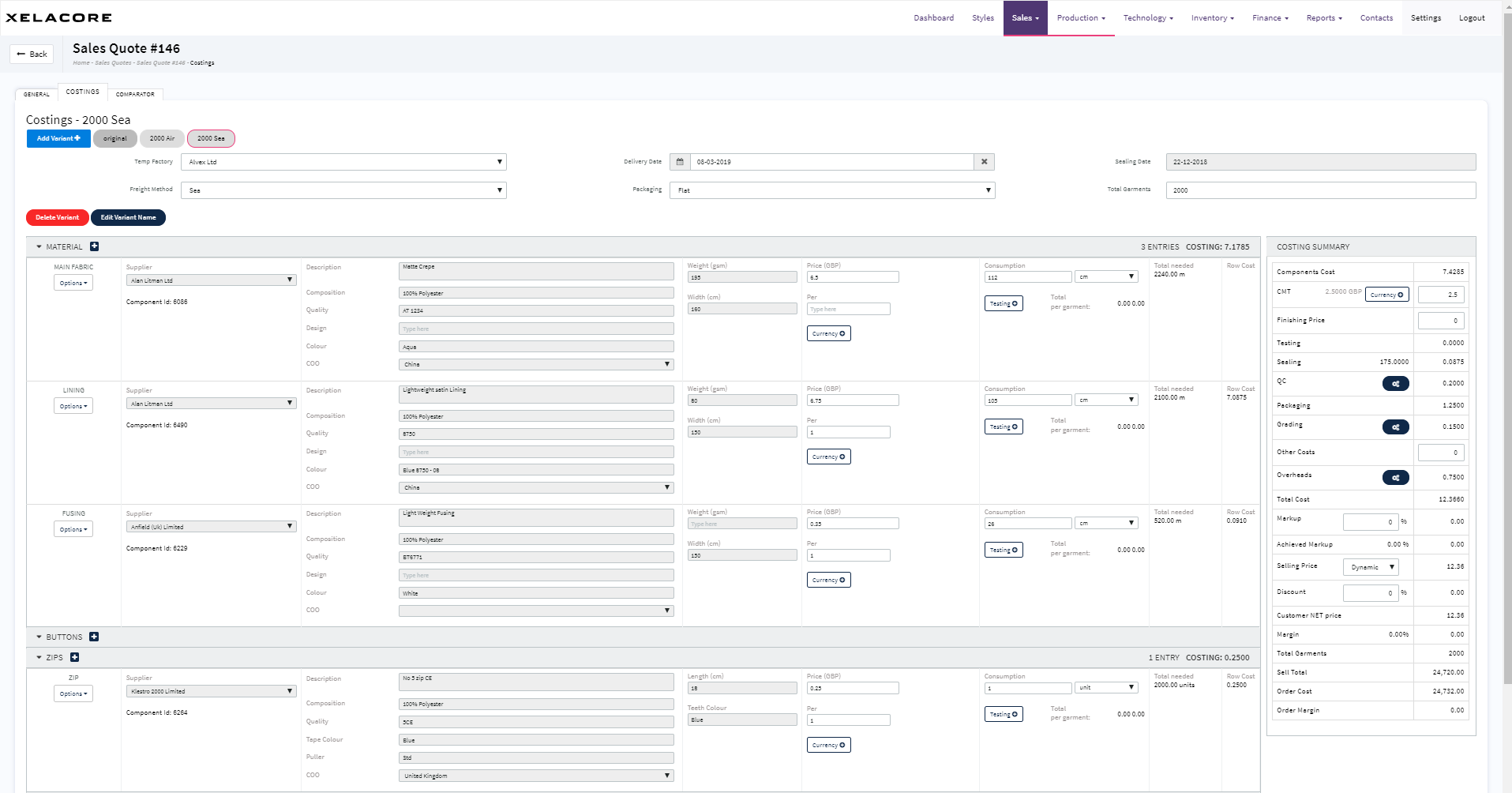
If a component is in any currency other than GBP it will display as below

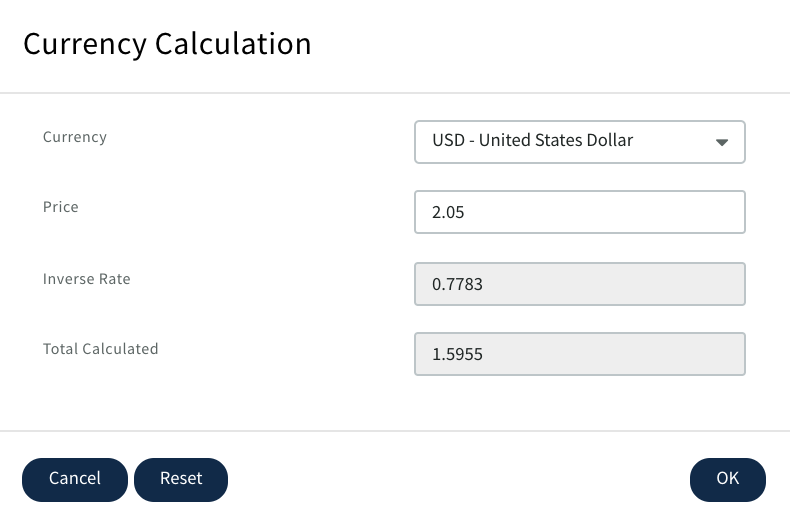
Use the currency button to convert the component price to GBP. Select the currency and price to be converted.
CLICK OK and price will display in GBP and then be used for calculation once the consumption is entered.
Any Duty and Clearance that needs to be added to the component price can be included by clicking on the Duty box ( % values set up in Settings /Financial with automatically be added)
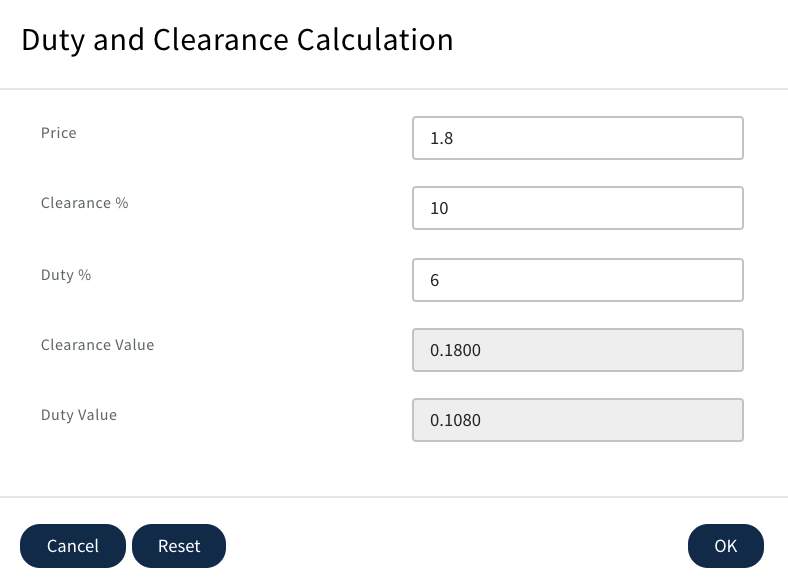
If Duty and Clearance have been added then it will display on the costing page against the component

You can create and edit as many variants as you need, and delete any that you no longer need, by selecting the variant to remove and clicking the "Delete Variant" button.
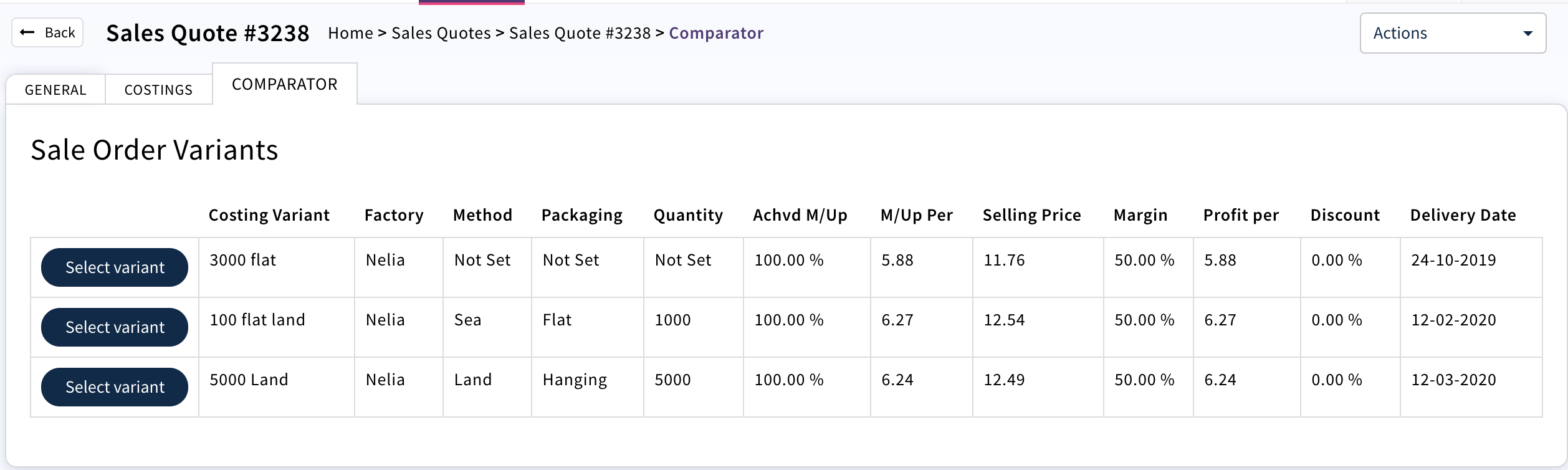
Once all your costings against this style are complete you can use the comparator to quote the Selling Prices to the Customer. This can also be downloaded to a csv excel file which can be mailed to Customers if required.

The Sales Quote will only remain in the list view until it is converted to a Sales Order. If a Sales Quote is no longer required it can be deleted.
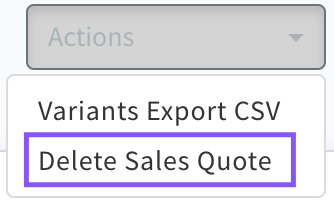
Select the sales quote you wish to delete by clicking on the row in the list view. From the "General" tab, select the "Actions" button, choose the "Delete Sales Quote" option
Select 'Actions' then 'Delete Sales Quote'
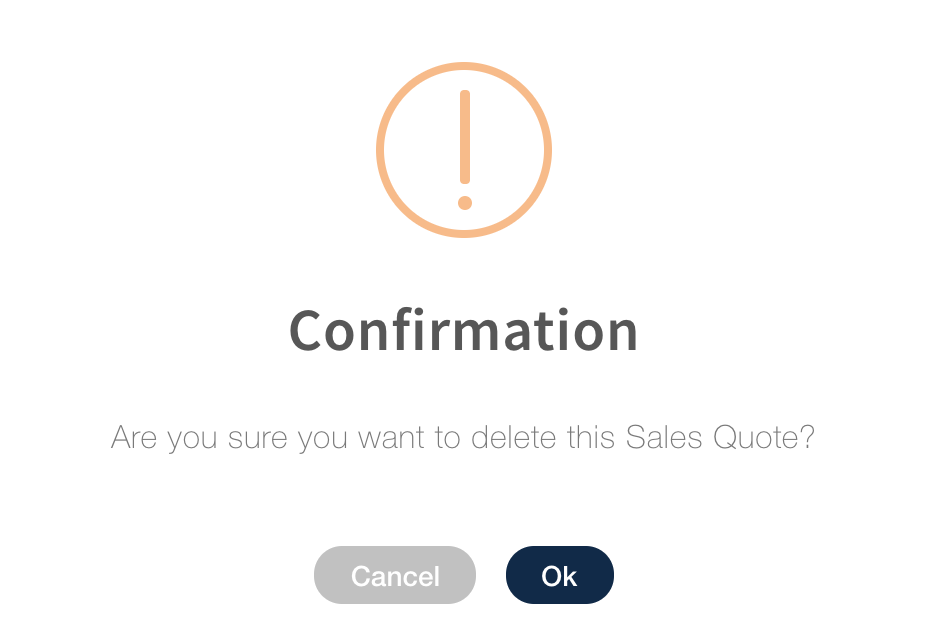
Confirm 'OK'. Sales Quote will no longer display in the List View
0 Comments