The docket for the factory can only be created once all components required for Production have been associated and allocated on the Production Order
If the Production Order is in Multiple Colours and deliveries you can choose how many dockets you create e.g by colour, by delivery or one docket with all colours and deliveries included
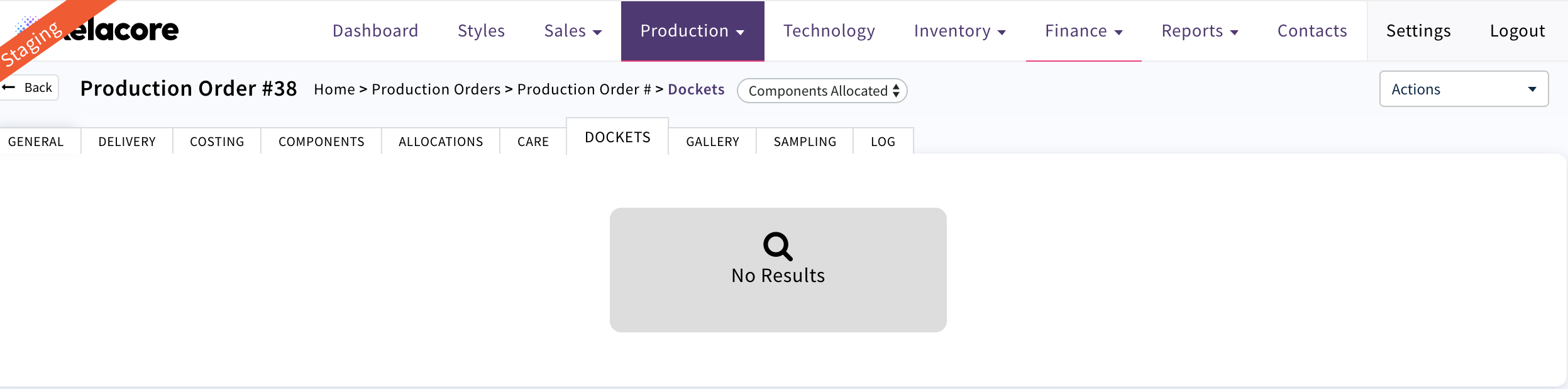
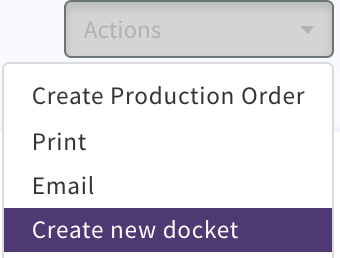
Select Actions 'Create new docket'
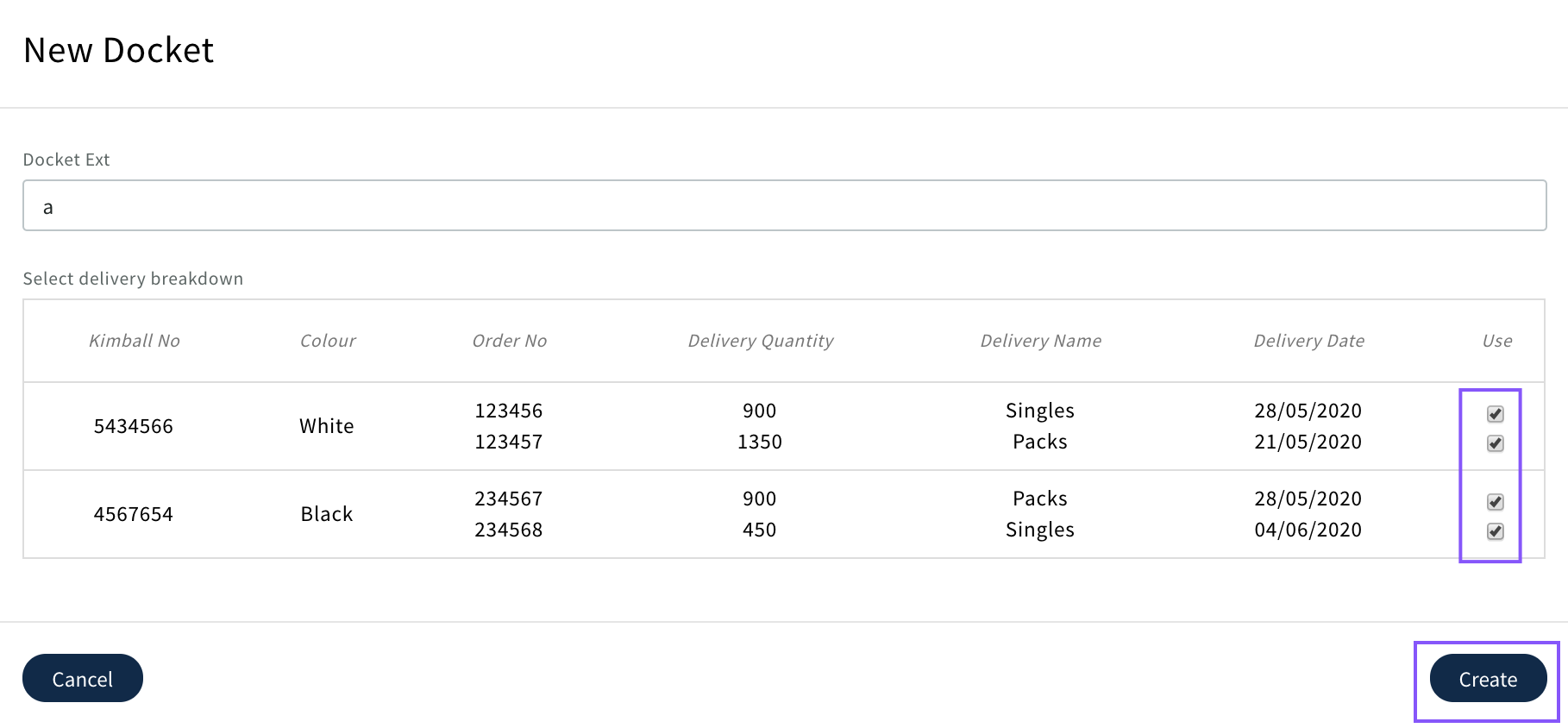
Create a docket ID and select deliveries to be included on this docket
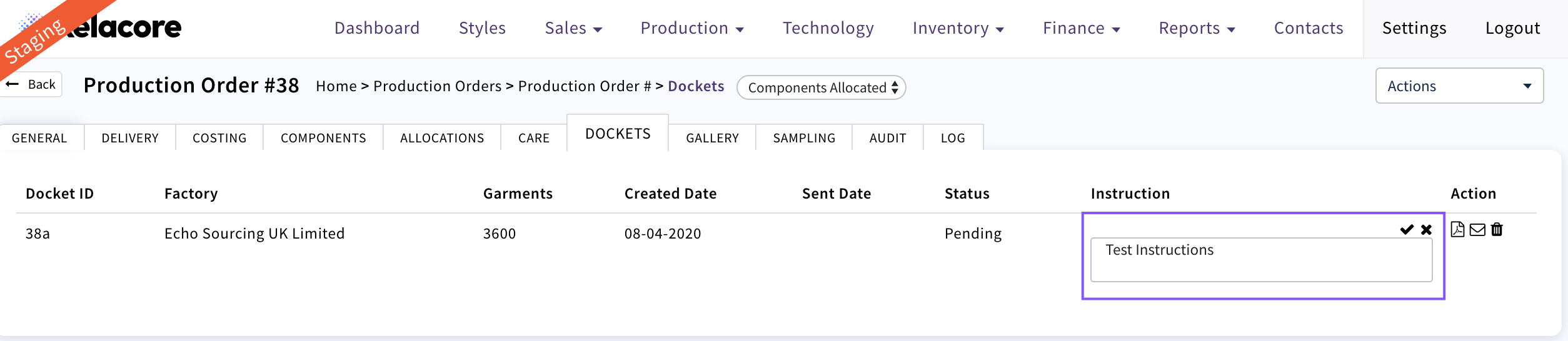
To add additional instructions on the docket click on the pencil icon

Type instructions and click on the tick
To Delete the docket use the bin icon.

Be aware that dockets should not be deleted if the factory has started making goods. If the production Order is cancelled after the factory has started to manufacture goods the Sales Order status can be changed to Cancelled which will update the Production Order status.
To View the docket use the icon

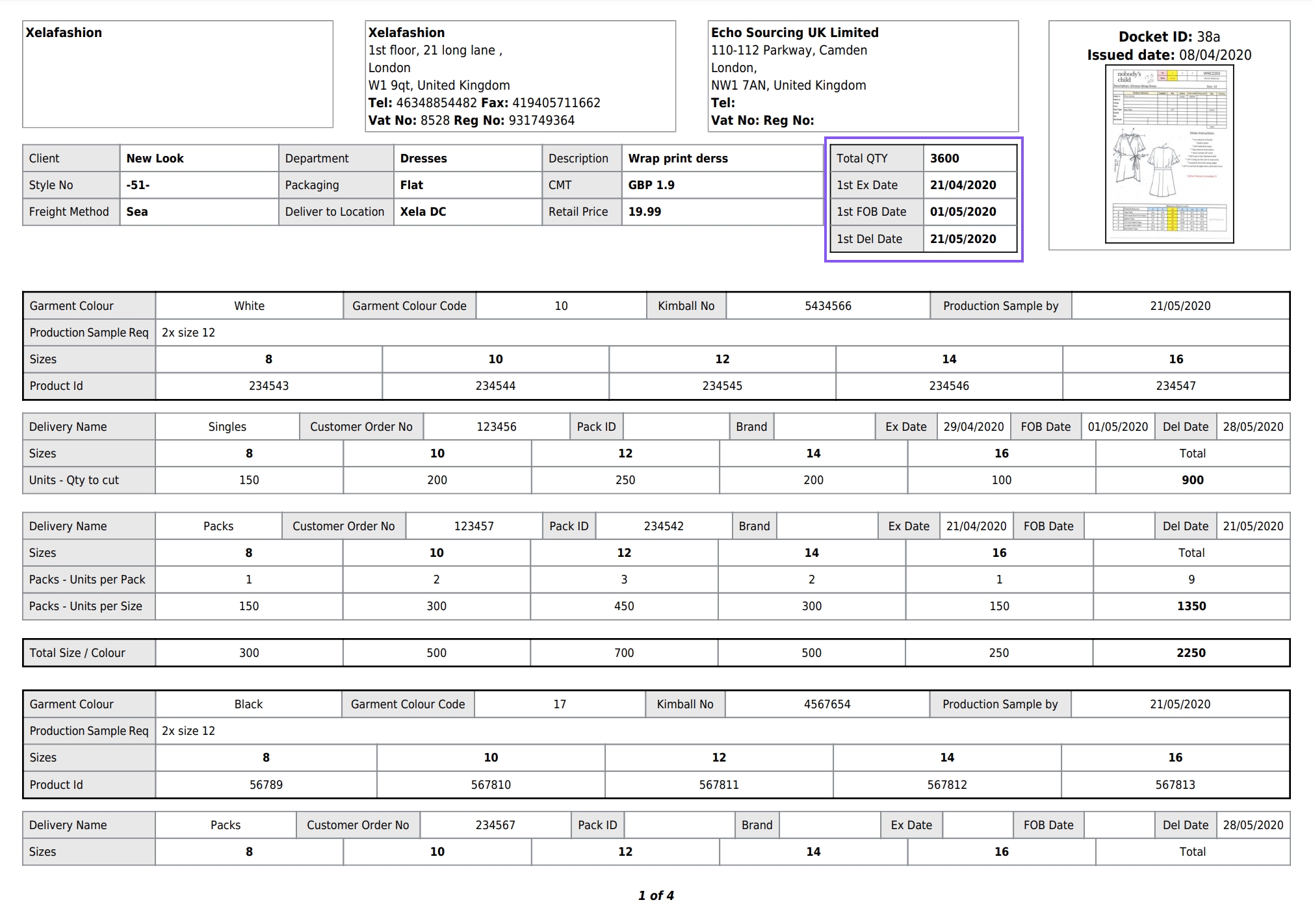
The Total Quantity of the Production Order and the first dates (Ex,FOB,Del) will display then each colour/delivery will display below
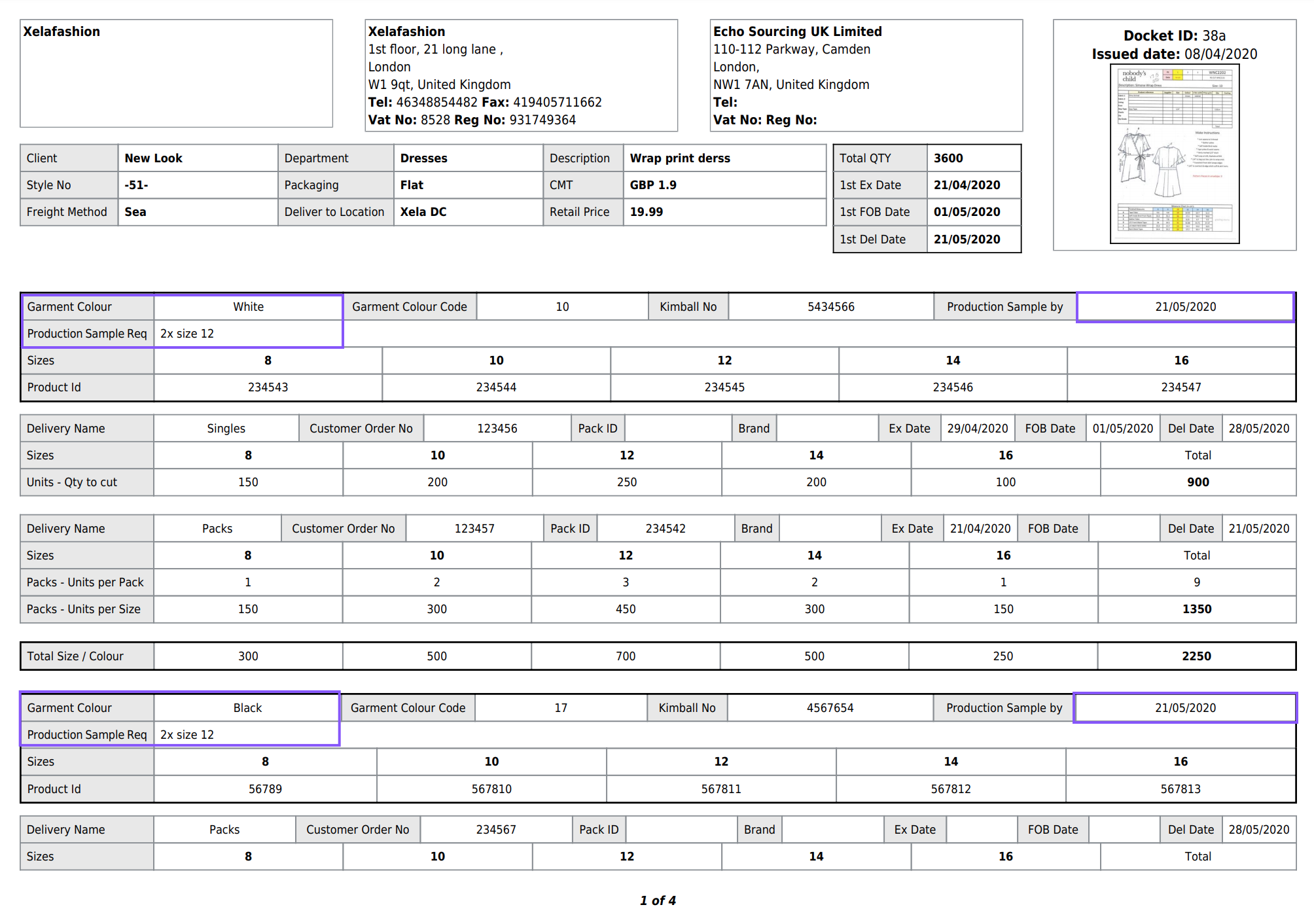
 The Production Sample requirements are also by colour
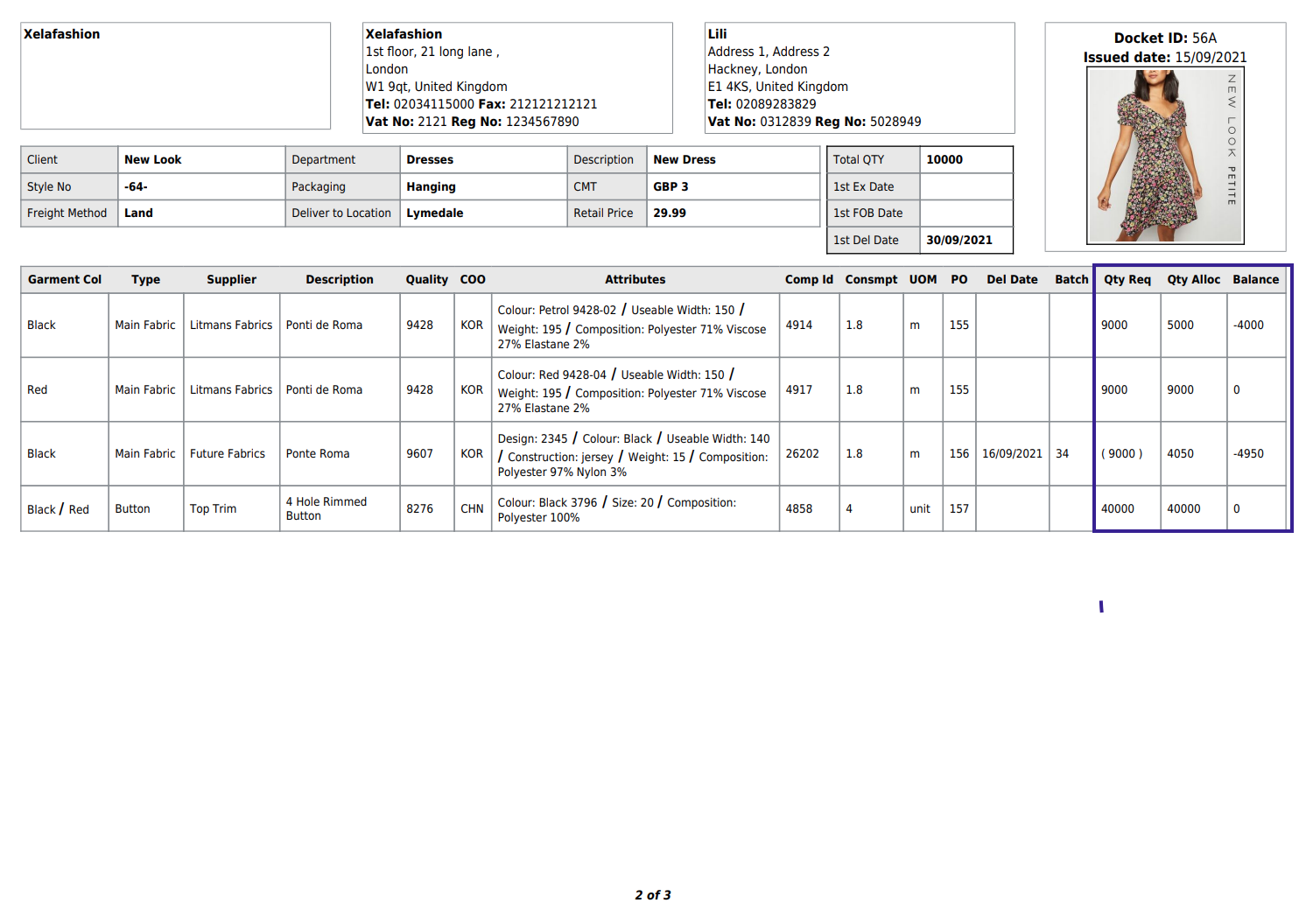
Next the factory can see all the components that are required and have been supplied (allocated) to complete the Production Order. If any of the Quantity required are in brackets this mean that the component type is being fulfilled from multiple component ID's /Suppliers e.g. stock components may be being used and then the balance fulfilled with a new component ID/Supplier
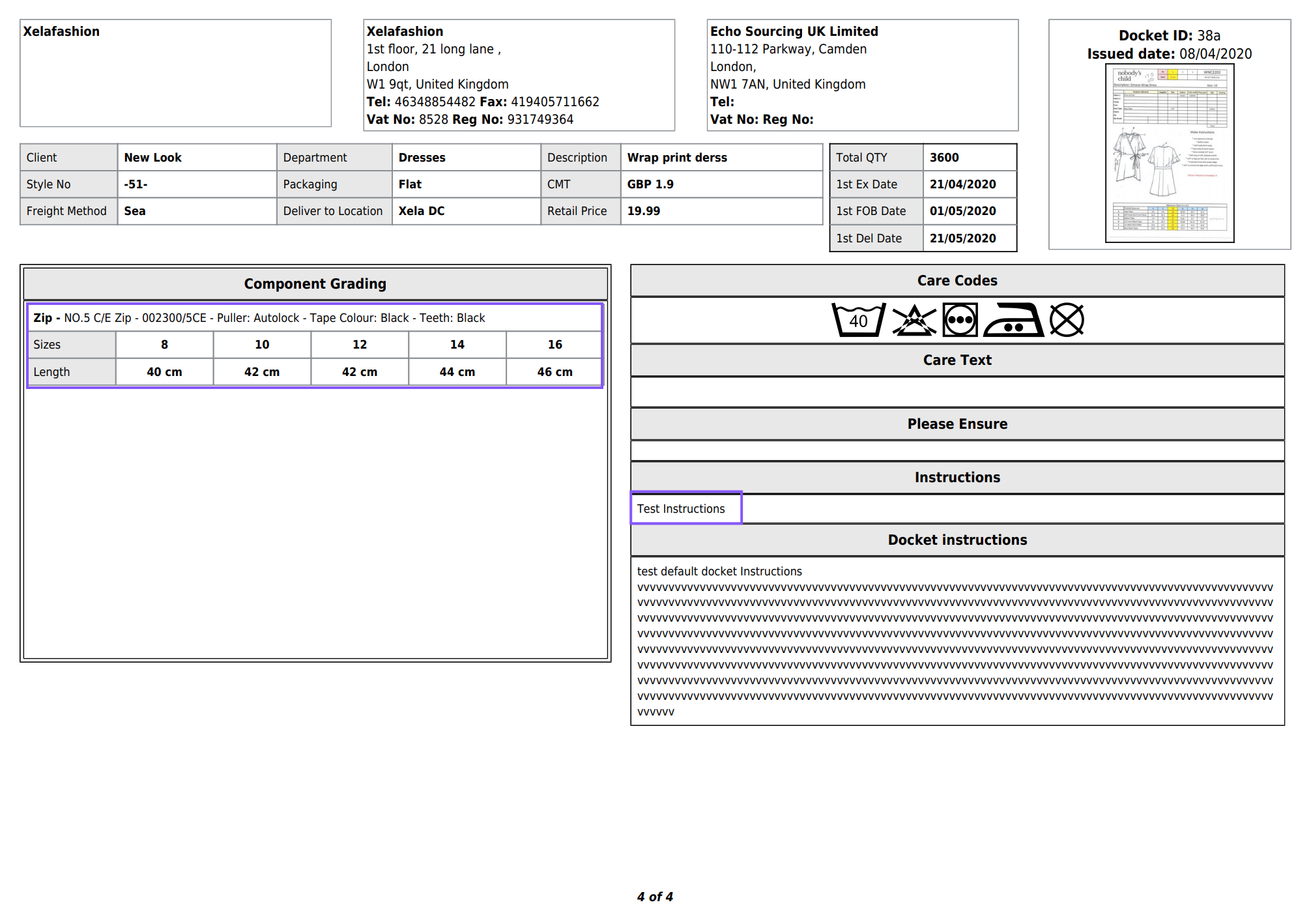
The last page displays graded components required to be used by size and any additional comments for the factory to be aware of during production
Once you are confident that all of the docket information is correct you can mail it to the factory using the icon

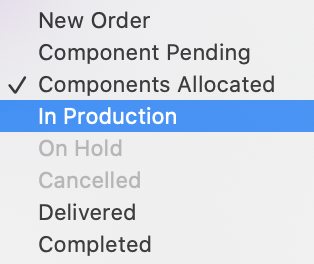
Also change the Production Order status to 'In Production'

0 Comments