Once Components are associated on the components tab then you can use the allocations page to Allocate and Order components to be able to manufacture the garments for your Client
Only allocated components will display on the docket to the factory
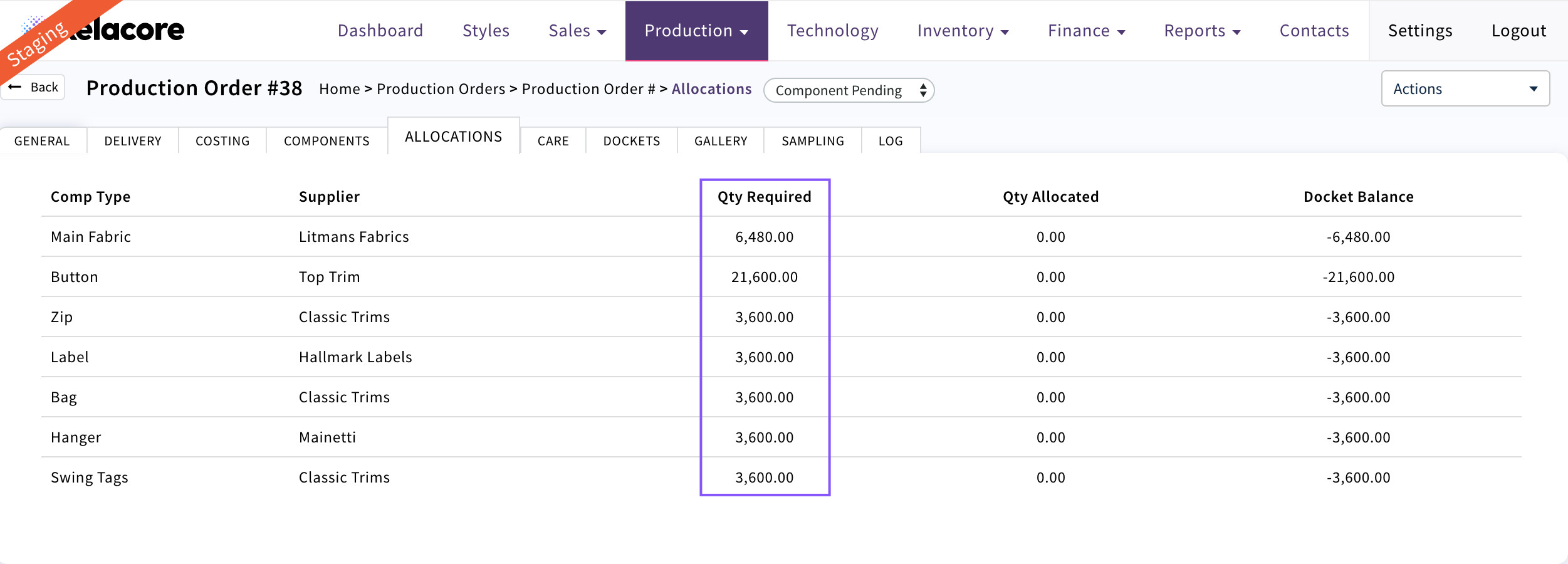
When you open the allocations page all of the component types on the costing will display with the quantity required.
If the quantity is in brackets this means that this is an additional component ID/Supplier has been selected to fulfil the quantity required to complete production. The total quantity for that component type colour will display so the user will have to manually work out quantities to allocate across the multiple component ID's

If the component display highlighted Red you need to go back to the components tab and associate the component ID for this component type
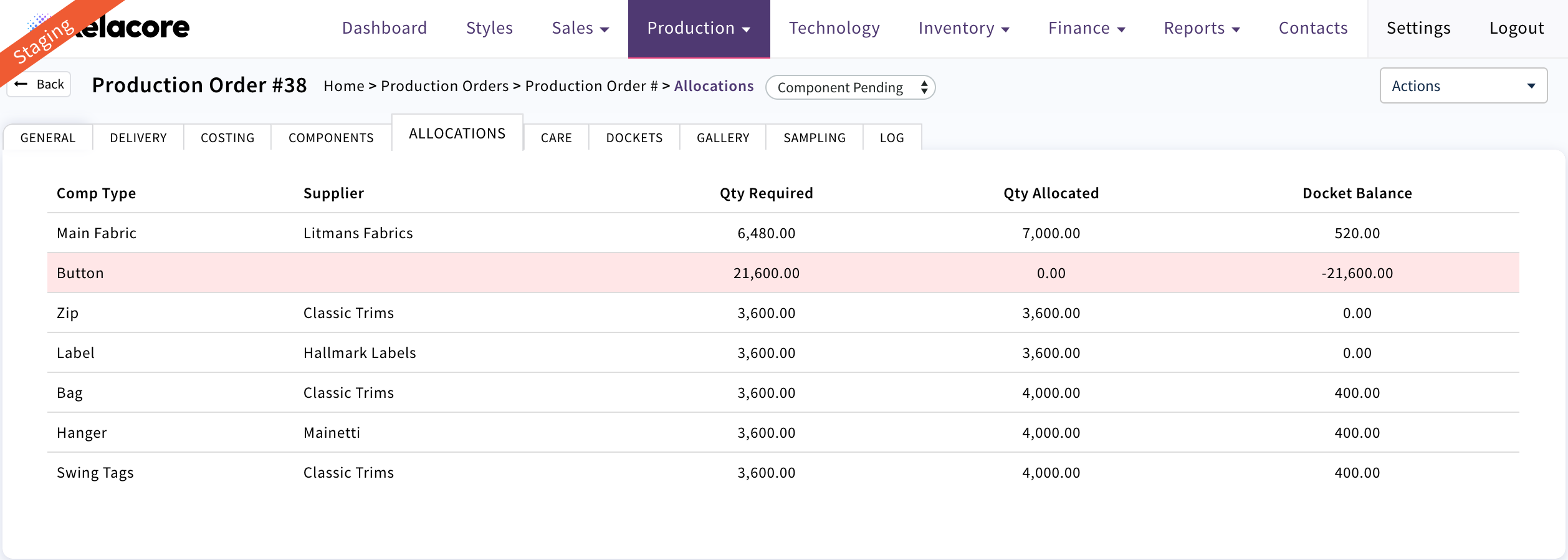
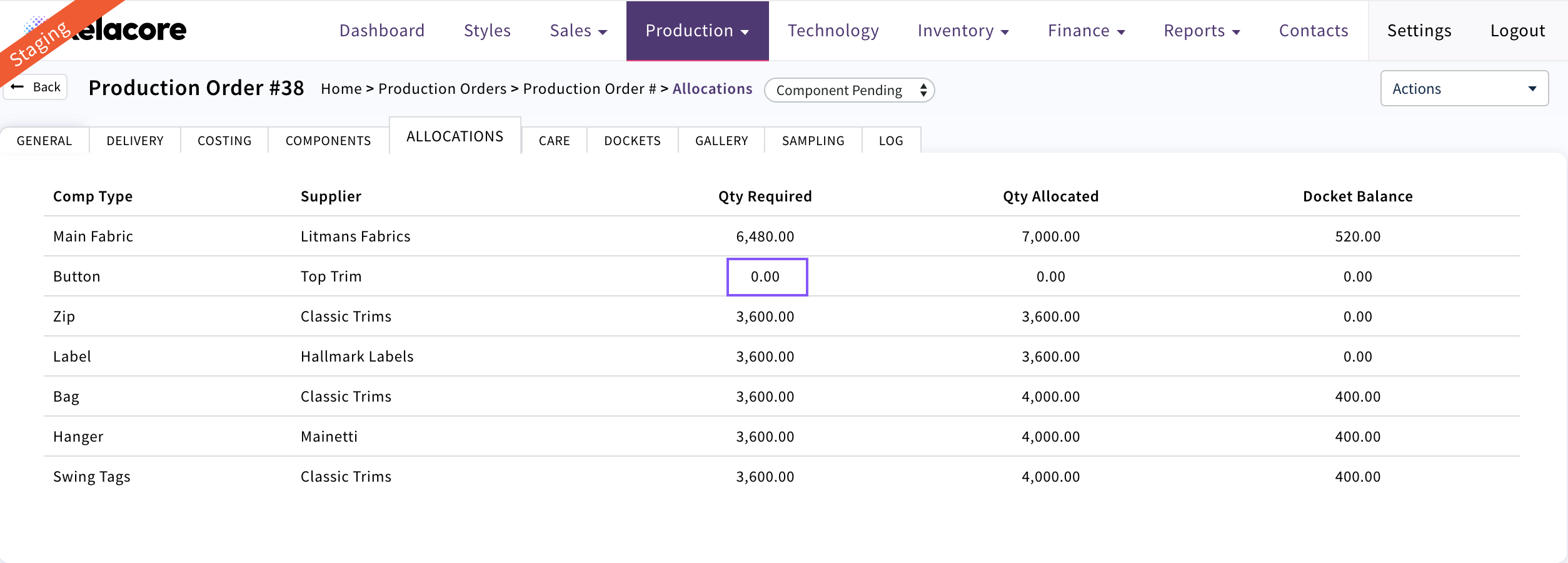
If the 'Qty Required' is zero you need to go back to the costing as the consumption is missing
 Open component type by clicking on the line
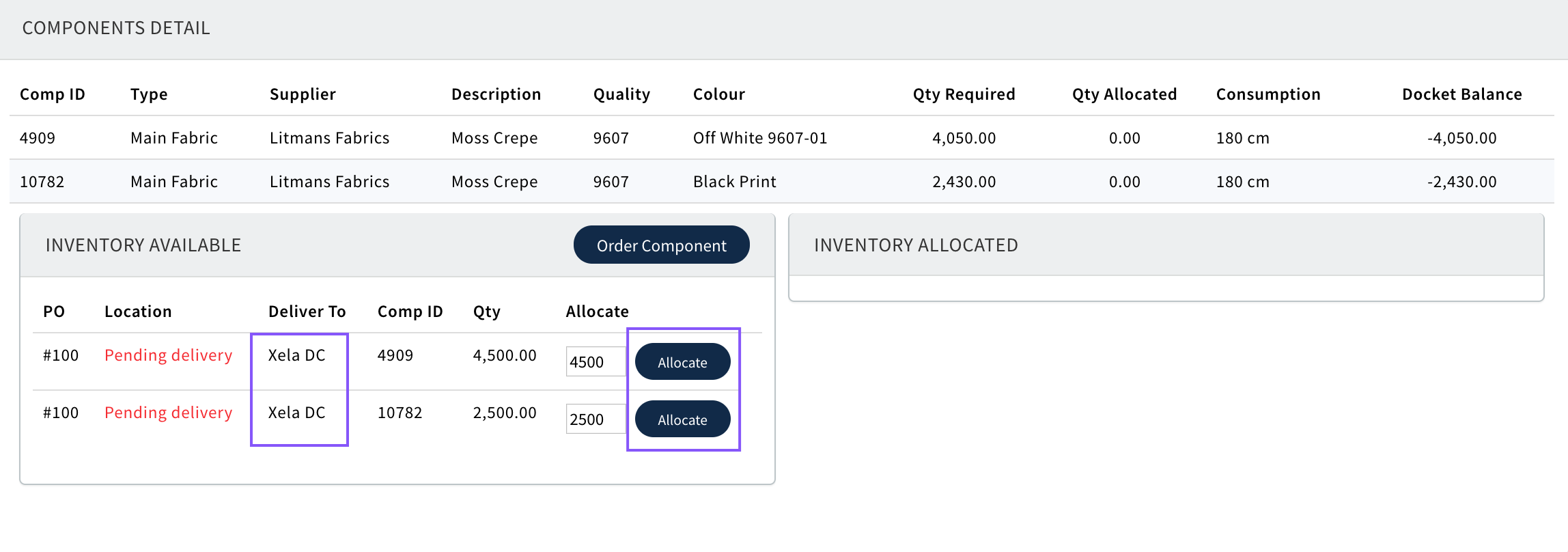
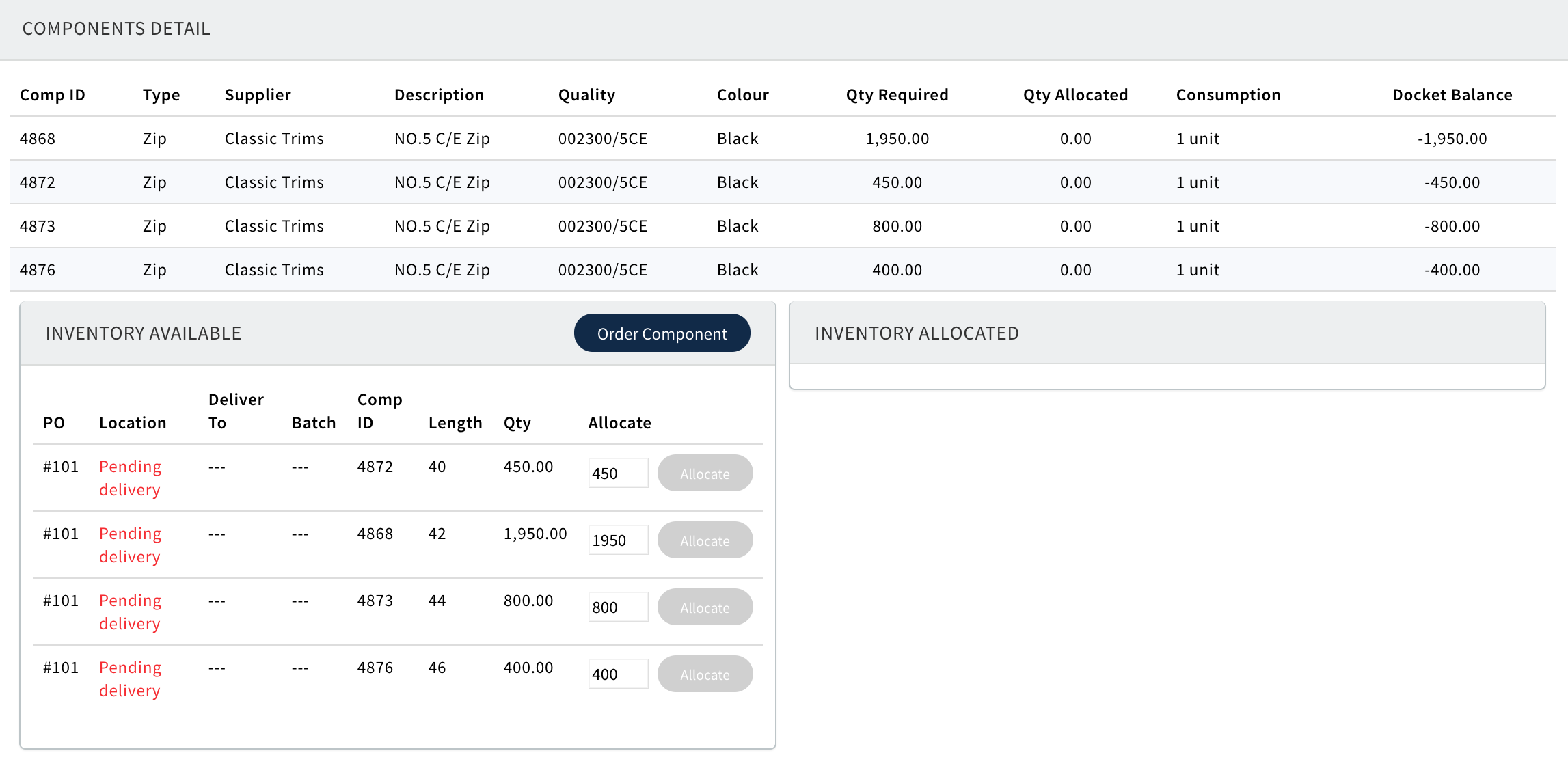
 The quantity required will now display by colour. Any available Inventory will display by location and can be allocated if required
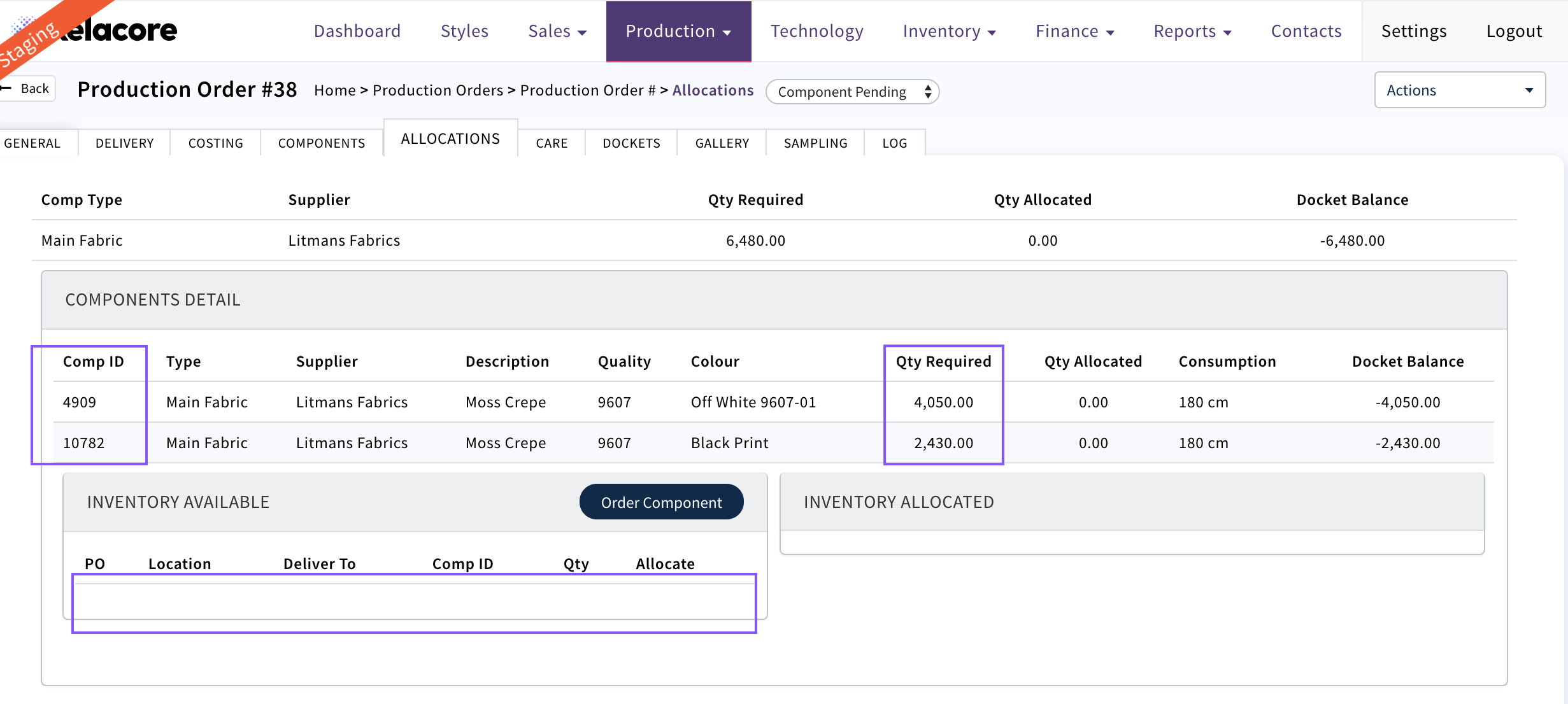
If no Inventory is available the use 'Order Component'
This will create a Component Purchase Order for the amount required taking into account any available inventory that may have been allocated.
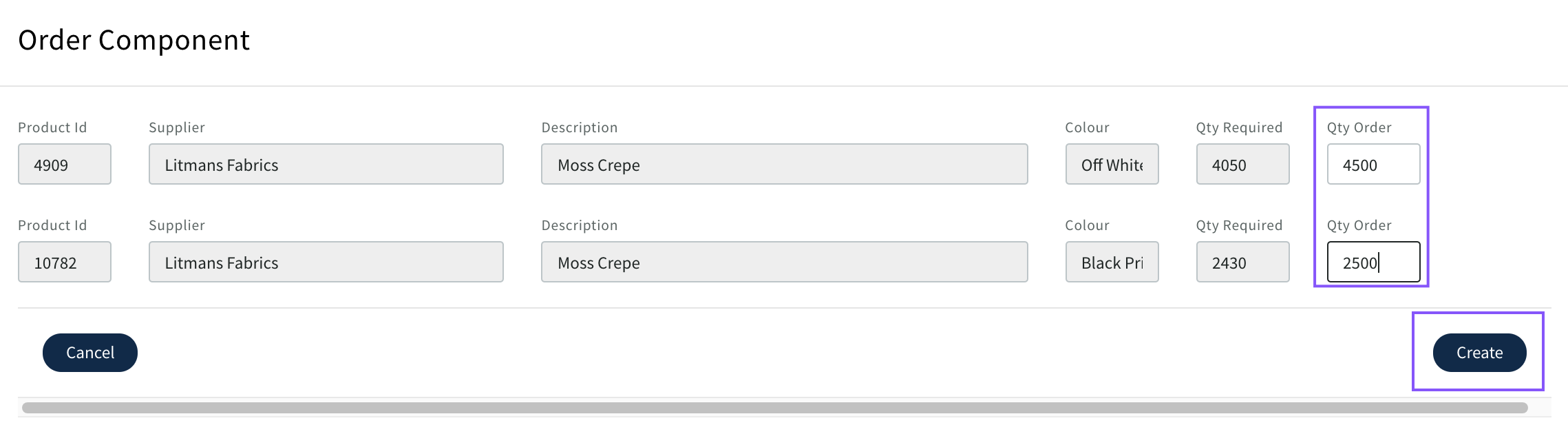
Quantities can be edited if required then 'Create'
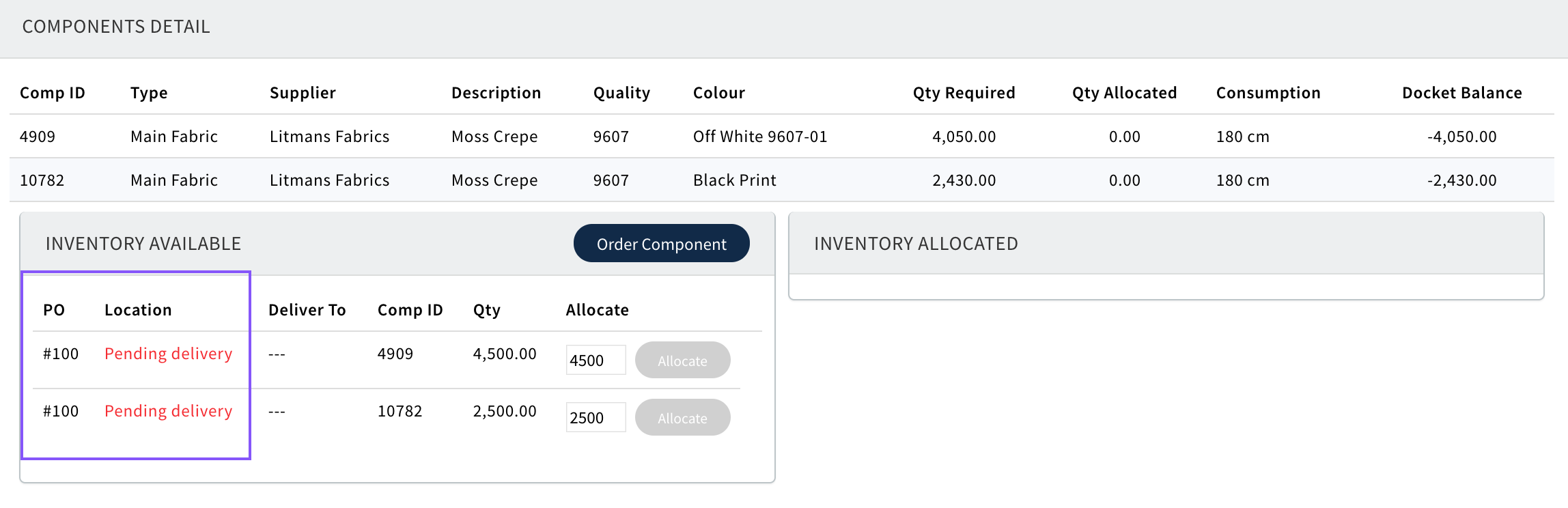
It will then display in Inventory Available 'Pending delivery' in Location
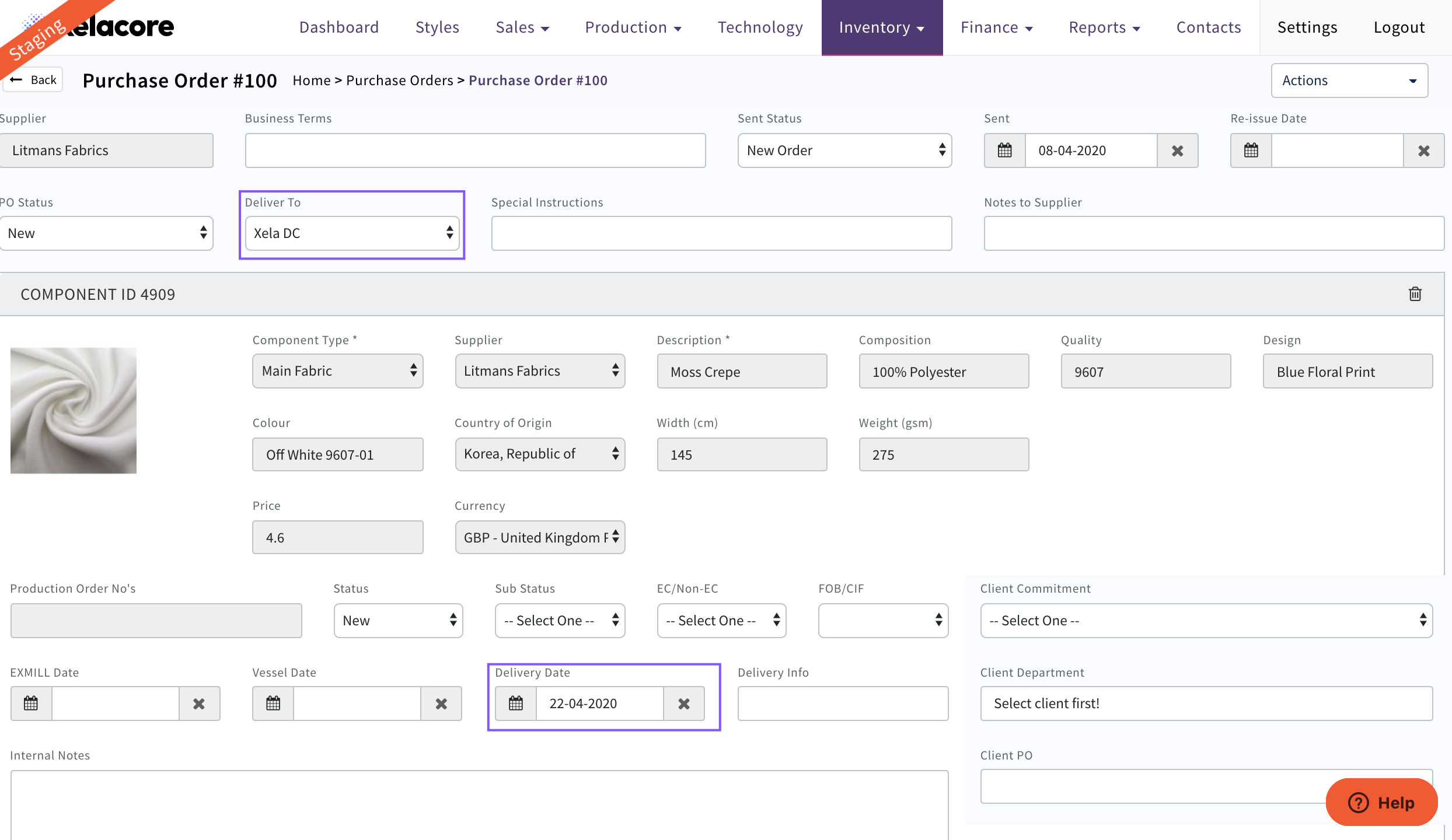
Click on the PO number. The Component Purchase Order will open. Add Delivery location and all other details required.
Once completed the PO can be sent to the Supplier.
Use the <Back button to return to the Production Order
The components will now display as available to 'Allocate'
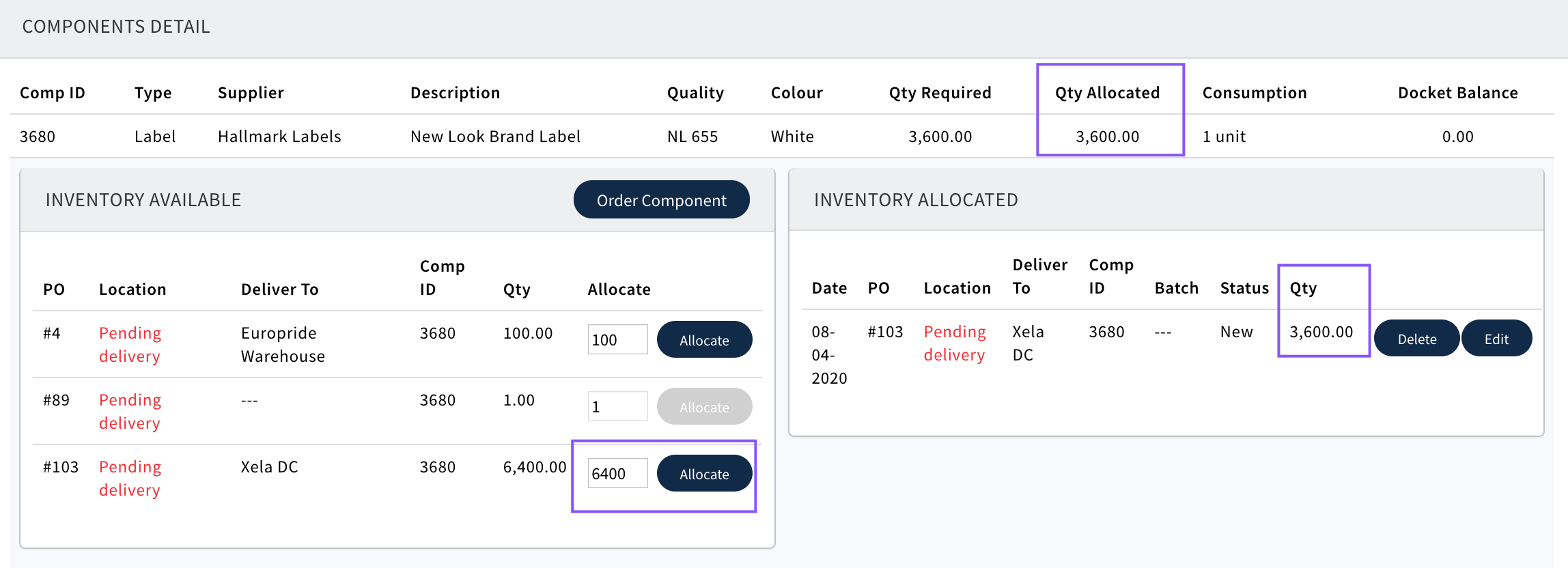
After Allocation they will display as allocated and the balance that will be available to use for additional garments
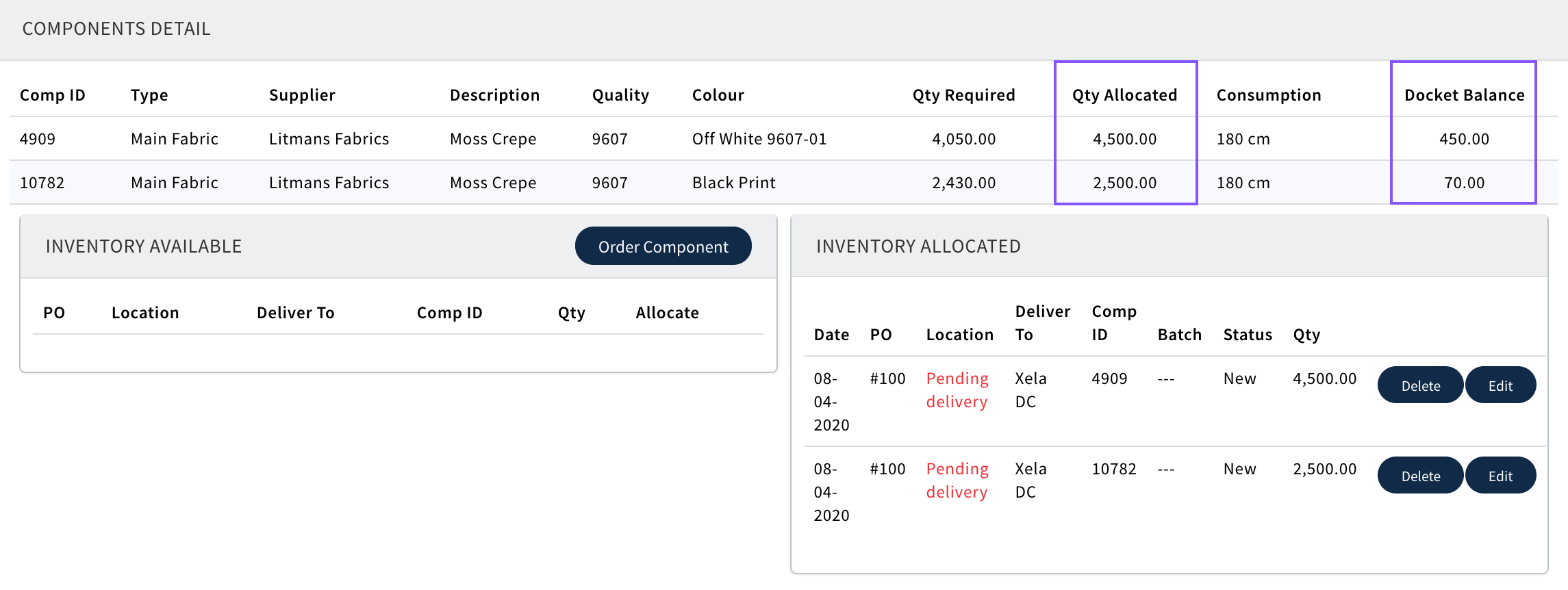
Continue for all components
For Graded Components they will display by size to be added to one PO for the Supplier as required
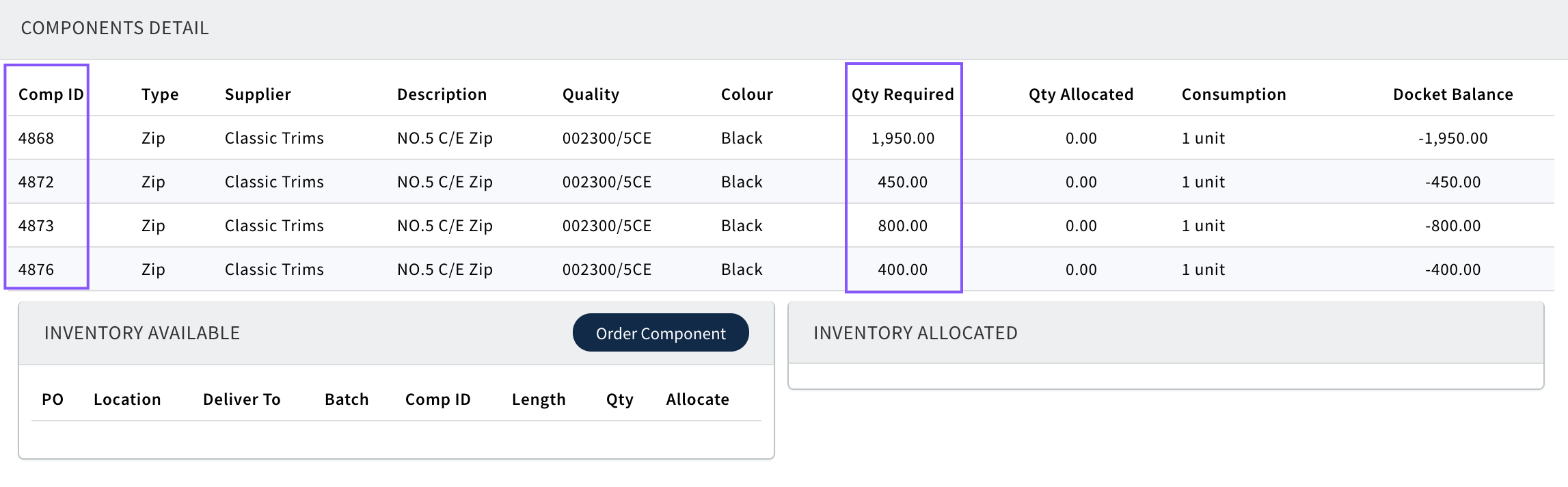
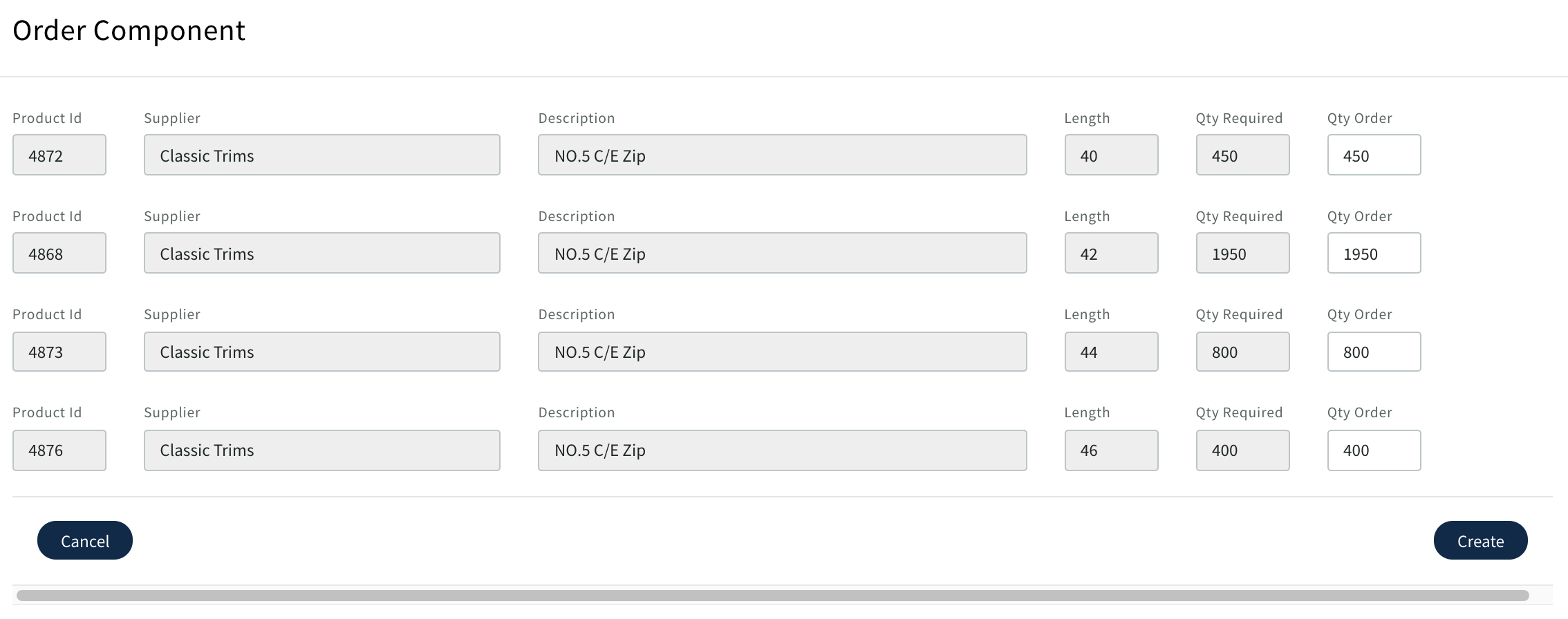
Use the same steps as above to complete the PO to be available for Allocation (minimum Delivery location)
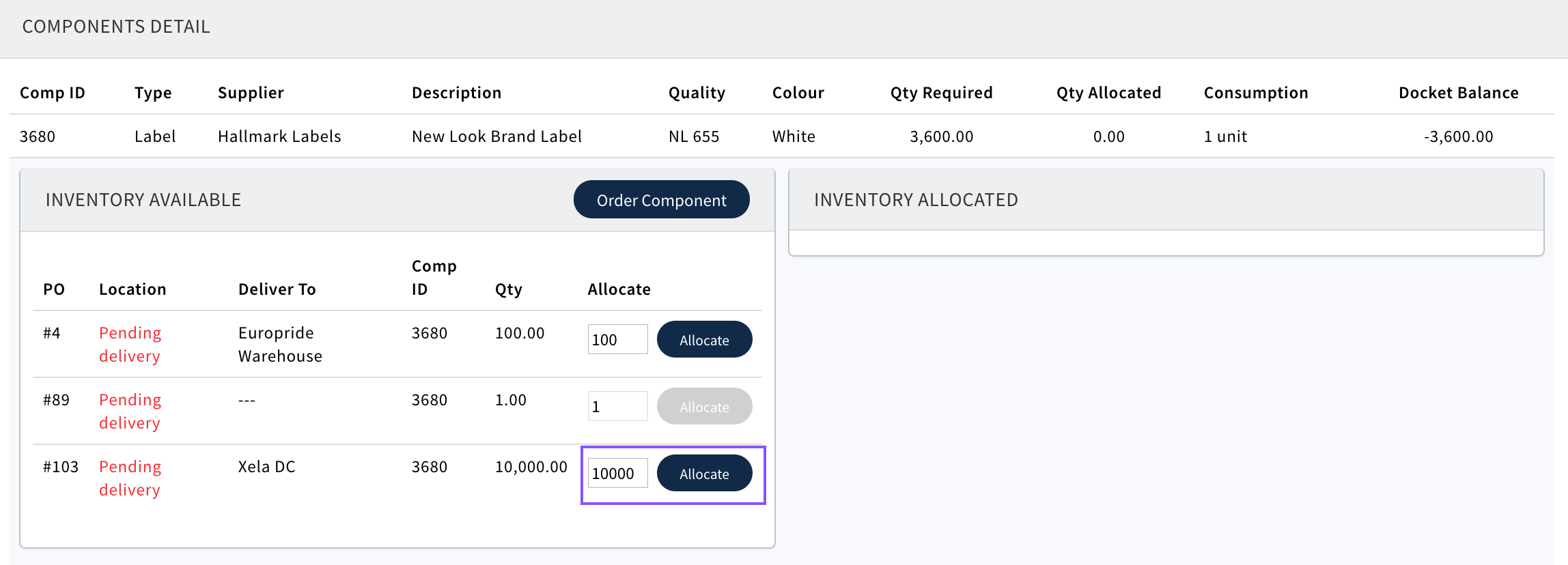
On common components that are used across multiple garments you may want to bulk order e.g. labels, packaging, hangers etc.
You can still do this in the Allocations page and then only allocate the amount required for this production order e.g. 3600
 Once allocated it will display the balance to be available for other production orders in available inventory
Once all of the components are allocated there should be no negative balance otherwise you have not ordered enough to fulfil the quantity on the production order or you are fulfilling the balance from another component ID/Supplier
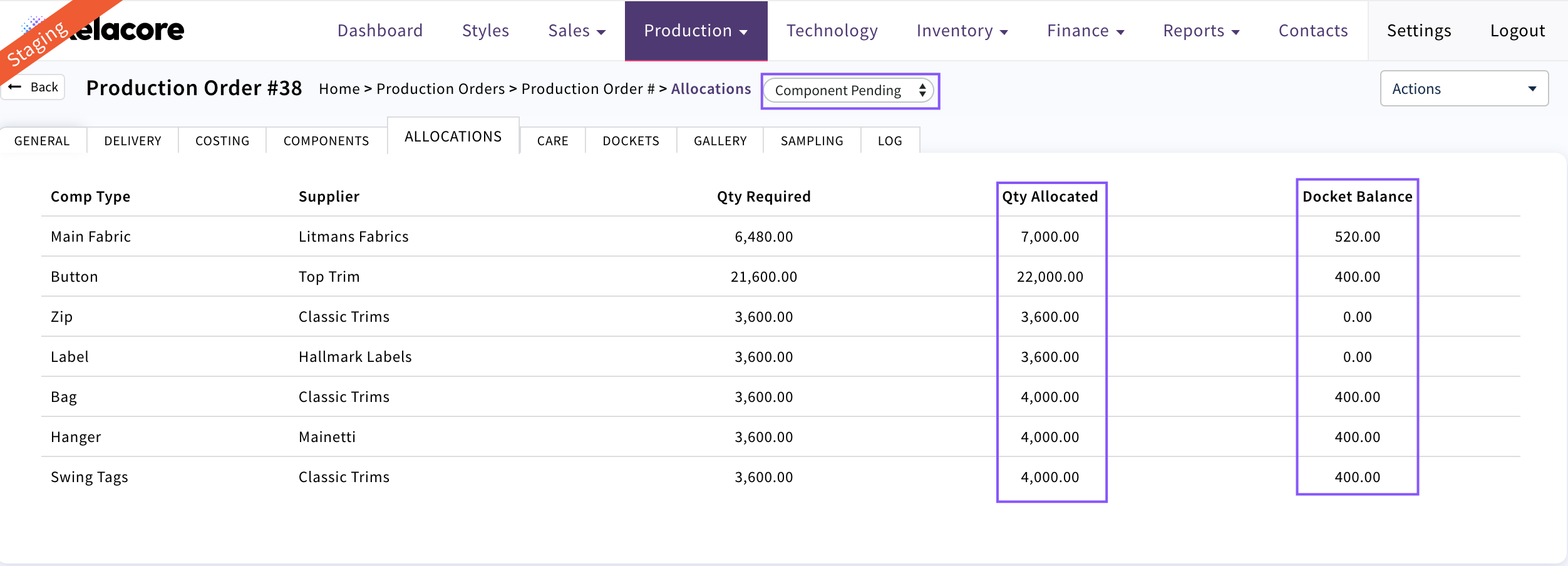
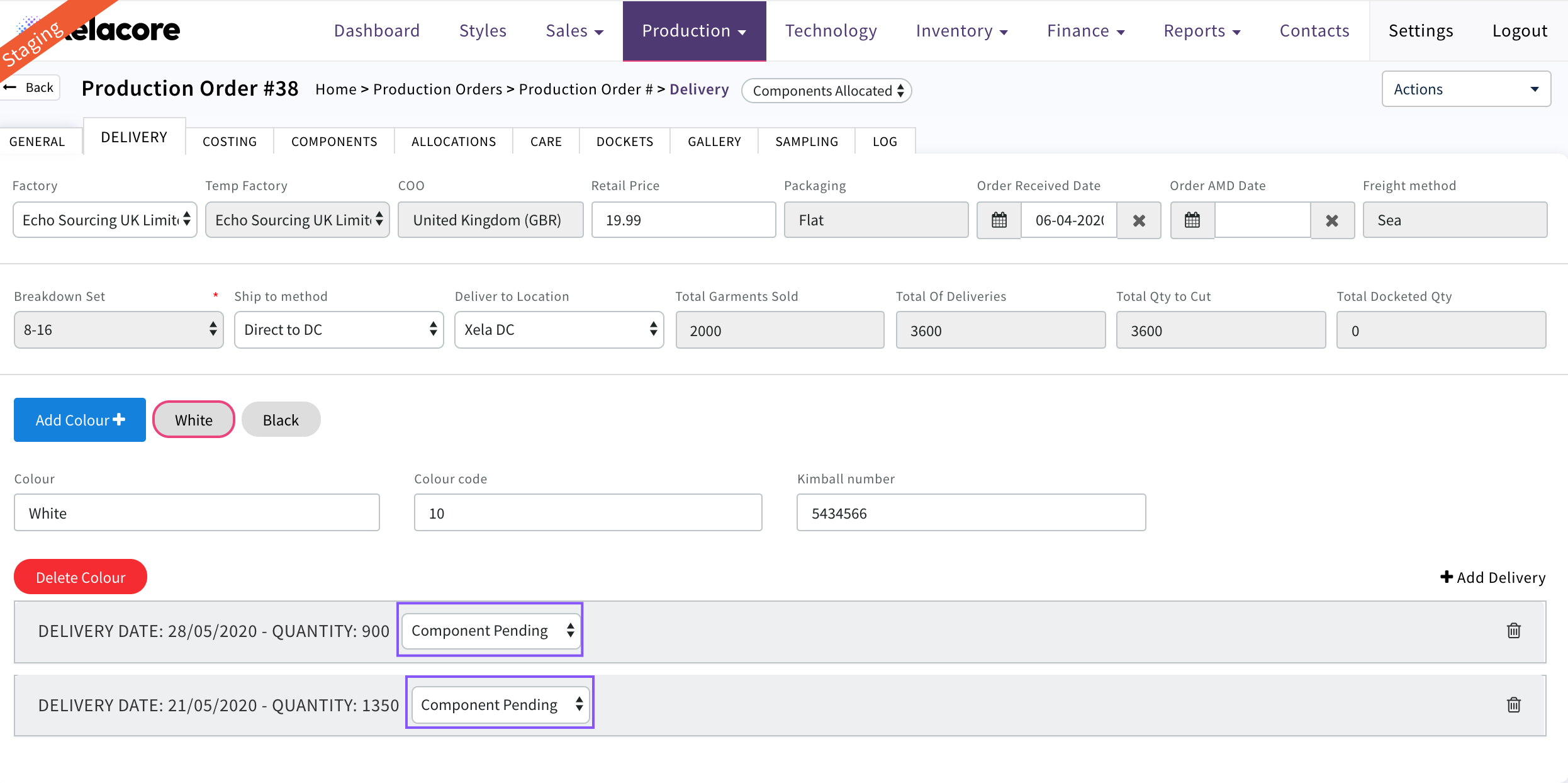
The Production Order Status can be changed to 'Components Allocated'
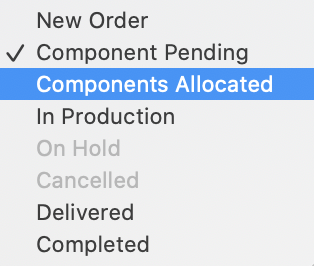
All of the Production Order deliveries status can be changed to 'Components Allocated'
0 Comments