Quick Quotes are a way of accurately costing new or existing styles quickly for customers. Against each quote you can add variants and edit freight methods, packing methods, components to offer your customer different options to consider.
To get the most benefit from Quick Quotes some information should first be filled in Settings Quick Quotes (see how too)
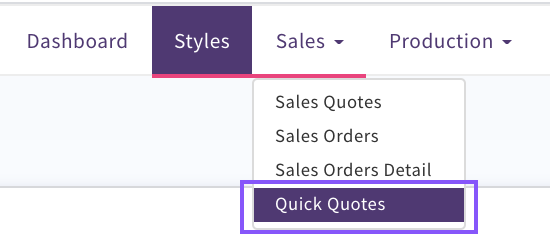
To create a Quick Quote Select
Sales Quick Quotes
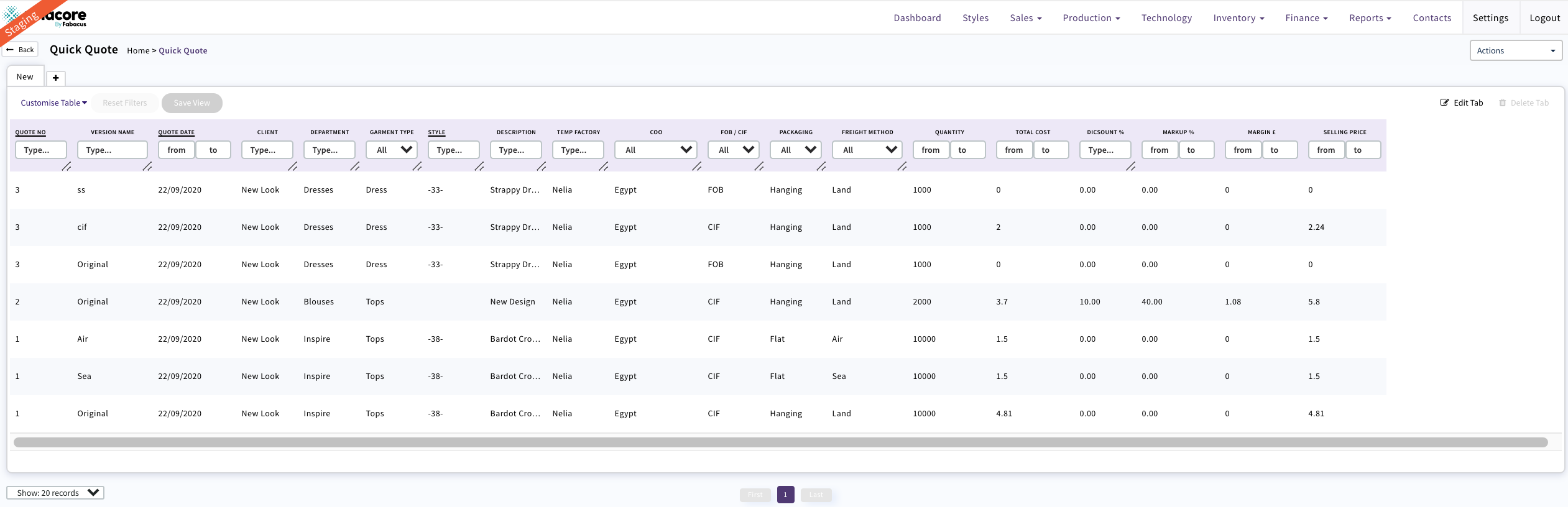
Quick Quotes List view will display
This list can be filtered as required and also downloaded to an Excel csv file.
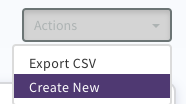
To Create a new quote
Actions 'Create New'
Quick Quote page will display with todays date. This can be edited if required

Select Client if known. Any payment discounts set up against the selected Client in Contacts/Suppliers will display and be deducted from the Selling Price to display your net price and profit margin
If the Client is new this can be typed into the Client field
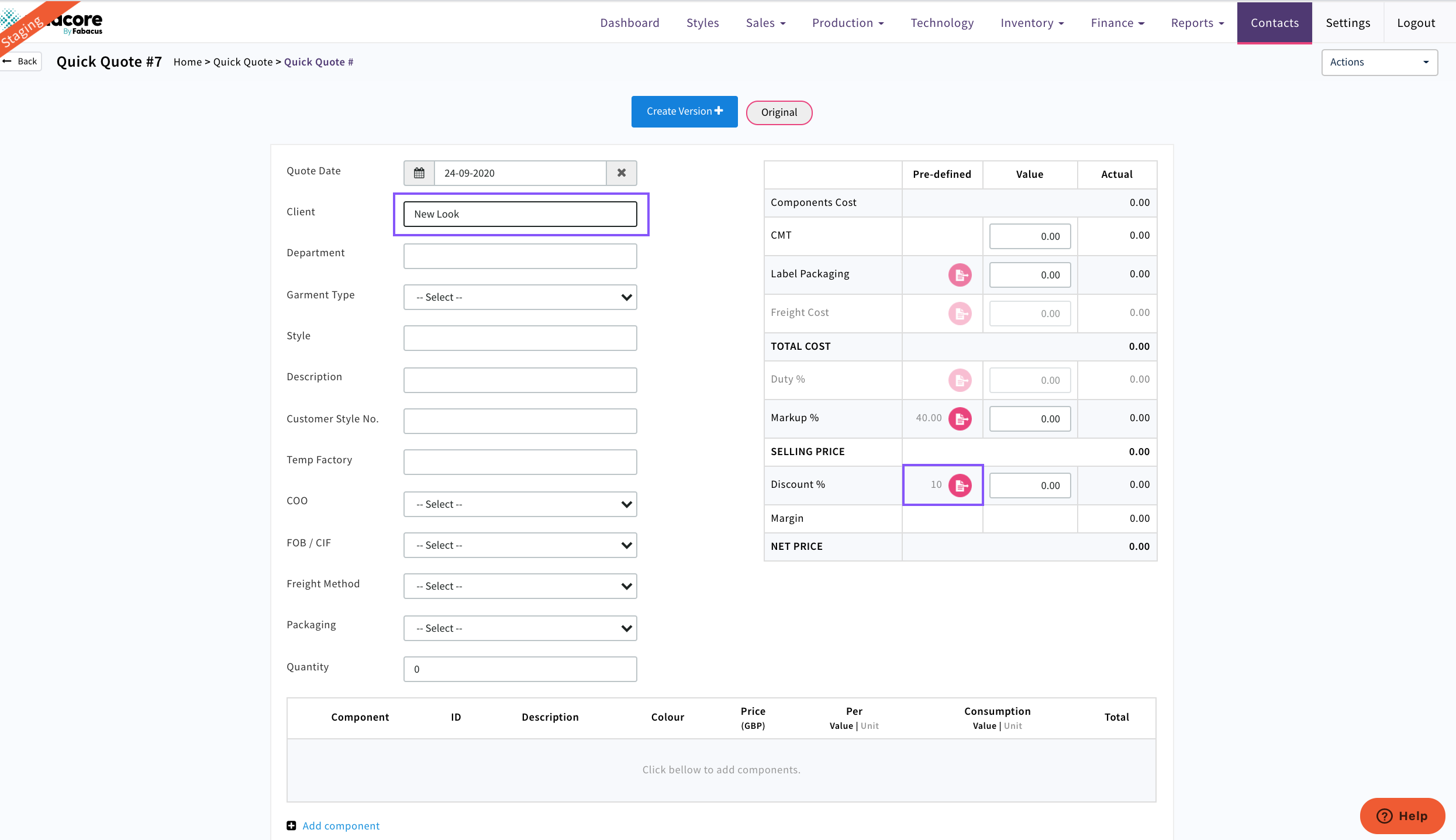
Use the apply button for this to be used in the calculation.

Once applied this % value can be edited if required or removed
Select Department that the Quick Quote is for. These are the departments set up in Contacts/Suppliers associated to the Client selected.
This field can also be filled with free form text if it is a new department not set up in contacts yet.
Garment type is required if duty calculations and freight costs need to be added
If the Style is already an existing style created in Xelacore it can be searched and added. All components and CMT that are associated to this style will be pulled through onto the quick quote.
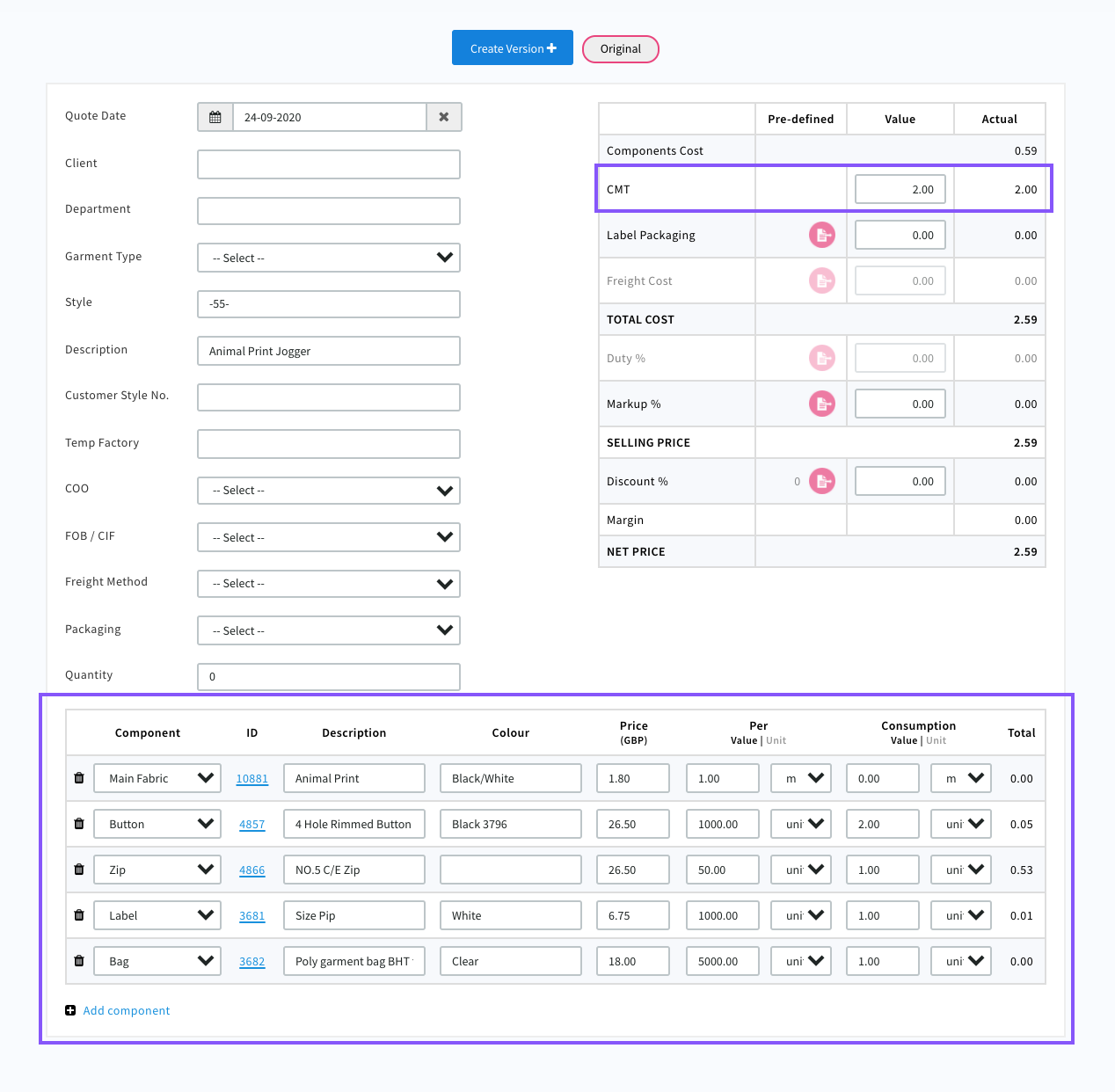
The CMT cost can be edited in the Totals table
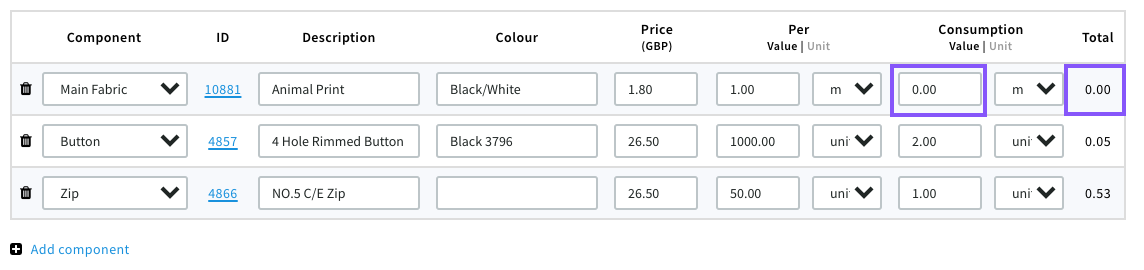
All components pulled from the style will be as on the Style costing tab so if any information is missing i.e. consumption, price etc it needs to be filled in here otherwise the cost will not display or calculate correctly
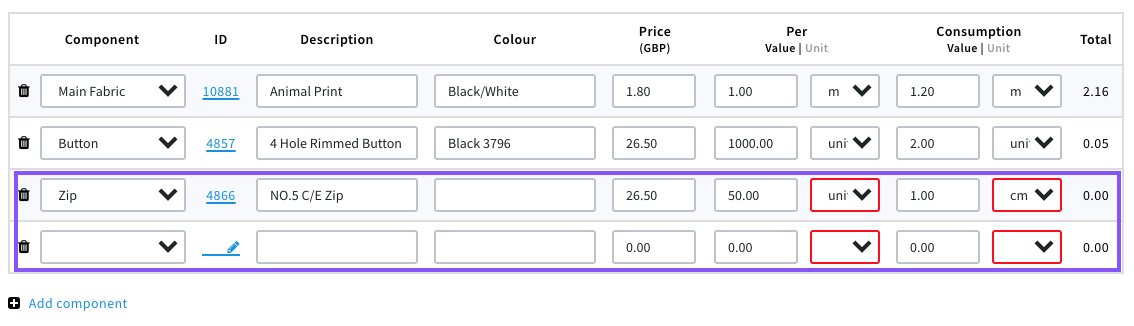
If the 'per' unit value is different to the consumption unit it will display red to highlight that these need to be the same e.g. you can not have a zip with 'units' as its value but consumption in 'cm'
Also these will display red until populated if an additional component row is added as below
The Description will copy from the style or can be entered manually if no style number is assigned
Customer Style No. can be used if your customer has a ref number for the style you are costing
Temp Factory can be selected from factories from contacts/factories or can be filled in manually if it is a new factory not yet set up
COO - Country of Origin will auto fill if the factory is already set up or can be manually filled in but will be required for duty and freight calculations
Select FOB or CIF (Landed)
Freight Method - Air, Land or Sea
Packaging Flat or Hanging
Units - Optional
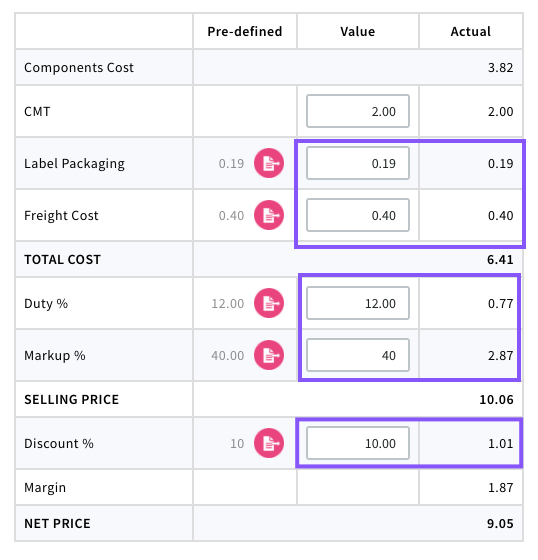
Depending on options above selected the Cost table will update from settings
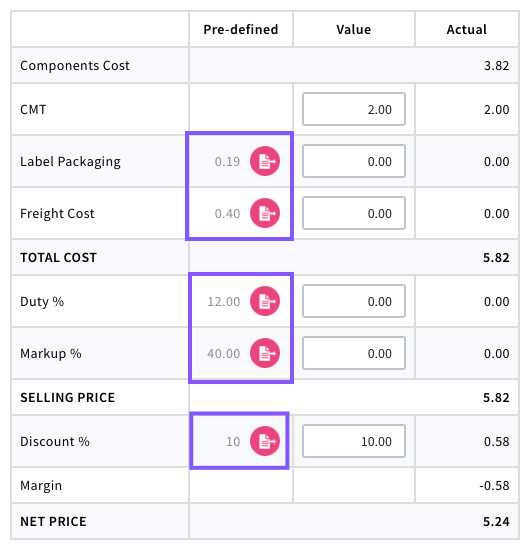
Use the apply button to add into Totals

Once applied these can be edited if required
To create another version of the same quote Select

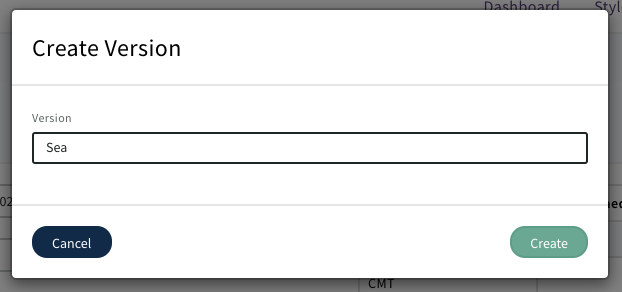
Pop up will display. Give the version a name or number
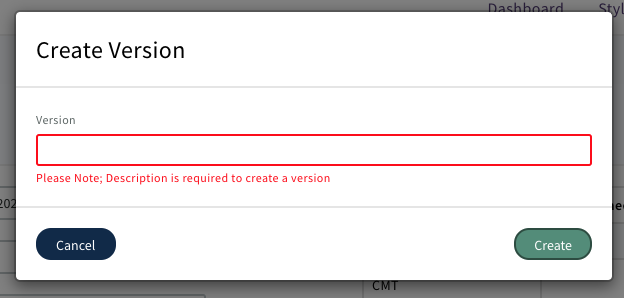
If the version name is not filled in the below will display
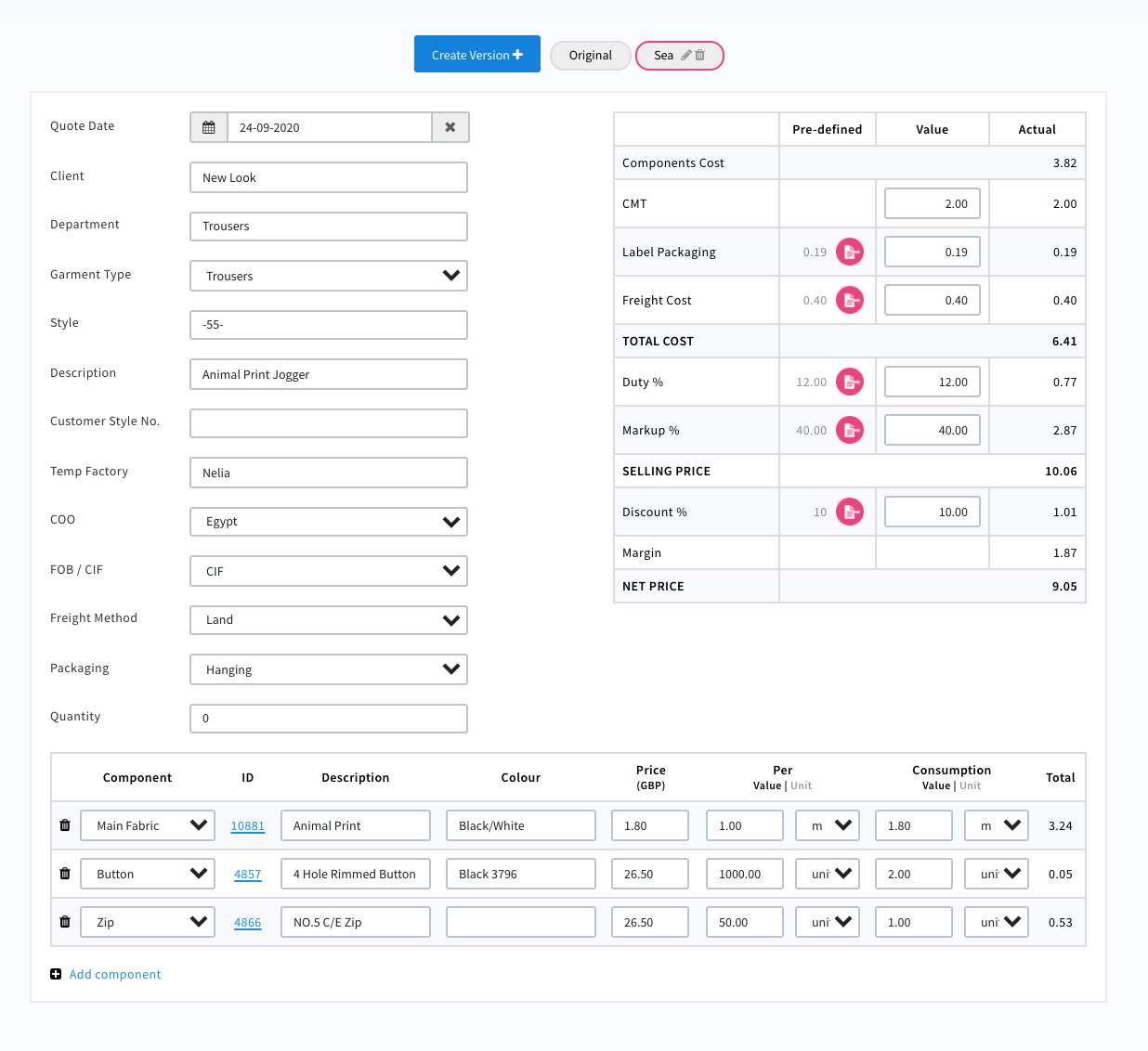
The version will copy all of the original data and any can be modified to offer an alternative for customers e.g different freight, packing, markup etc
When you create a version it will be the one open in the screen which will be the copied
0 Comments